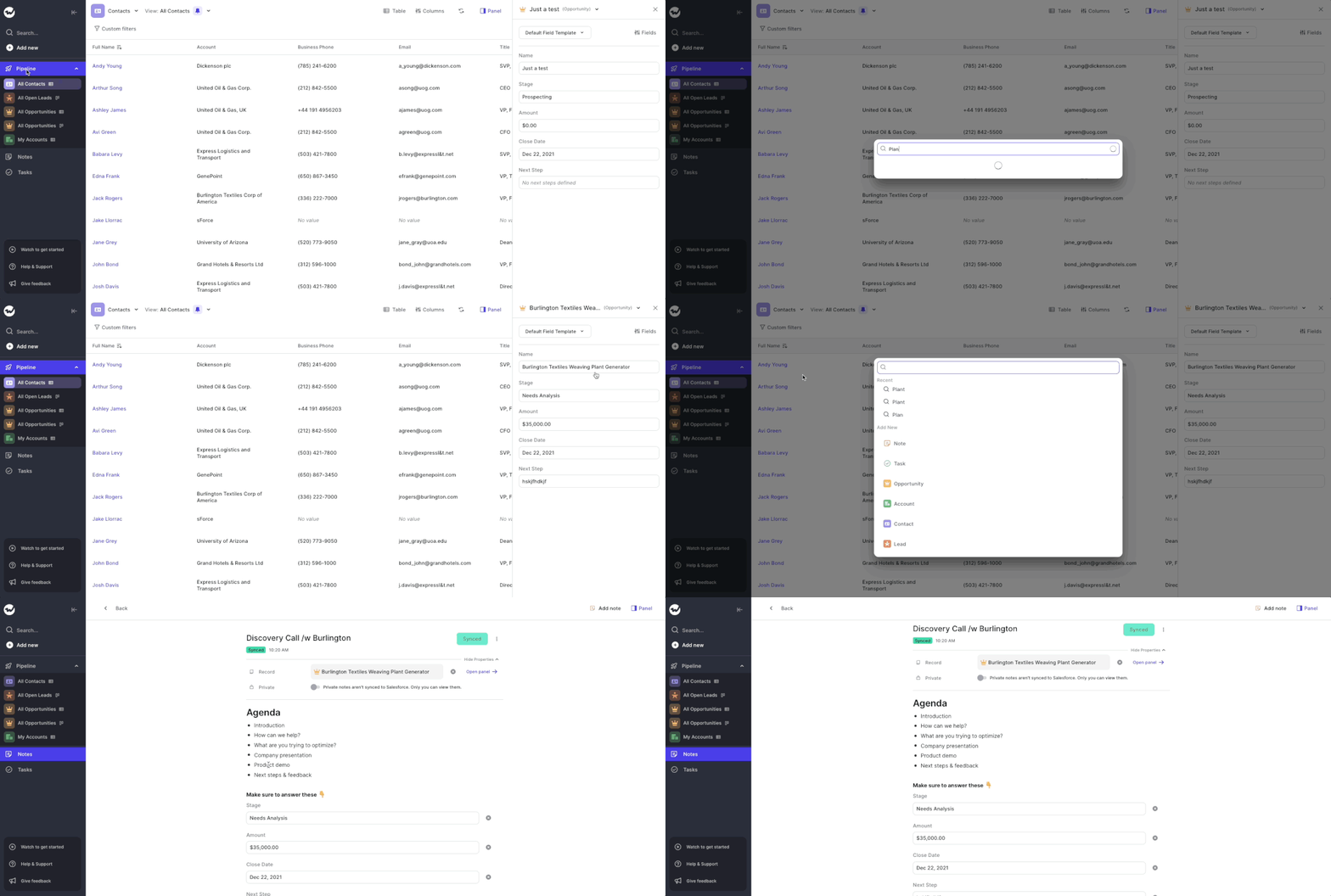
When searching Weflow, you now not only find the record you are looking for, but also related objects.
Here is an example: Let's say you are searching for the "Billburry Farm" opportunity. Weflow, will not only show you the Billburry Farm opportunity, but also e.g. the contact "John Doe" who works at Billburry Farm. In addition, you'll also see notes and tasks relating to Bilburry Farm.
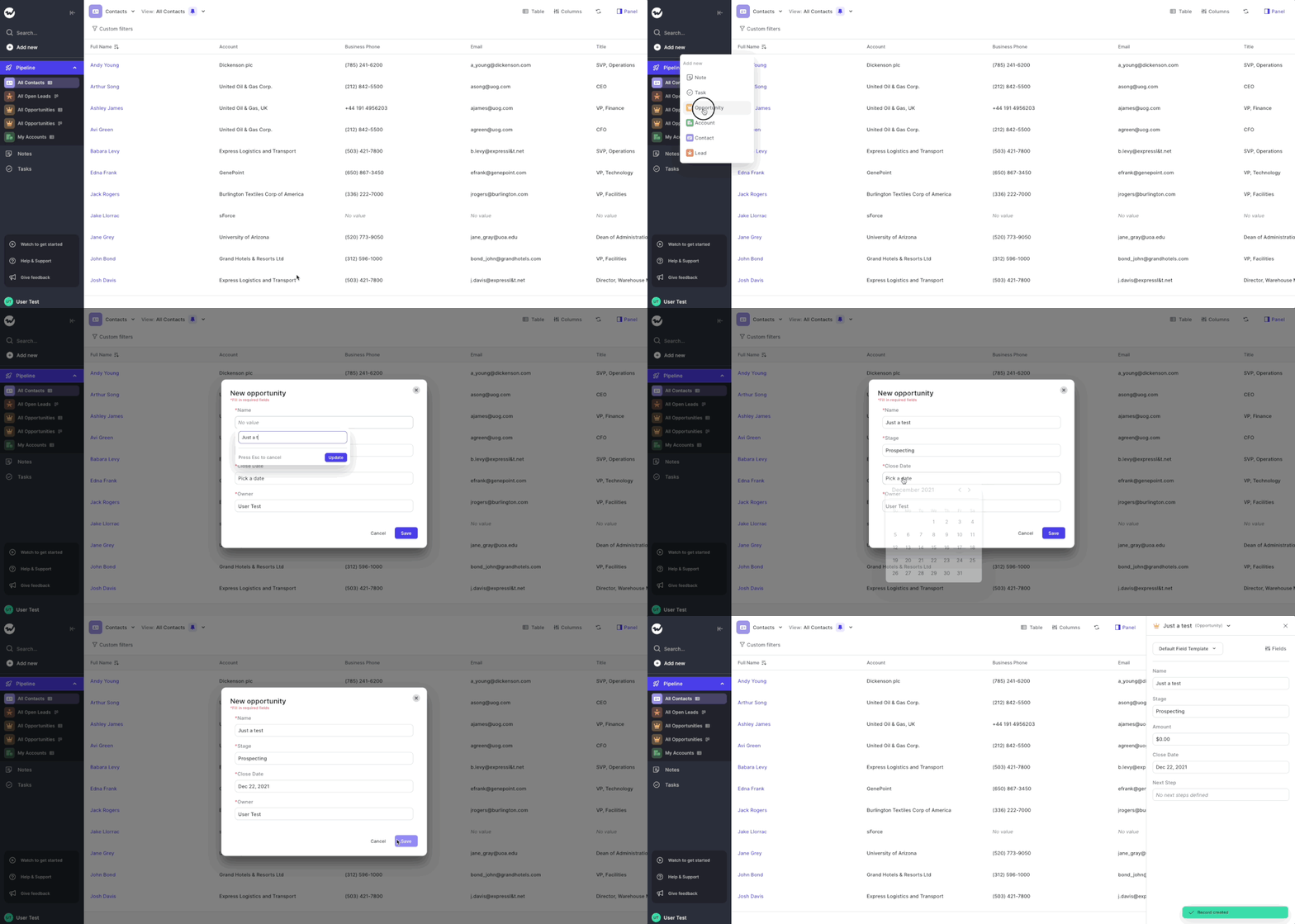
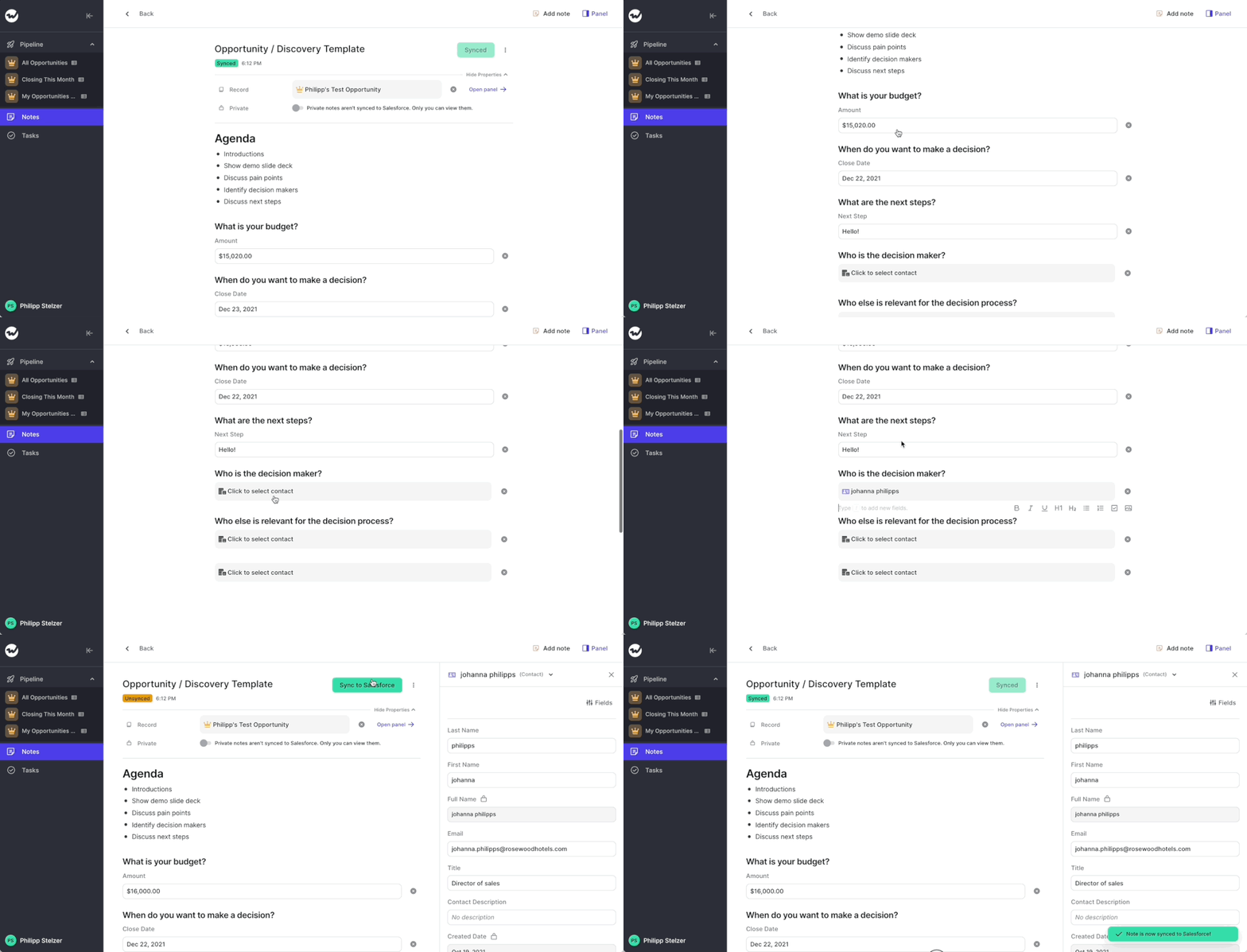
You can now add and update Salesforce fields and records directly from your notes in Weflow.
Big news today, you can now use your notepad inside Weflow to make updates to any Salesforce field.
This is especially powerful if you are looking to create templates for specific sales methodologies or simply want to combine the note-taking and the pipeline update in one unified view.
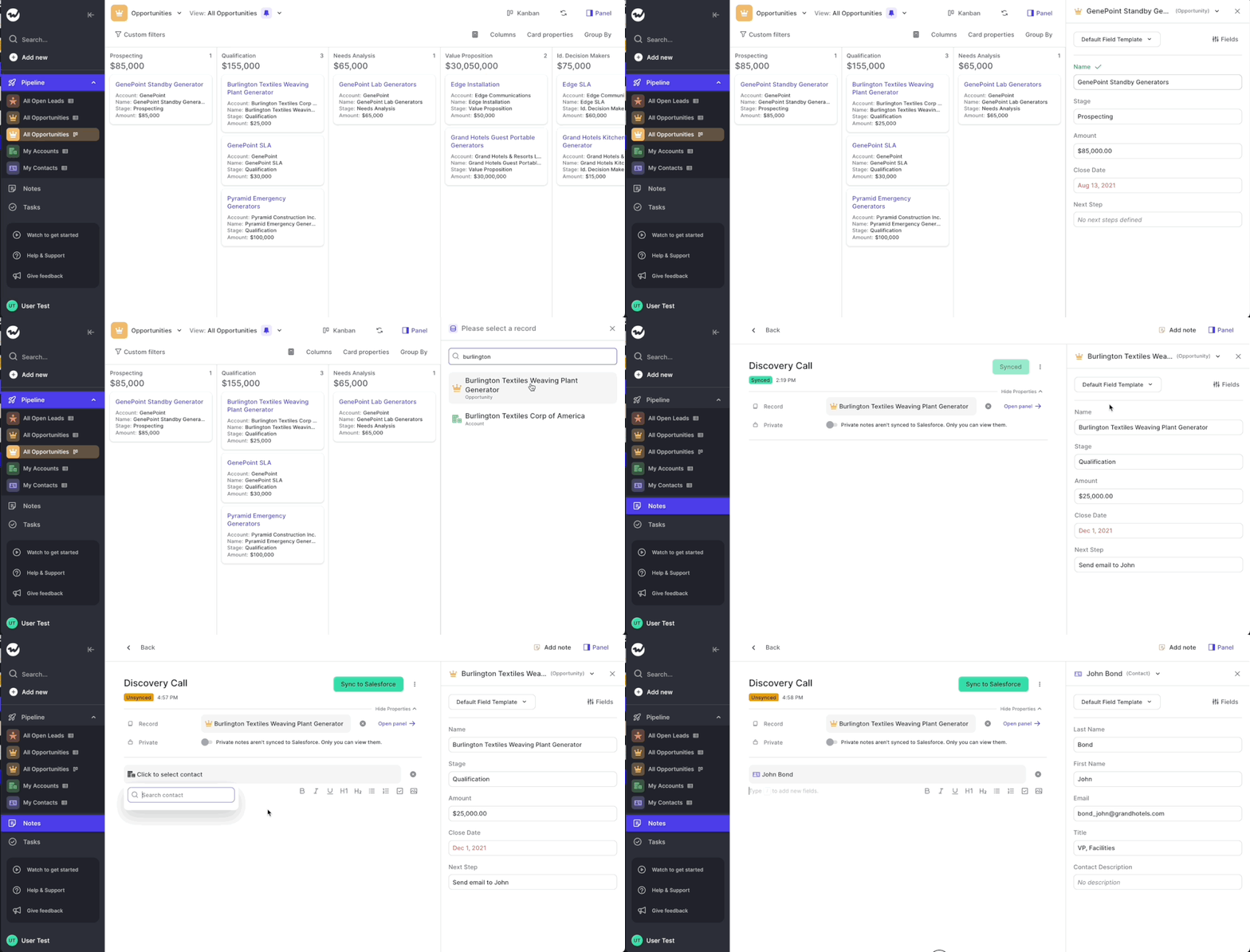
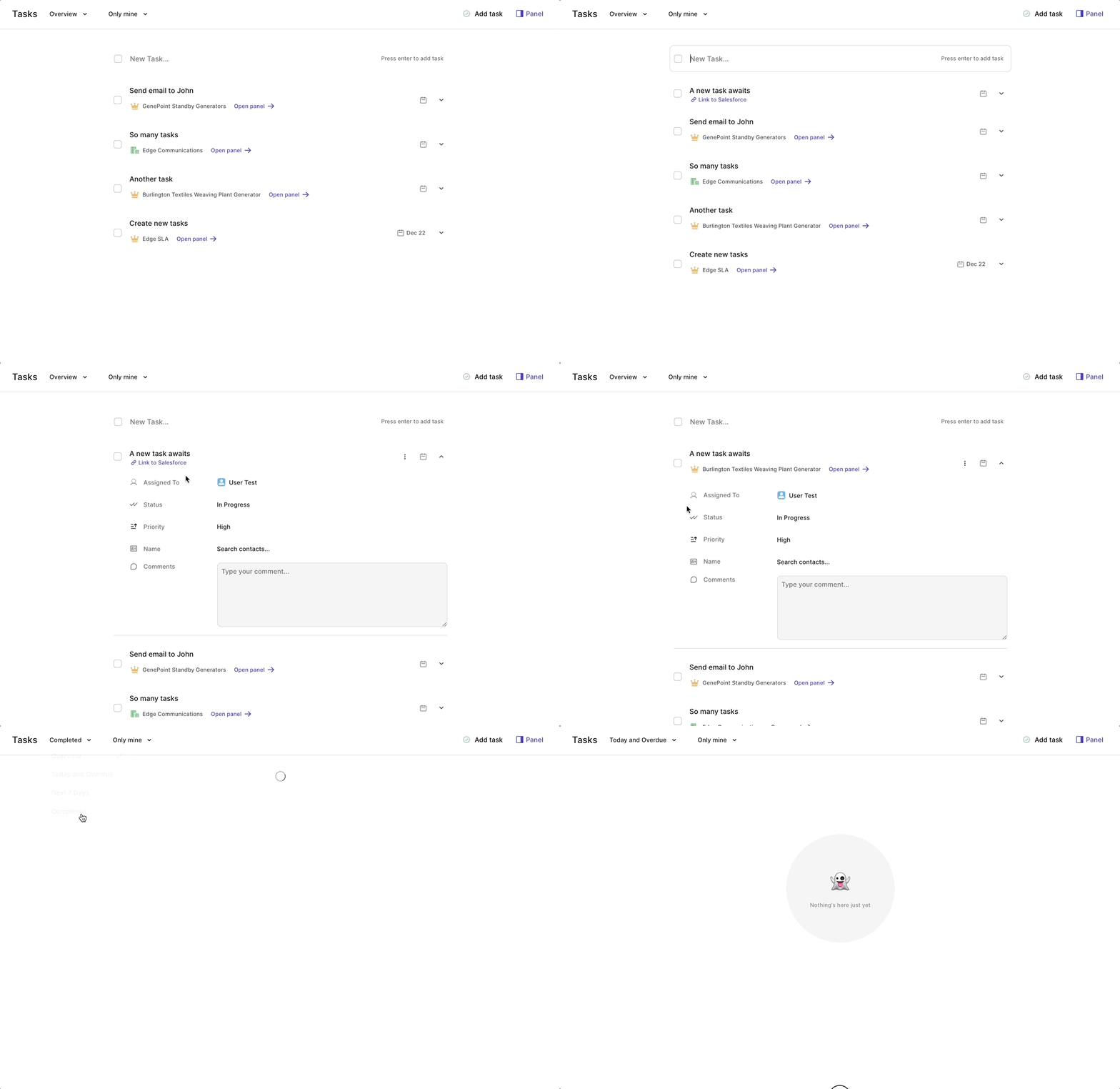
By the way: you can also link multiple different Salesforce records to your note and quickly access information about them via the panel.
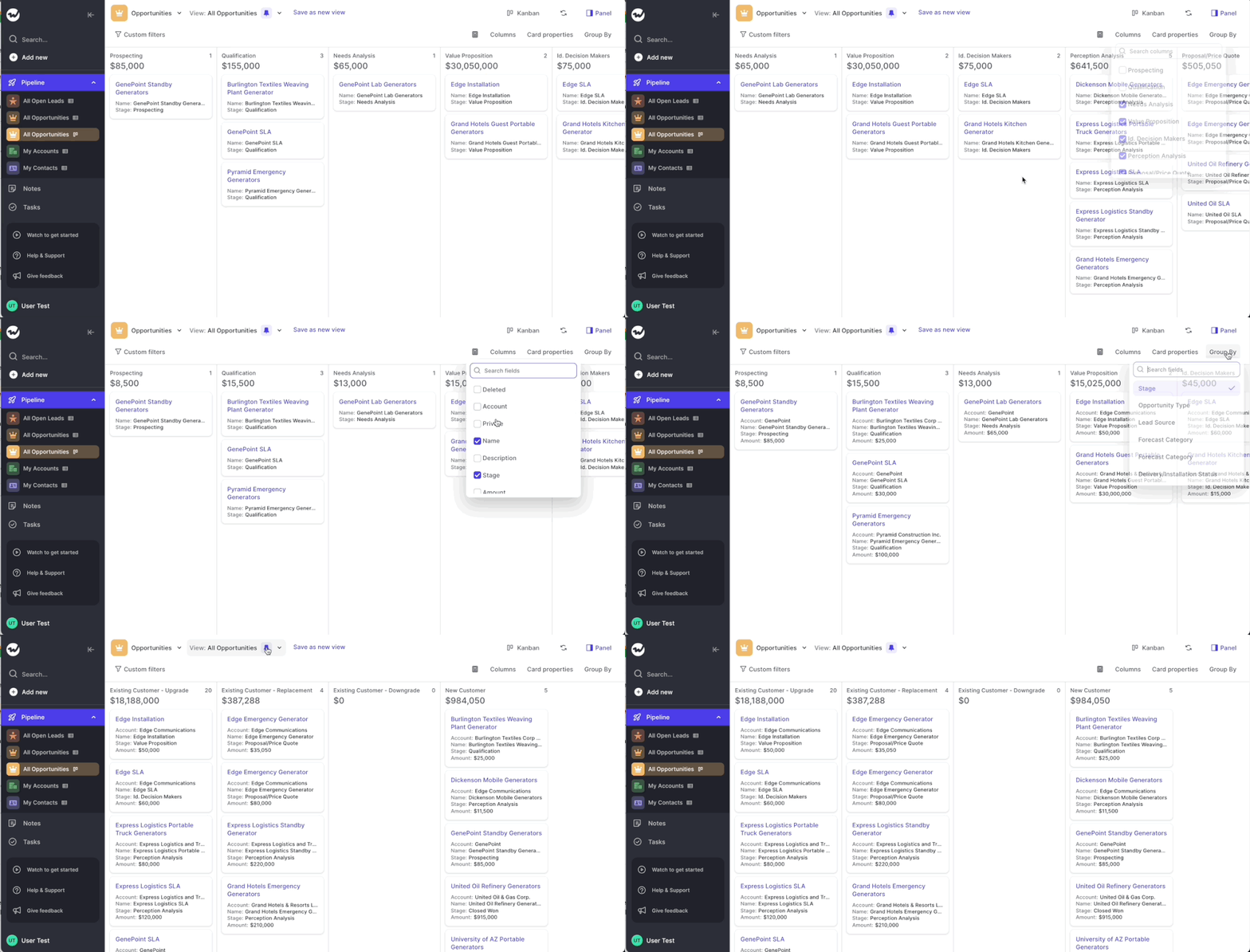
You can now access and edit information about any Salesforce record from anywhere in Weflow
We are super proud to introduce the Panel to you. You can access the panel from the top right anywhere in Weflow. There is button that says "Panel" on it.
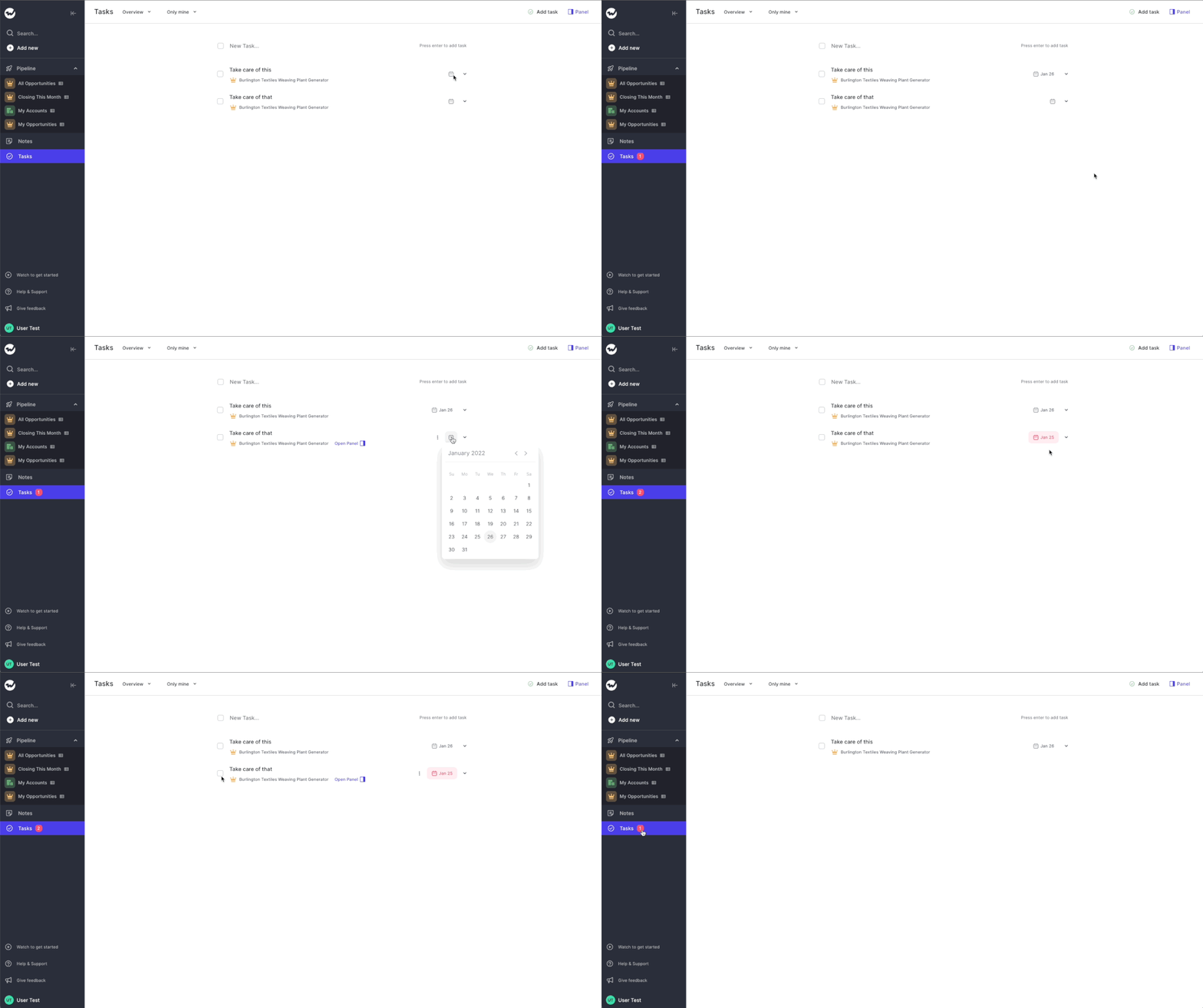
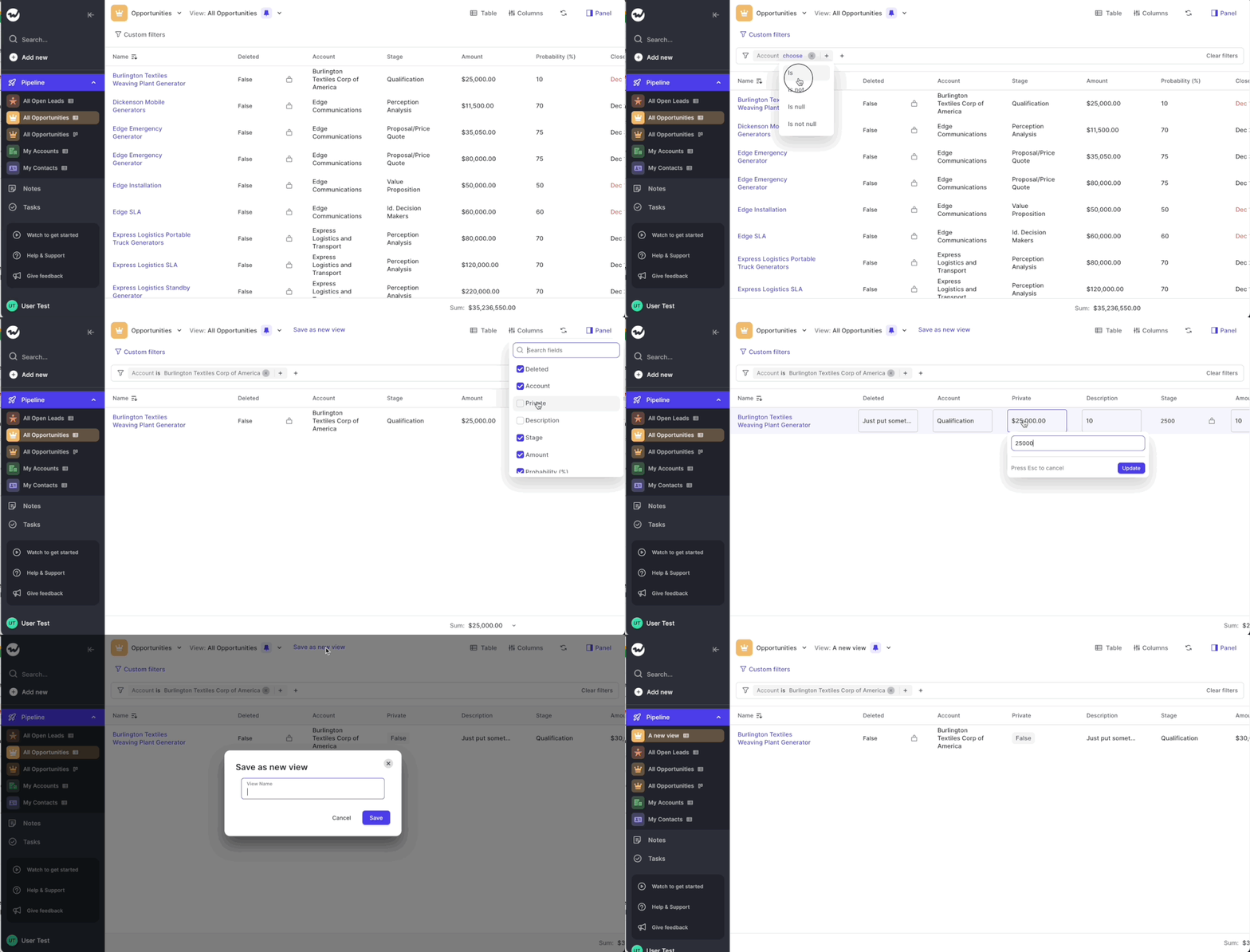
You can also open the Panel by clicking on any record name. That works with the Table view, Kanban view, any linked Note or linked Task.
As long as it is linked, the Panel can be used to access or edit the Salesforce record.
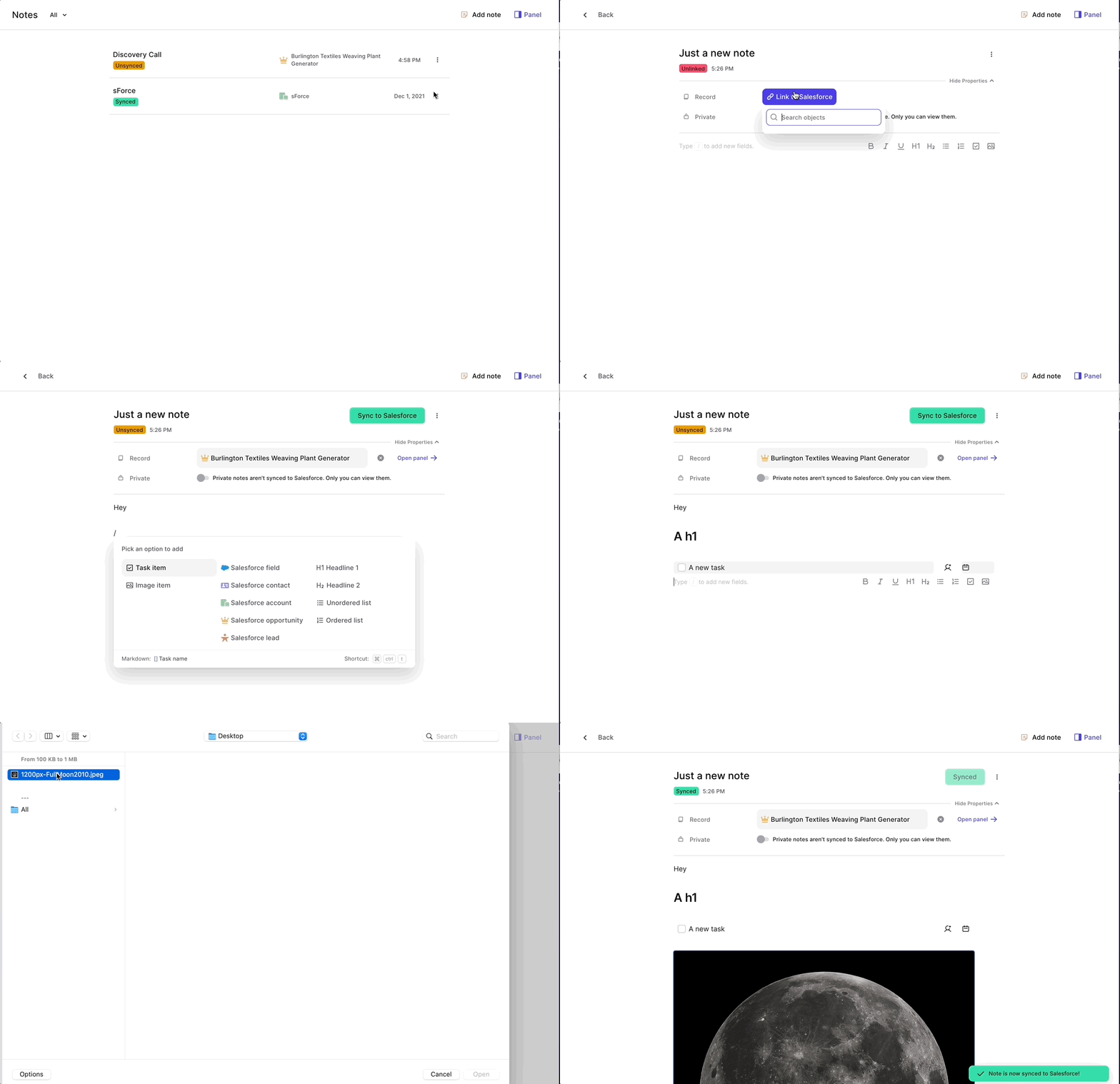
Create notes, link them to Salesforce records and sync them with just one click.
Gone are the days, where your notes get lost in the data limbo. Use Weflow's original notepad to create your custom notes. With powerful features such as:
You can link notes to any Salesforce record into your account. The note will only be synced to Salesforce if you decide so. You can also make notes "Private" or simply keep them "Unsynced". Either way, they will always be accessible via Weflow.
 weflow