Weflow changelog

67 updates shipped in 2026339 all time

Showing March 2022 and earlier · Back to latest

March 2022

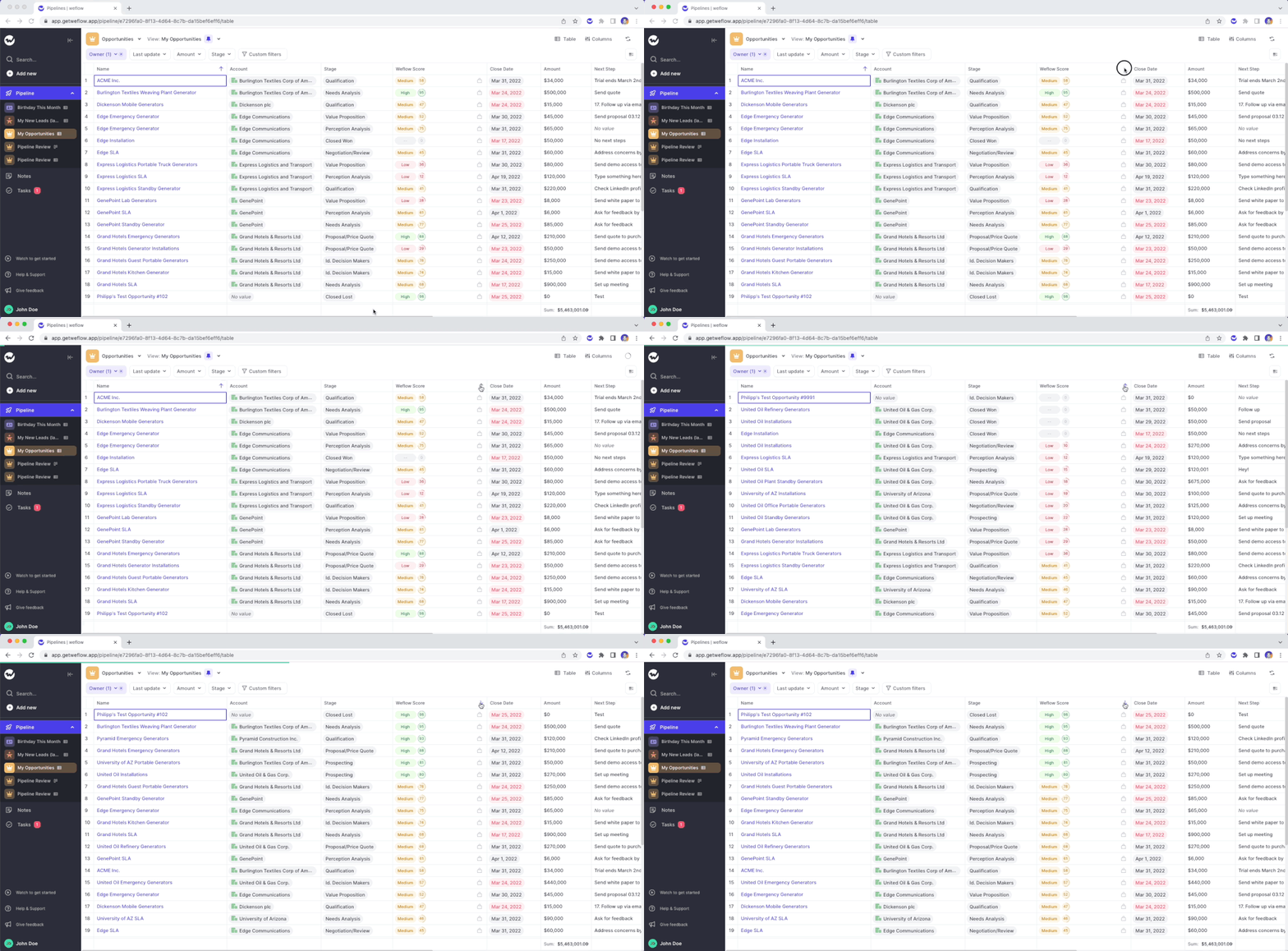
Sort by or filter the "Weflow Score"

Two weeks ago, we released our algorithm which rates your Opportunity pipeline based on the likelihood to win a deal. Now, you can filter and sort the score.

Please note: The Weflow score is currently in private beta. If you are interested in using the score, please send an email to hello@getweflow.com and we will get back to you.

  • Simply look add the "Weflow Score" to your pipeline view
  • Use a custom filter or use the sorting function
Sort by or filter the "Weflow Score"

Create Notes, Tasks and use the Panel from within Salesforce

We understand, that using Salesforce sometimes is simply necessary. That is why we extended the functionality of the Weflow Chrome Extension to make use of Weflow within Salesforce itself.

What would you like us to build next for Salesforce? Let us know at hello@getweflow.com

  • Create linked notes
  • Create linked tasks
  • Access the Weflow Panel within Salesforce for faster and more convenient updates

Create linked Notes from your Google Calendar

With the latest version of our Chrome Extension installed, you can now create new notes directly from your Google Calendar.

Step-by-step guide:

  • Install the Weflow Chrome Extension
  • Go to your Google Calendar
  • Click on any calendar event
  • Click on the "Create new note in Weflow" button
  • Link the note to a record of our choice and sync it to Salesforce

Search for your Notes

Are you a busy note-taker? You deserve to find your notes quickly!

You can already find your notes by using the Weflow search (CMD+J on macOS or ALT+J on Windows). Now, you can also find your notes by searching in the note list itself.

Still having trouble finding your notes? Let us know! We would love to hear from you.

  • Search for linked records OR note titles
  • Quickly find what you need

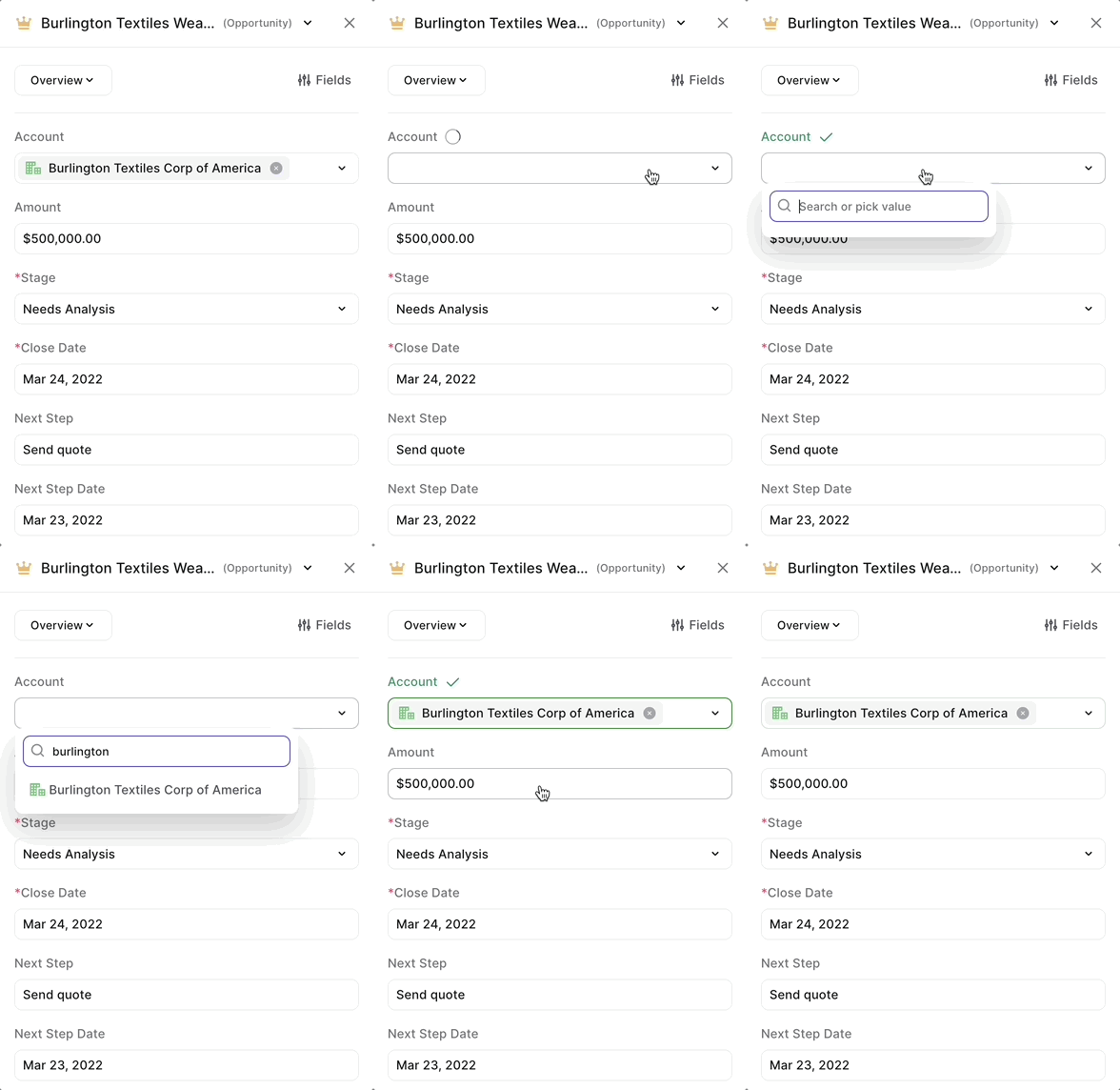
Lookup relationships and related objects

You can now see relationships and object types more clearly in the Panel, Kanban Board or Tableview.

  • Each object has it's own icon to be clearly distinguishable
  • When removing a relationship, Weflow provides you with an intuitive pick list to choose another record OR to create a new one
Lookup relationships and related objects

Rating your Opportunities (Beta)

Weflow now gives you feedback on how likely it is whether an Opportunity is set to Closed/Won successfully in the future.

This feature is currently in beta mode only. If you would like access, please reach out to philipp.stelzer@getweflow.com

Rating your Opportunities (Beta)

Chrome Extension

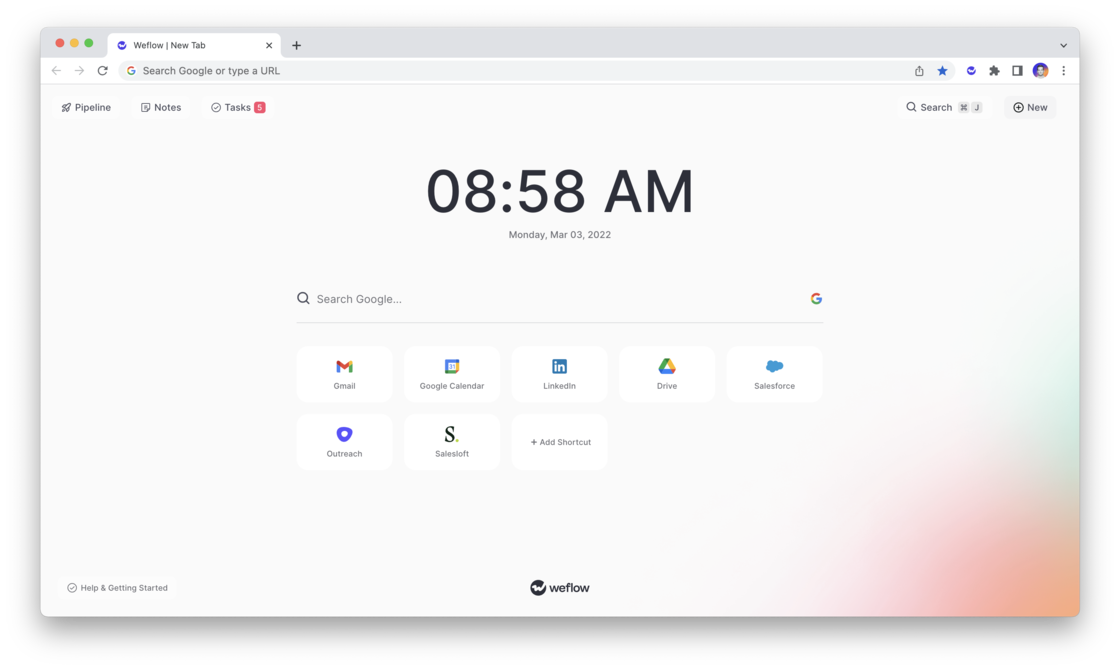
You can now download and use Weflow's very own Chrome Extension in the official Google Chrome Extension Store here.

What can you do with it?

How does it work?

We will continue to invest heavily into the Chrome Extension. If you have feedback or ideas, let us know at hello@getweflow.com

  • Weflow’s free Chrome Extension, replaces your default new tab in Chrome with a powerful, yet elegant and subtle command center for Salesforce.
  • Update your pipeline, create notes, manage tasks and add new records within seconds - all synced with Salesforce.
  • Use the Chrome Extension on LinkedIn, Google Calendar, Gmail, Office 365 or Salesforce.com itself
  • Install the Chrome extension and sign in with your Salesforce account
  • Open a new tab to use Weflow’s Salesforce command center or use our shortcut (MacOS: CMD + K | Windows: ALT + J) to launch global search from LinkedIn, Salesforce, Google Workspace, Outreach or Salesloft
  • View your pipeline, create notes, manage tasks and add new records within seconds
  • All changes are automatically synced with Salesforce
Chrome Extension

February 2022

Search: See related objects

When searching Weflow, you now not only find the record you are looking for, but also related objects.

Here is an example: Let's say you are searching for the "Billburry Farm" opportunity. Weflow, will not only show you the Billburry Farm opportunity, but also e.g. the contact "John Doe" who works at Billburry Farm. In addition, you'll also see notes and tasks relating to Bilburry Farm.

Note Templates

Save time, apply best practices and share them with others whenever you are writing a note.

Let us know if you have additional questions or feedback around note templates. We'd love to hear your honest opinion.

  • You can now create your own note templates
  • Use templates to create structured sales call notes
  • You can share your templates with others on the same account
  • Got a favorite? Pin it to the top and quickly re-use it whenever you want

January 2022

Comfortable and Compact mode

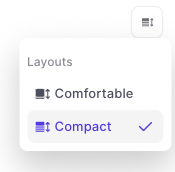
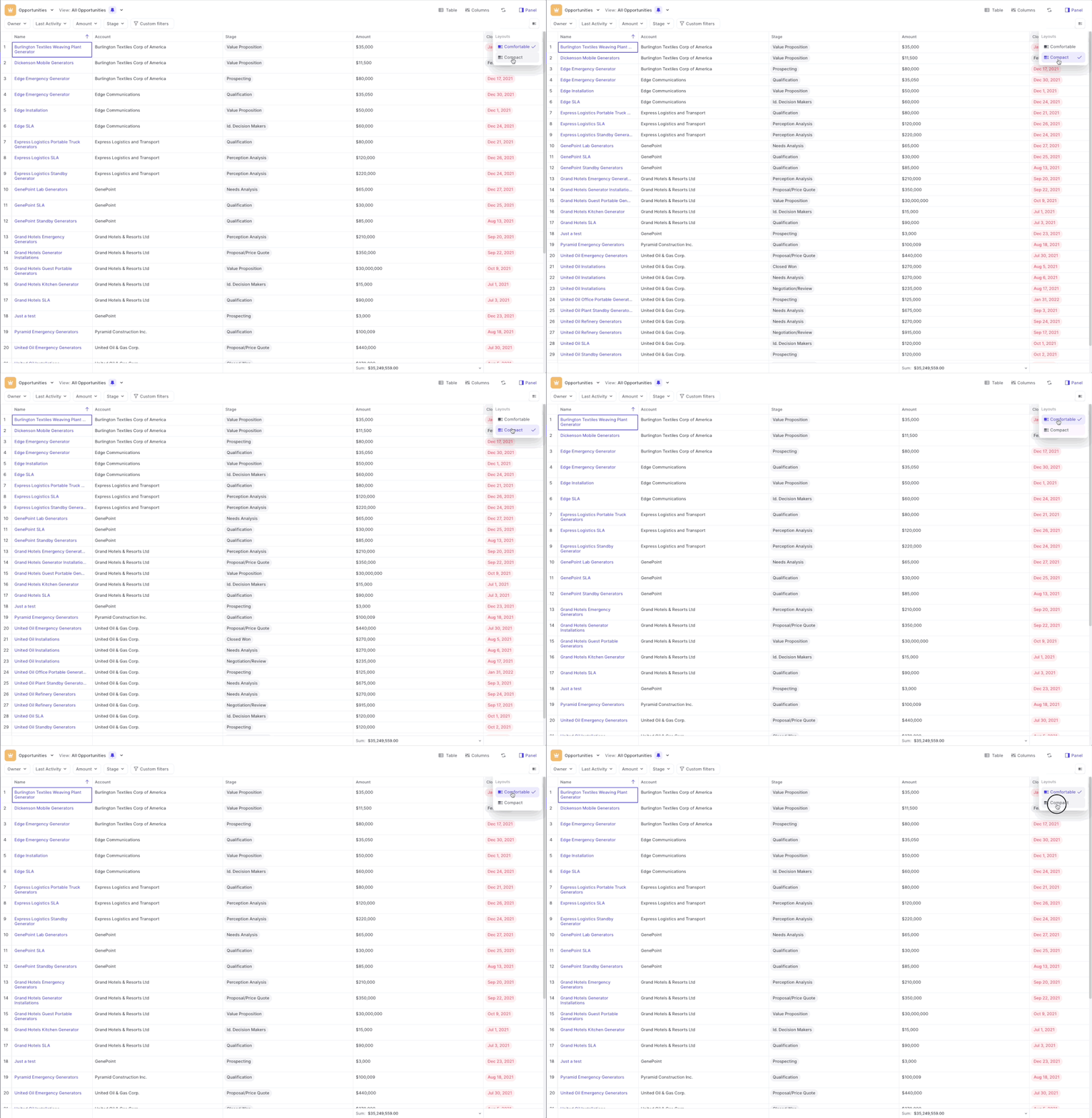
Switch quickly between a comfortable or more compact cell height in the table pipeline view.

  • Hit the button in the top right corner, to increase the height of the cells.
  • Per standard, all tables are loaded in the compact mode
Comfortable and Compact modeComfortable and Compact mode

Navigate the pipeline with arrow keys

If you find any additional aspects of Weflow, you'd like to control with the keyboard then let us know.

  • Click on any field to immediately pop out the input options
  • Use the arrow keys to navigate up, down, left or right
  • Hit enter, to open an input field
  • Hit ESC to close an input field without saving your changes

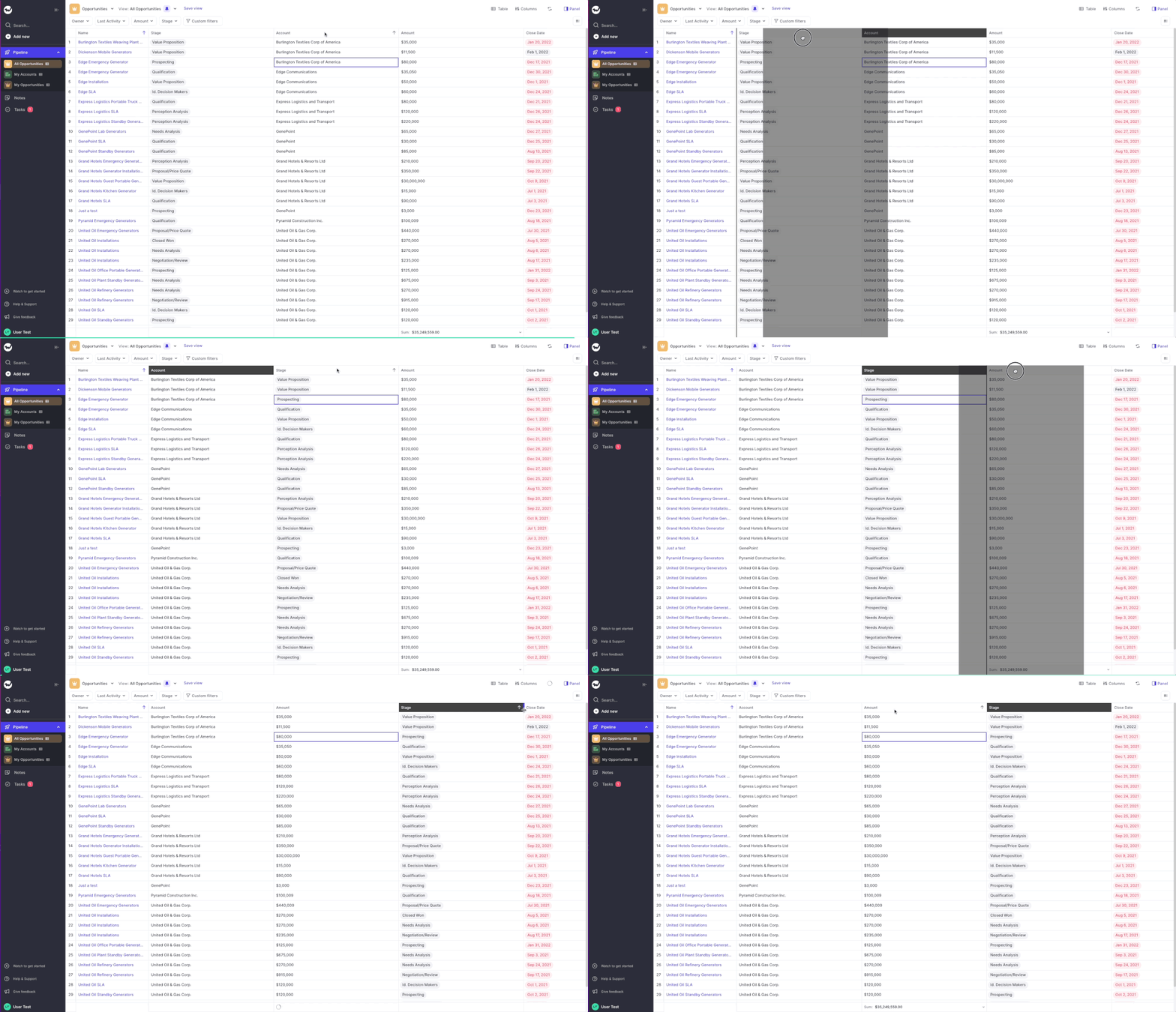
Drag & drop columns to re-order quickly

Drag columns wherever you want to change the sorting.

It's the fastest and easiest way, to adjust the look and sorting of your pipeline when in the table view.

Drag & drop columns to re-order quickly

Field Templates in the Panel

Create your own templates or share them with others on the same account

  • With field templates you can create custom field sets that fit your specific needs
  • You can also choose to share your templates with other users who are on the same account
  • When you share a template, only you can edit it
  • However, you can always duplicate a shared template and make it your own

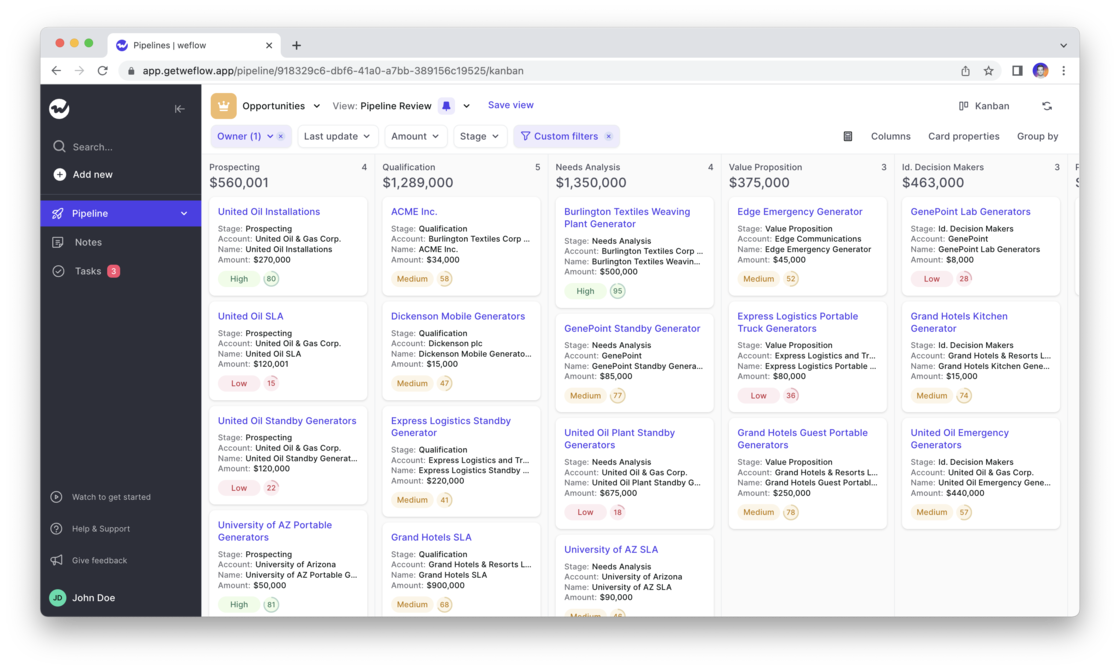
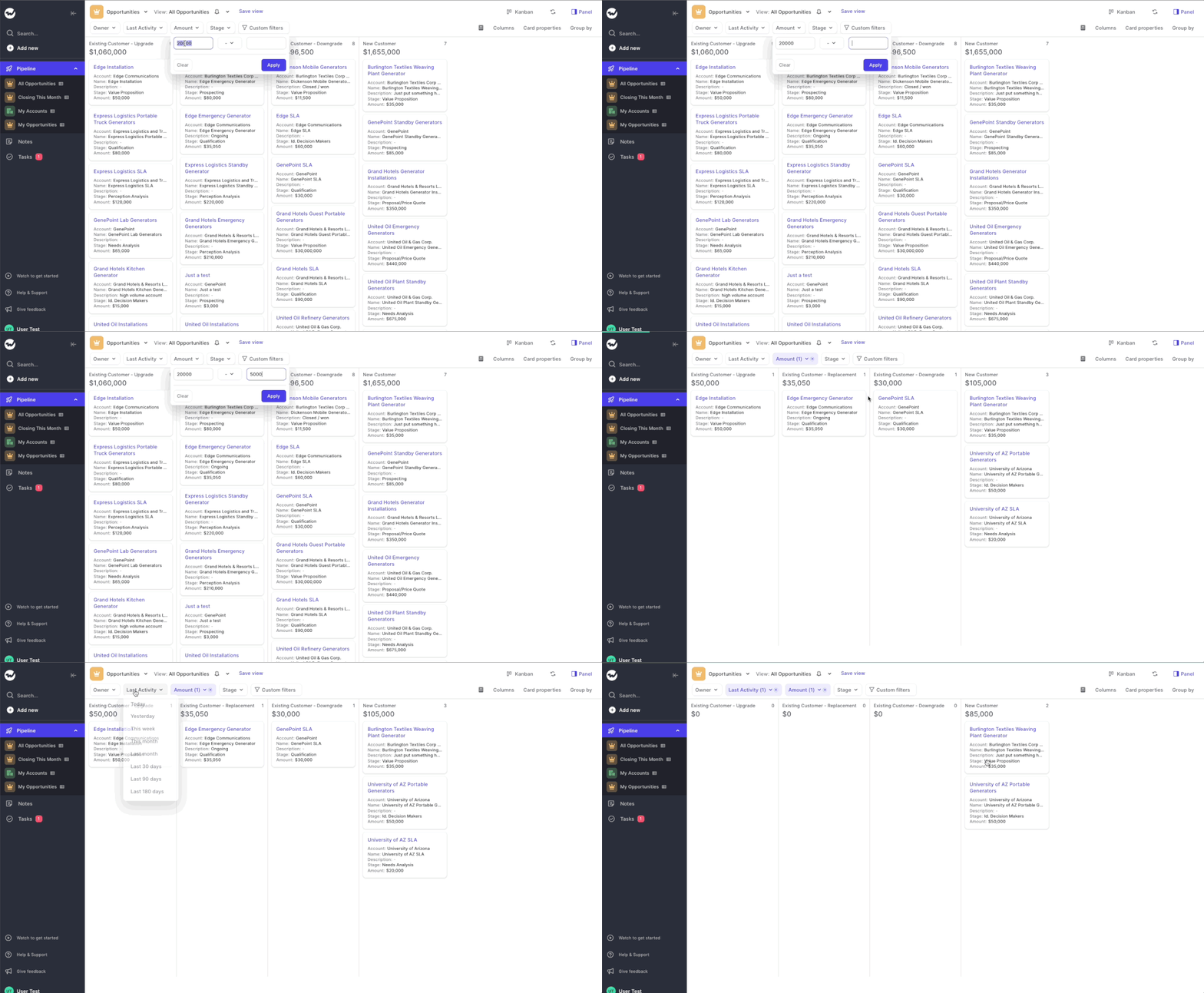
Quick filters for Kanban and Table pipeline

Quick filters allow you to narrow down your pipeline with just a few simple clicks.

Got more ideas for useful quick filters? Let us know.

  • We spoke to hundreds of Account Executives to understand which filters they need the most
  • Based on their insights, we added different filters for Opportunities, Leads, Contacts and Accounts
  • With one simple click, you can filter for Owners, Amount, Last Activity, Status or Stage
Quick filters for Kanban and Table pipeline

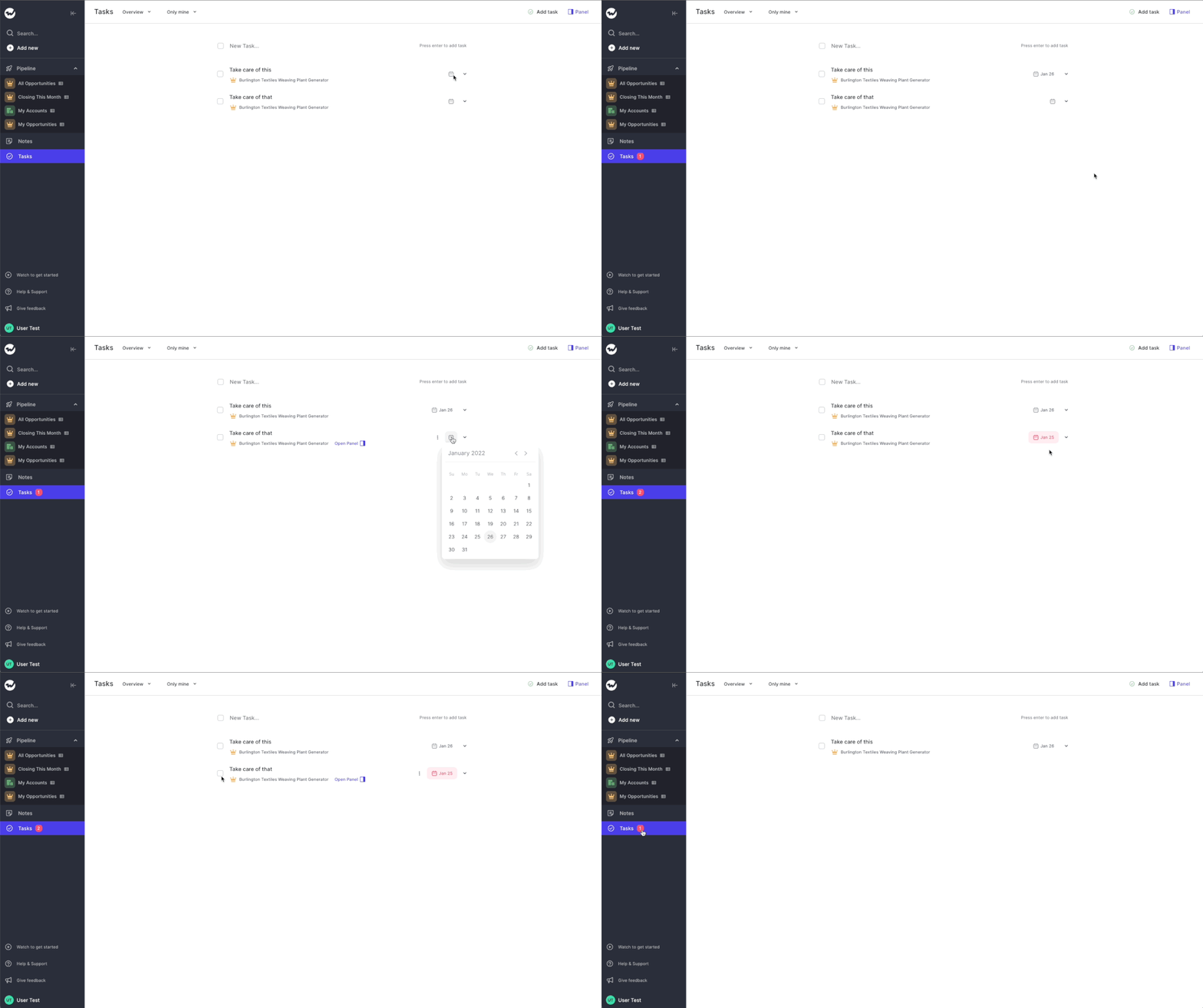
Overdue tasks badge in side navigation

Ever wish you'd see today's and overdue tasks more easily? Yeah, we hear you!

That is why you can now find a notification badge next to the task button in the side navigation.

Whenever there is one or multiple tasks overdue (including tasks that are due today), you will see a notification badge with a number count.

Overdue tasks badge in side navigation

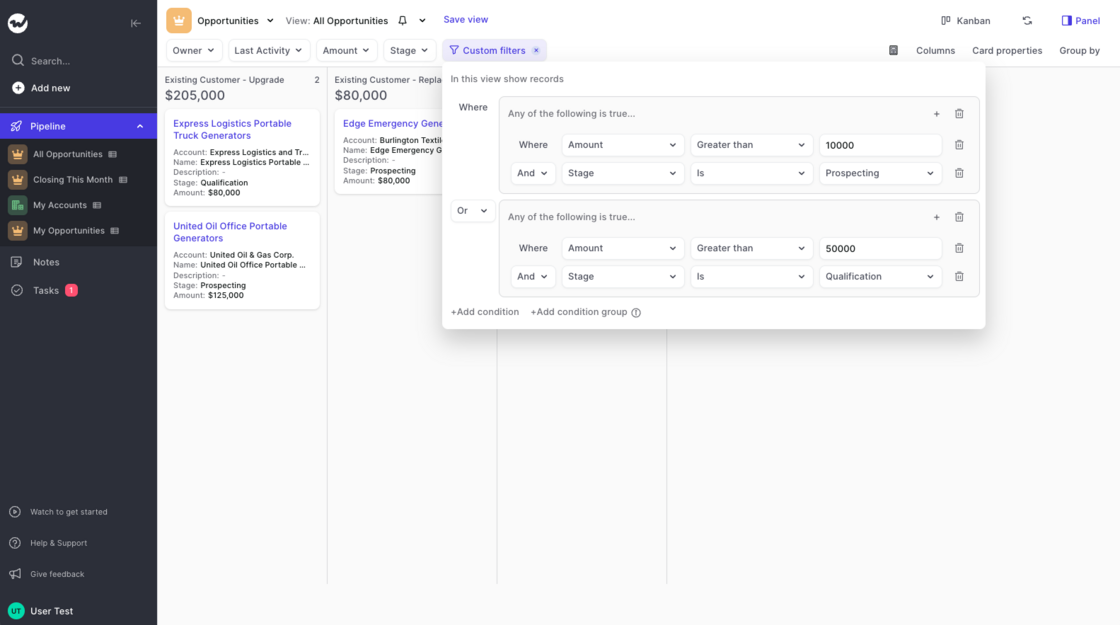
Custom filters

Use single conditions or group conditions to perform highly accurate searches

  • Combine single conditions or condition groups with all the filters your Salesforce setup allows for
  • Choose between AND and OR operators to make granular searches across your entire database of records
  • You can use custom filters either in the Kanban or the Table pipeline
  • More information can be found in this short support article
Custom filters

December 2021

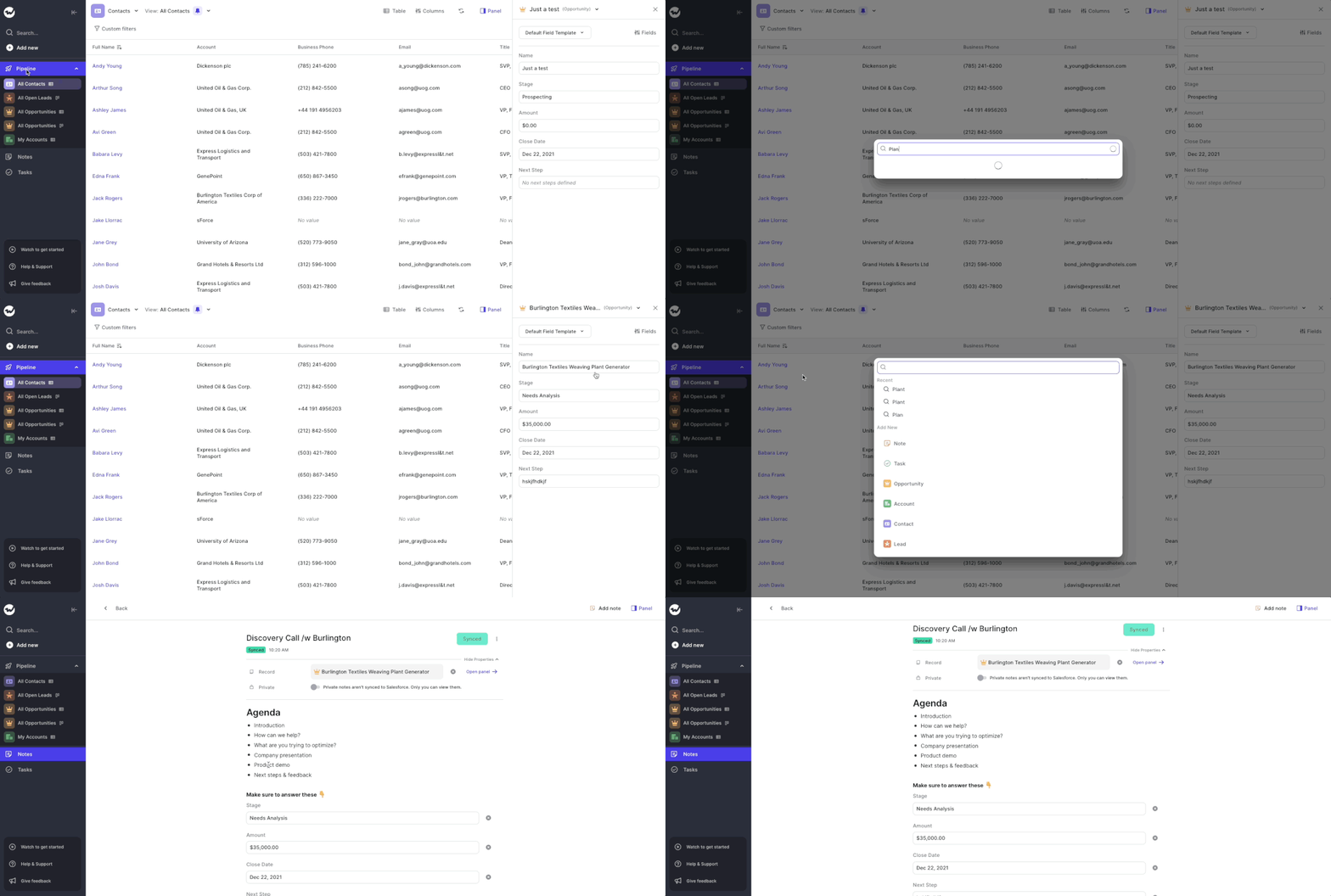
Search for Records, Notes and Tasks

Use our new global search tool to quickly find records, notes or tasks in your database.

You cannot search for Activities or Emails yet. However, we will add that in the future. Until then, enjoy the Weflow search tool 😃

  • Hit the search button and enter your query
  • You can search for anything that is a note, task or a record (like a Lead, Opportunity, Account or Contact)
  • You can also use the search pop-up to create a new record
Search for Records, Notes and Tasks

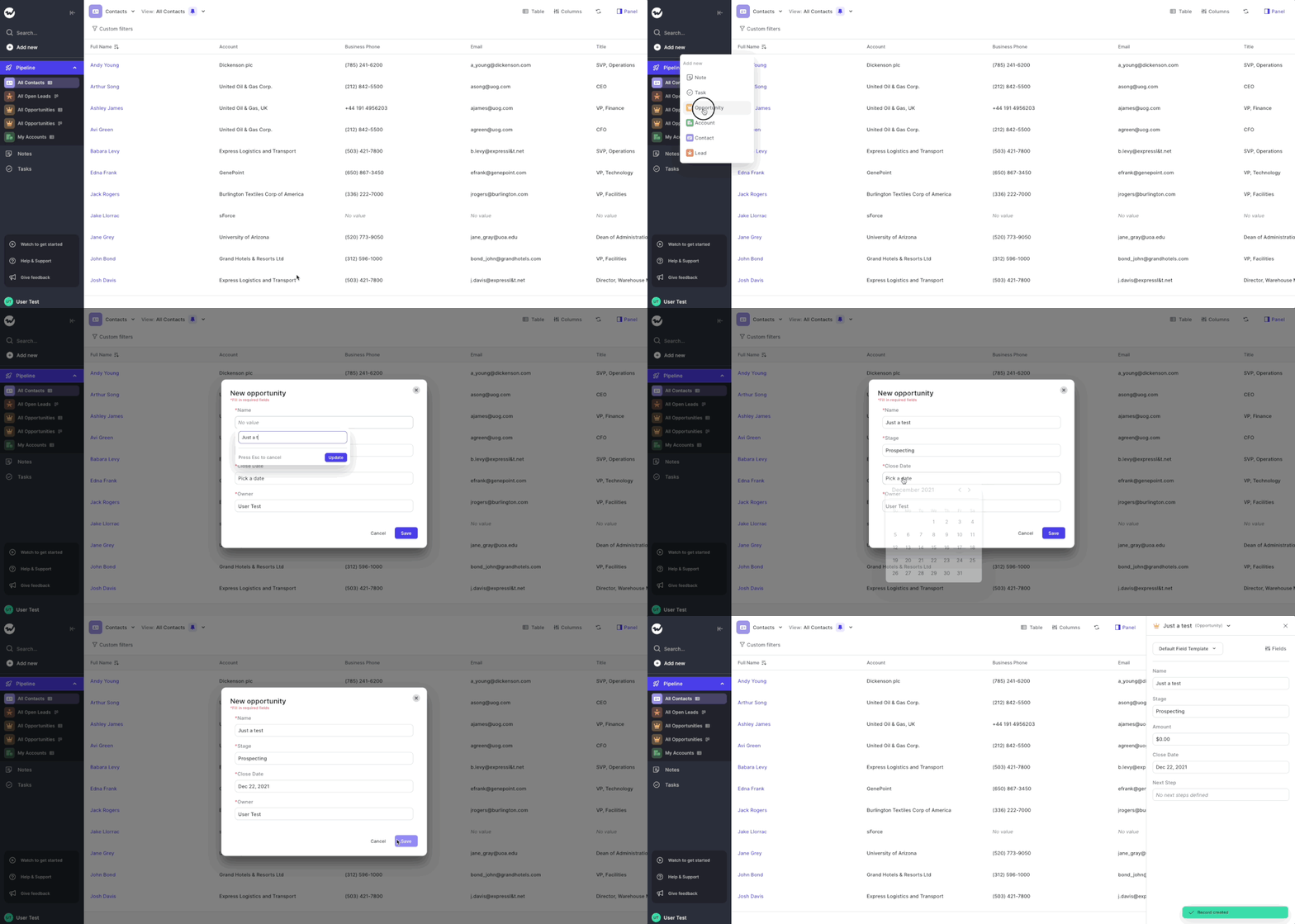
Create new records in Weflow

Want to create a new Lead, Opportunity, Contact or Account in Salesforce? You can do that now from within Weflow.

Let us know if you have feedback at hello@getweflow.com

  • Hit the "Create" button in the menu
  • Choose your preferred record or note or task
  • Fill in the required fields
  • Add additional details in the Panel (opens automatically after creating the record)
Create new records in Weflow

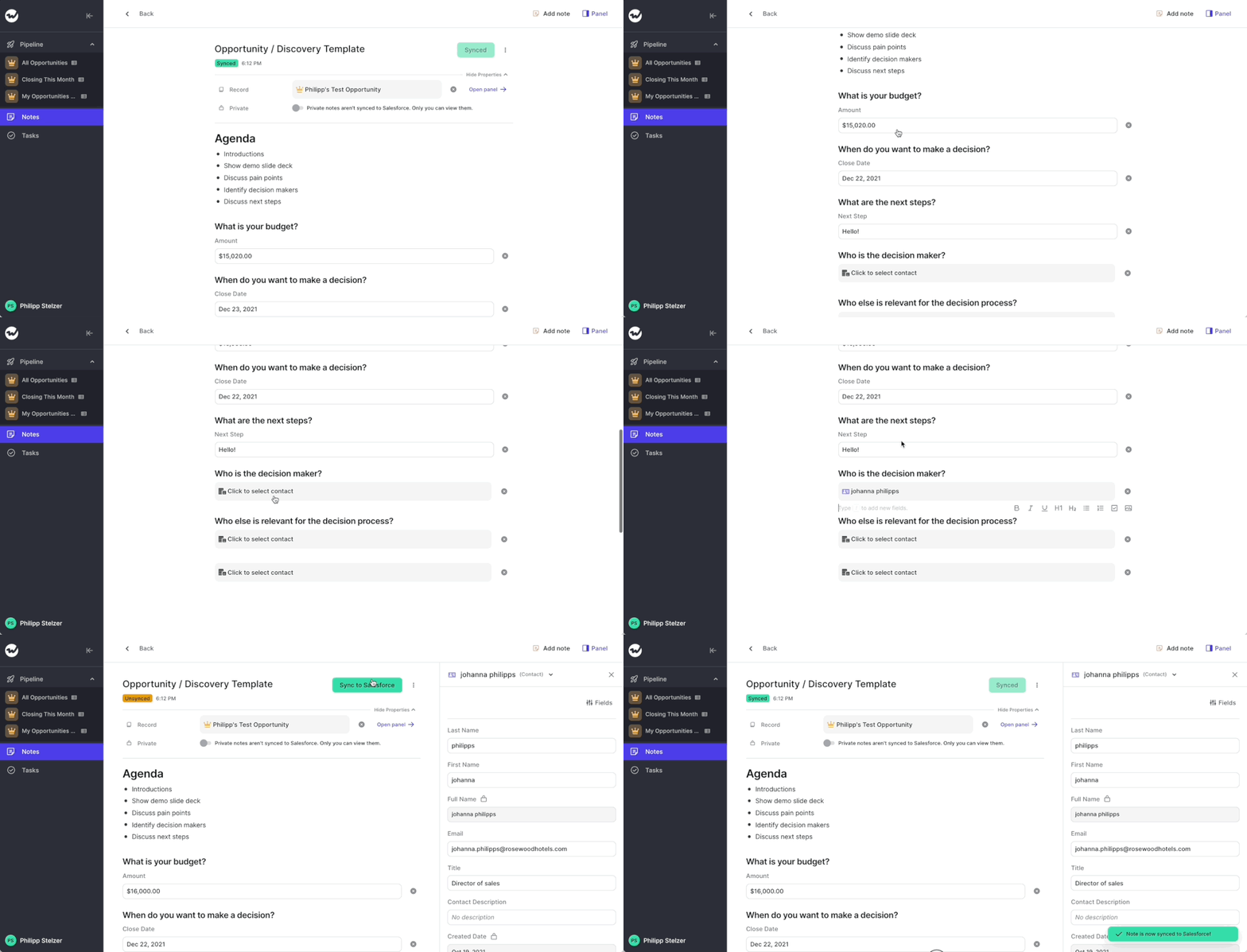
Update Salesforce from your notepad

You can now add and update Salesforce fields and records directly from your notes in Weflow.

Big news today, you can now use your notepad inside Weflow to make updates to any Salesforce field.

This is especially powerful if you are looking to create templates for specific sales methodologies or simply want to combine the note-taking and the pipeline update in one unified view.

By the way: you can also link multiple different Salesforce records to your note and quickly access information about them via the panel.

Update Salesforce from your notepad