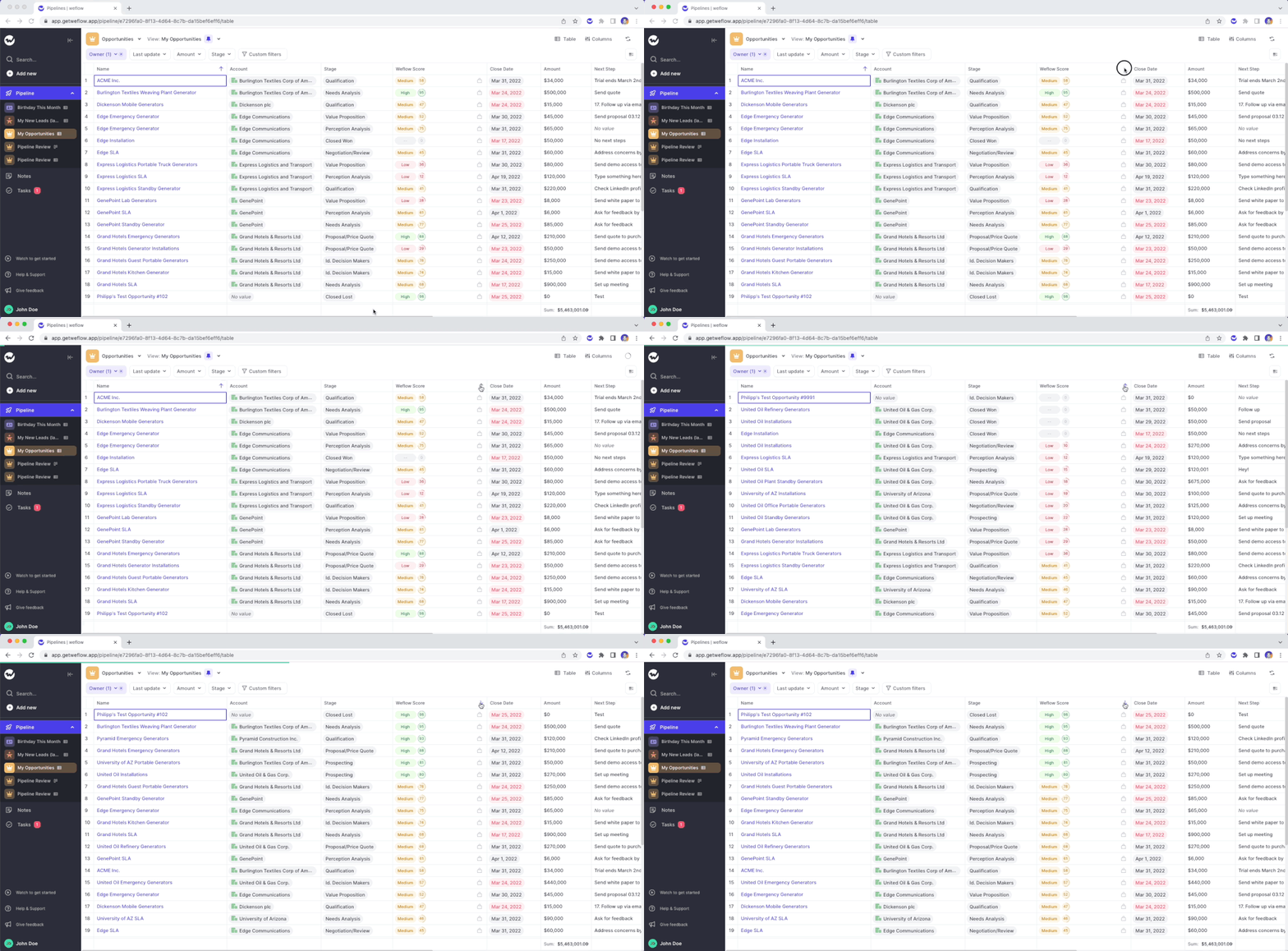
Two weeks ago, we released our algorithm which rates your Opportunity pipeline based on the likelihood to win a deal. Now, you can filter and sort the score.
Please note: The Weflow score is currently in private beta. If you are interested in using the score, please send an email to hello@getweflow.com and we will get back to you.
Simply look add the "Weflow Score" to your pipeline view
At Weflow, the thing we dislike the most is a bad user experience. Which is why we do regular in-depth testing and dedicate a good amount of effort on improving the existing features in our web app or Chrome Extension. Below is a list of the most recent fixes and improvements:
If you ever encounter an issue, absolutely let us know. We deeply care about the quality of our product.
Unlinked notes are no longer shown as part of the "Private" filter in the note list
Sometimes deleting a note in Weflow did not remove it from Salesforce; this is now working correct in 100% of all cases
Changing the date of an overdue task did not remove the task from the overdue filter
Setting a filter based on the amount field led to an error if only a max or only a min amount was entered
In some cases, it was possible to still edit a deleted note
When loading a pipeline view the table layout sometimes caused flickering
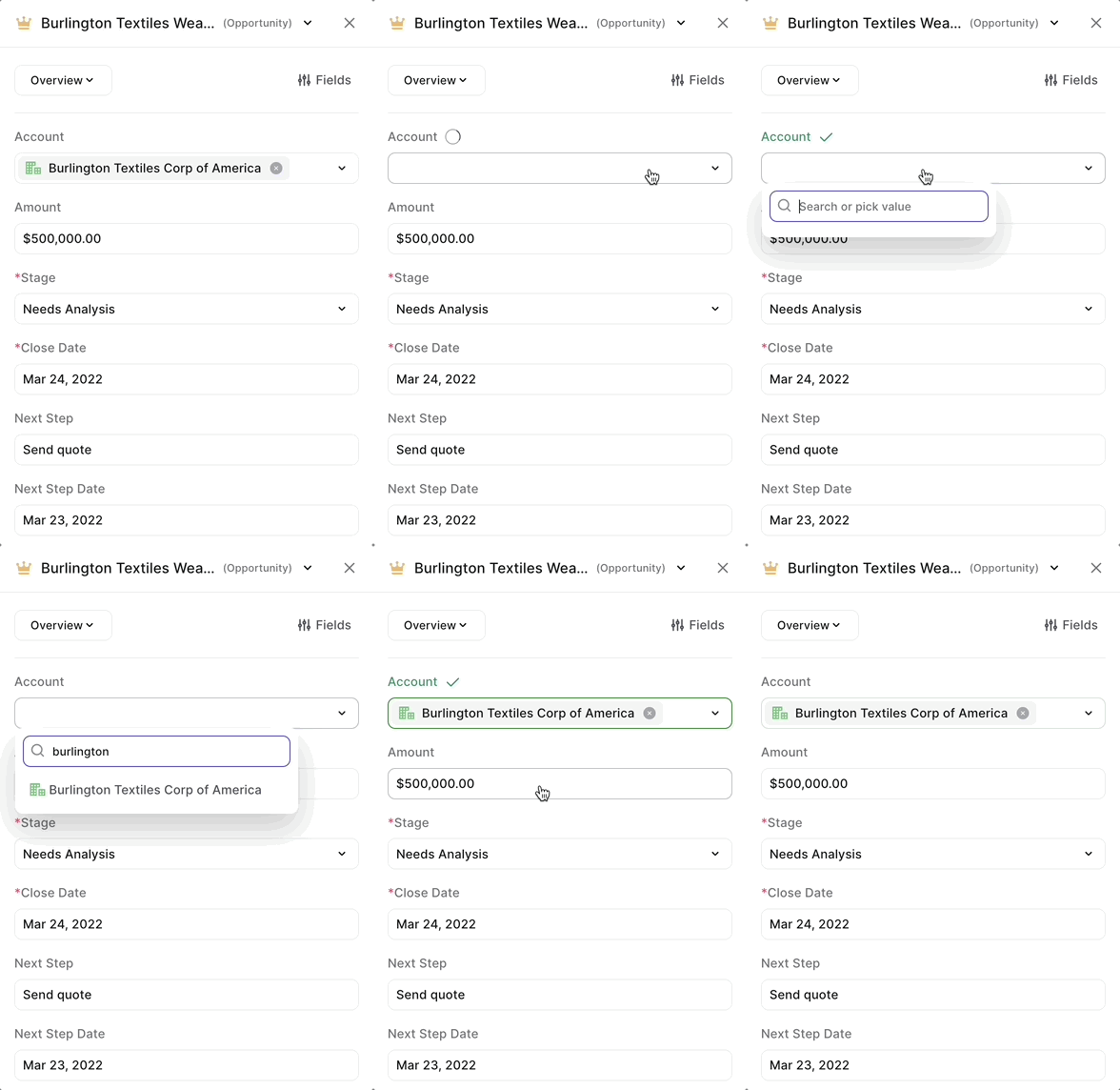
Changing a linked object (i.e. lookup relationship fields) blocked using the panel unless page was reloaded
When creating a new record, the context menu for the record type selection was partially hidden
When opening the notes list from the Chrome Extension, some users saw a blank page instead of the note list
Based on your feedback, we made several changes to how changes to your pipeline views are either auto-saved or require a manual saving confirmation:
The following actions are auto-saved and overwrite the current view settings:
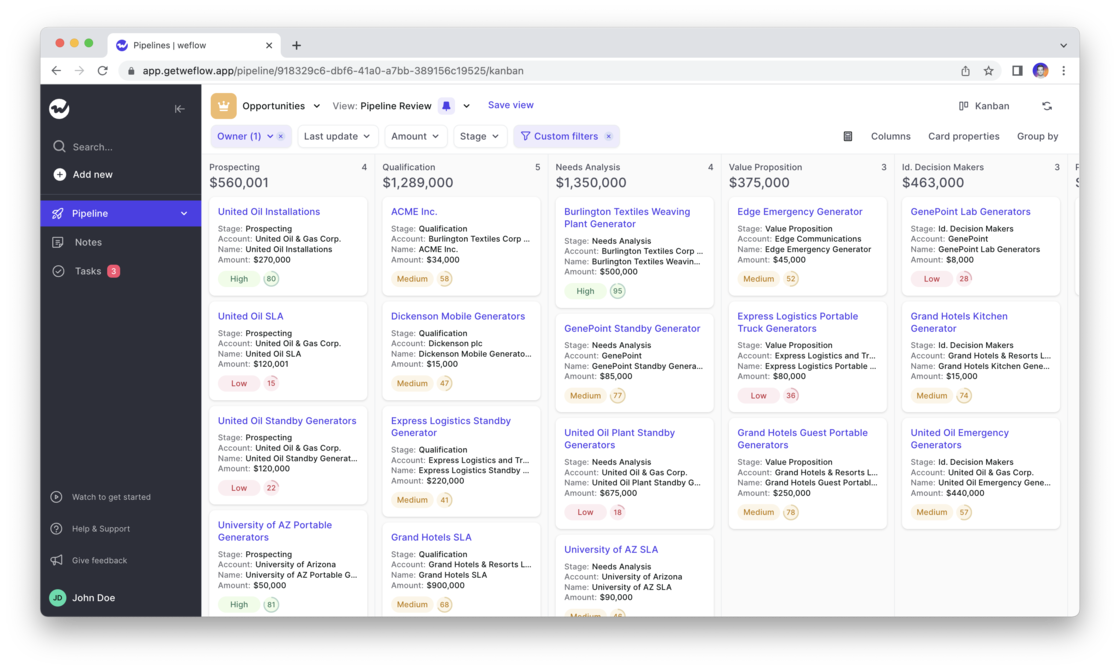
All these actions are commonplace and are expected to be persisted. On the contrary the actions blow are taking the currently loaded data and re-define them i.e. by using filters or switching from a Kanban to a Table view.
These actions are not auto-saved and require a manual confirmation by the user via the “Save” button:
We understand, that using Salesforce sometimes is simply necessary. That is why we extended the functionality of the Weflow Chrome Extension to make use of Weflow within Salesforce itself.
What would you like us to build next for Salesforce? Let us know at hello@getweflow.com
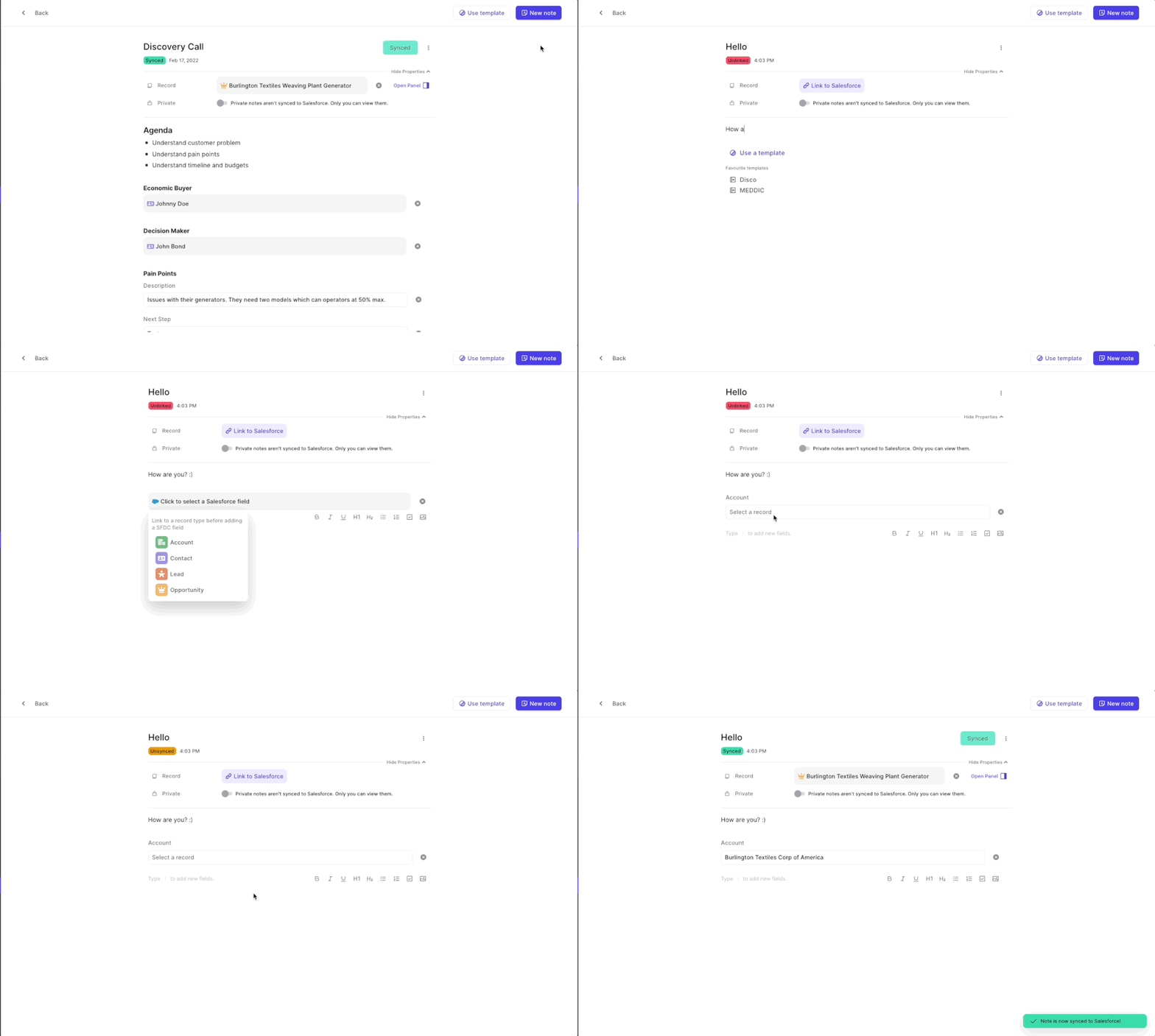
Create linked notes
Create linked tasks
Access the Weflow Panel within Salesforce for faster and more convenient updates
Are you a busy note-taker? You deserve to find your notes quickly!
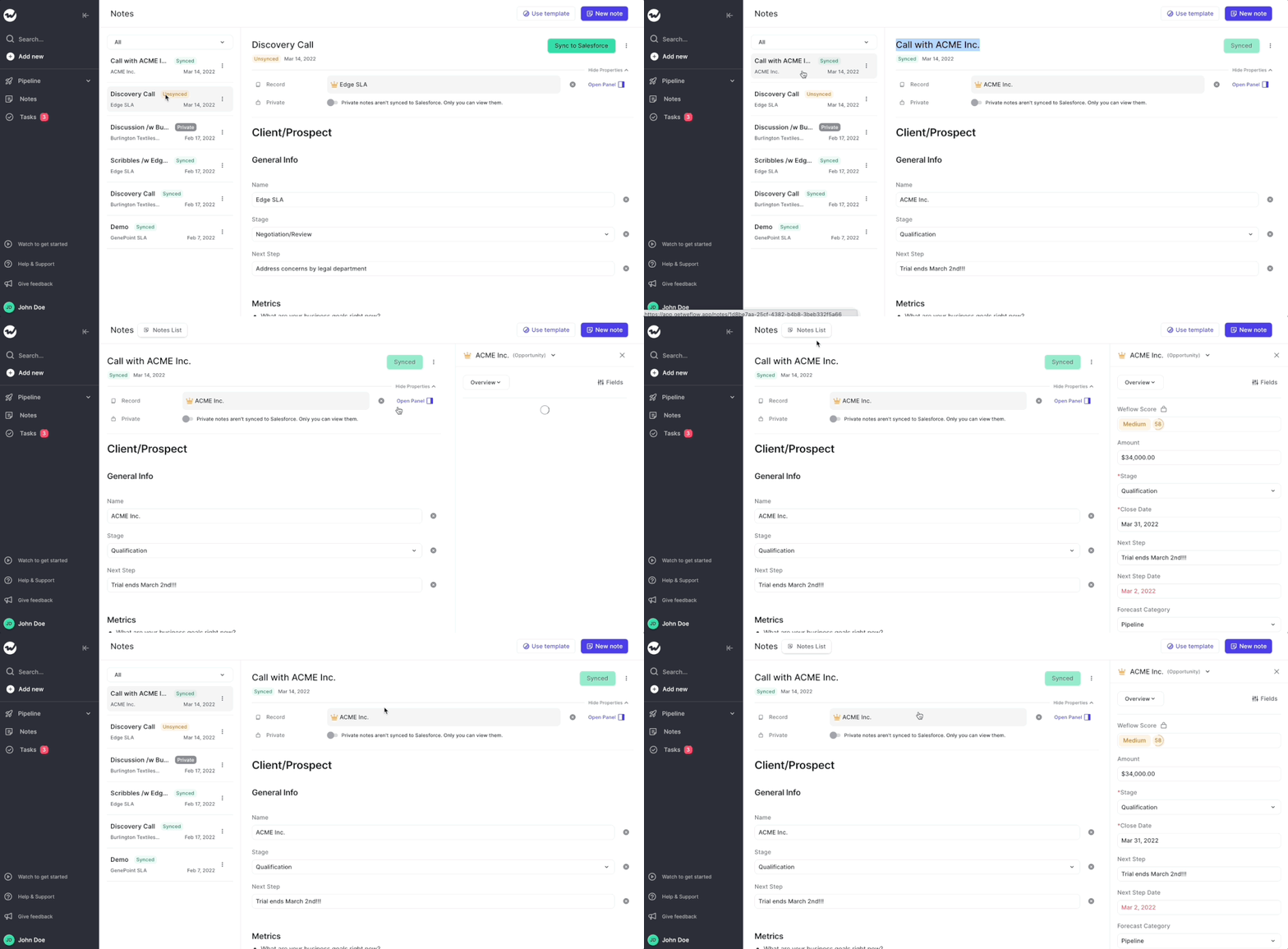
You can already find your notes by using the Weflow search (CMD+J on macOS or ALT+J on Windows). Now, you can also find your notes by searching in the note list itself.
Still having trouble finding your notes? Let us know! We would love to hear from you.
Use CMD+J on macOS or ALT+J on Windows to launch the Weflow Search
The Weflow search is more than just a simple search. Here are all the things you can do with it:
Weflow search in itself is nothing new. However, now you can launch it more easily by hitting the CMD+J or ALT+J shortcut from anywhere in the Weflow web app.
If you have our Chrome Extension installed, you can use the shortcut ANYWHERE on the web to get quick access to your Salesforce records.
Search for notes, tasks, or records
Create new notes, tasks or records
Find related records i.e. a contact or lead who is linked to an opportunity or account
You can now download and use Weflow's very own Chrome Extension in the official Google Chrome Extension Store here.
What can you do with it?
How does it work?
We will continue to invest heavily into the Chrome Extension. If you have feedback or ideas, let us know at hello@getweflow.com
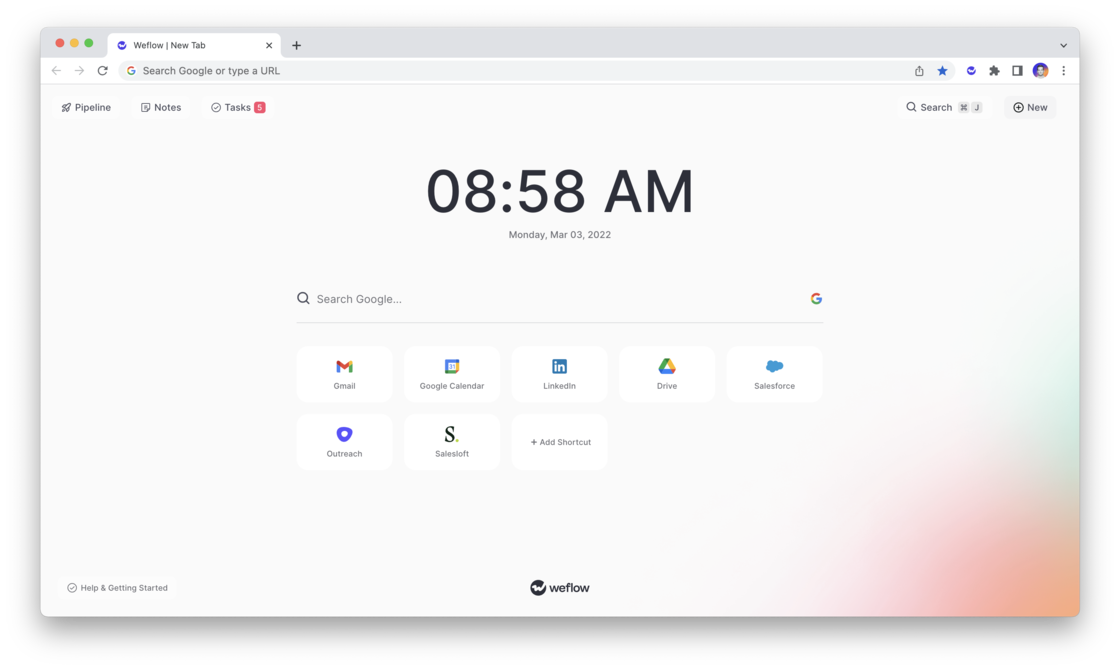
Weflow’s free Chrome Extension, replaces your default new tab in Chrome with a powerful, yet elegant and subtle command center for Salesforce.
Update your pipeline, create notes, manage tasks and add new records within seconds - all synced with Salesforce.
Use the Chrome Extension on LinkedIn, Google Calendar, Gmail, Office 365 or Salesforce.com itself
Install the Chrome extension and sign in with your Salesforce account
Open a new tab to use Weflow’s Salesforce command center or use our shortcut (MacOS: CMD + K | Windows: ALT + J) to launch global search from LinkedIn, Salesforce, Google Workspace, Outreach or Salesloft
View your pipeline, create notes, manage tasks and add new records within seconds
All changes are automatically synced with Salesforce
We hate unnecessary clicks. They cost only seconds, but they add up quickly.
From today, when creating a new note, we auto-select the title so you can quickly give your note a name. Once you hit Enter, we automatically save that title and move the cursor down into the body section of the note. No mouse clicks needed anymore.
Should you ever feel like Weflow forces you to make unnecessary clicks, do let us know. We'd love to clean that up for you.
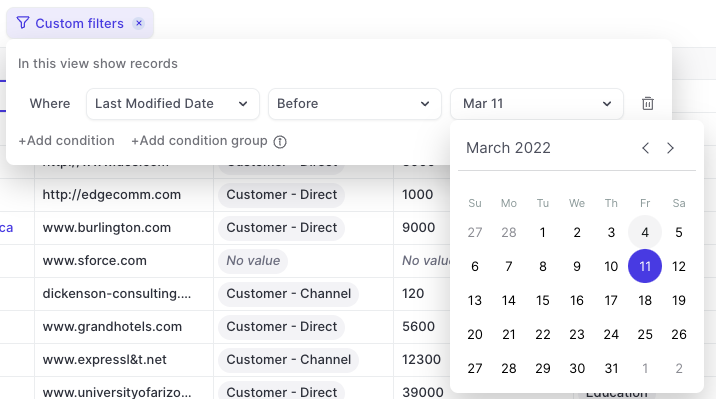
Views are a powerful way to segment your data and work with 100% focus on your most important opportunities, accounts, contacts, leads…you name it!
Previously:
Now:
Bonus: We create 8 special views that will make it easy for you to navigate Weflow. Feel free to adjust them to your needs. Of course, we will continue to import your old Salesforce views as well. But we encourage you to create new ones if possible.
Got some time? Here is a 4 minute deep dive into using custom views in Weflow:
When creating a new view, we based that new view on existing views that were imported from Salesforce
This could cause issues, in case there were hidden filters the user could not change and adjust themselves
All new views are built from scratch taking all record data for an opportunity type into account
That means for you: Full flexibility on all fronts and pure freedom when creating your own new views
When searching Weflow, you now not only find the record you are looking for, but also related objects.
Here is an example: Let's say you are searching for the "Billburry Farm" opportunity. Weflow, will not only show you the Billburry Farm opportunity, but also e.g. the contact "John Doe" who works at Billburry Farm. In addition, you'll also see notes and tasks relating to Bilburry Farm.
 weflow