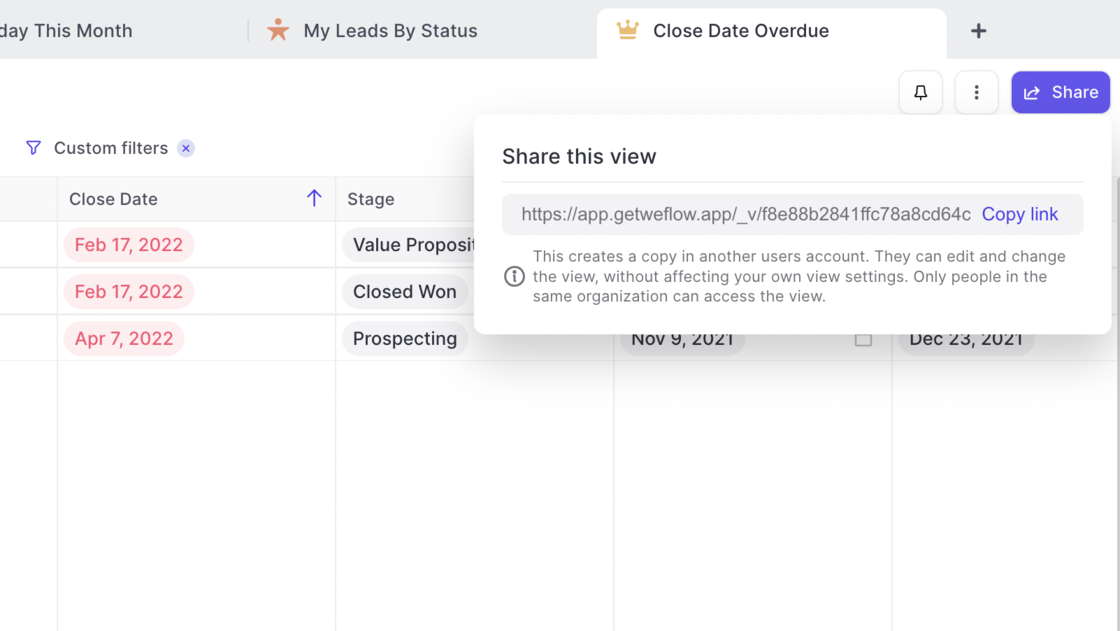
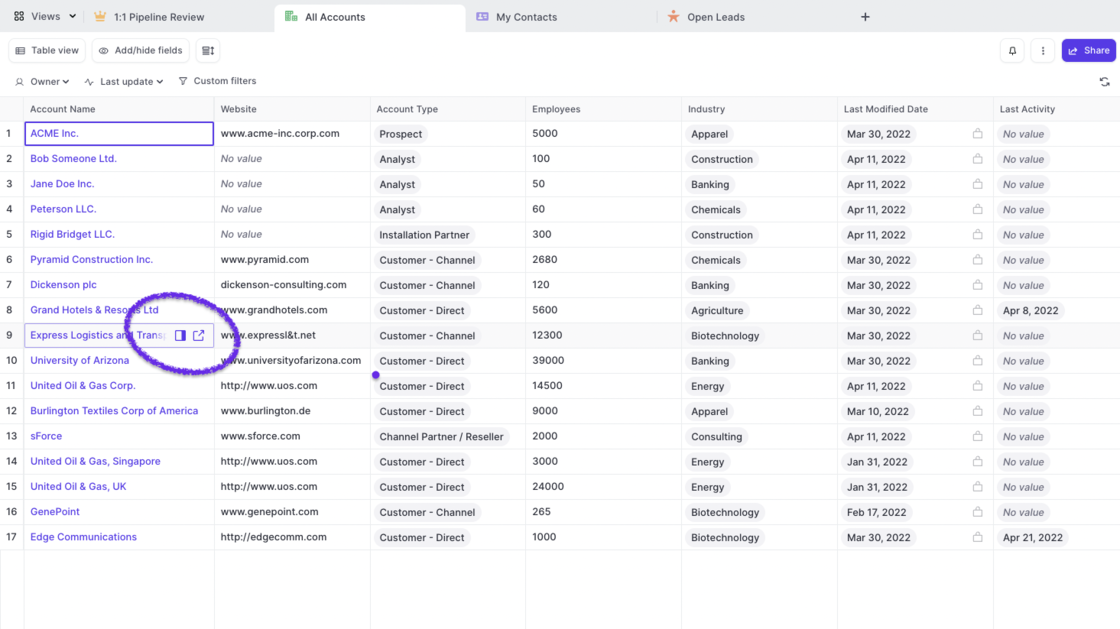
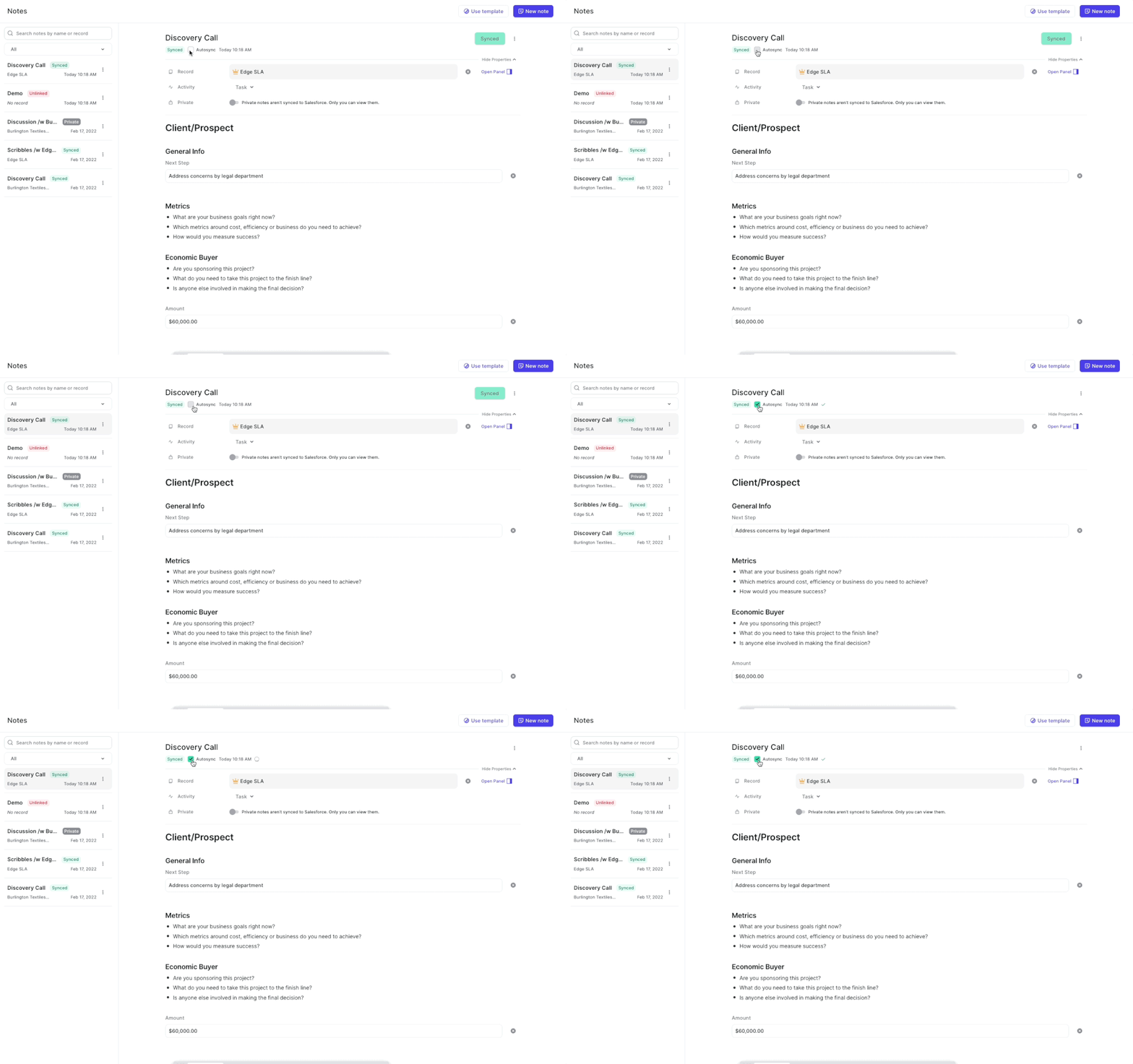
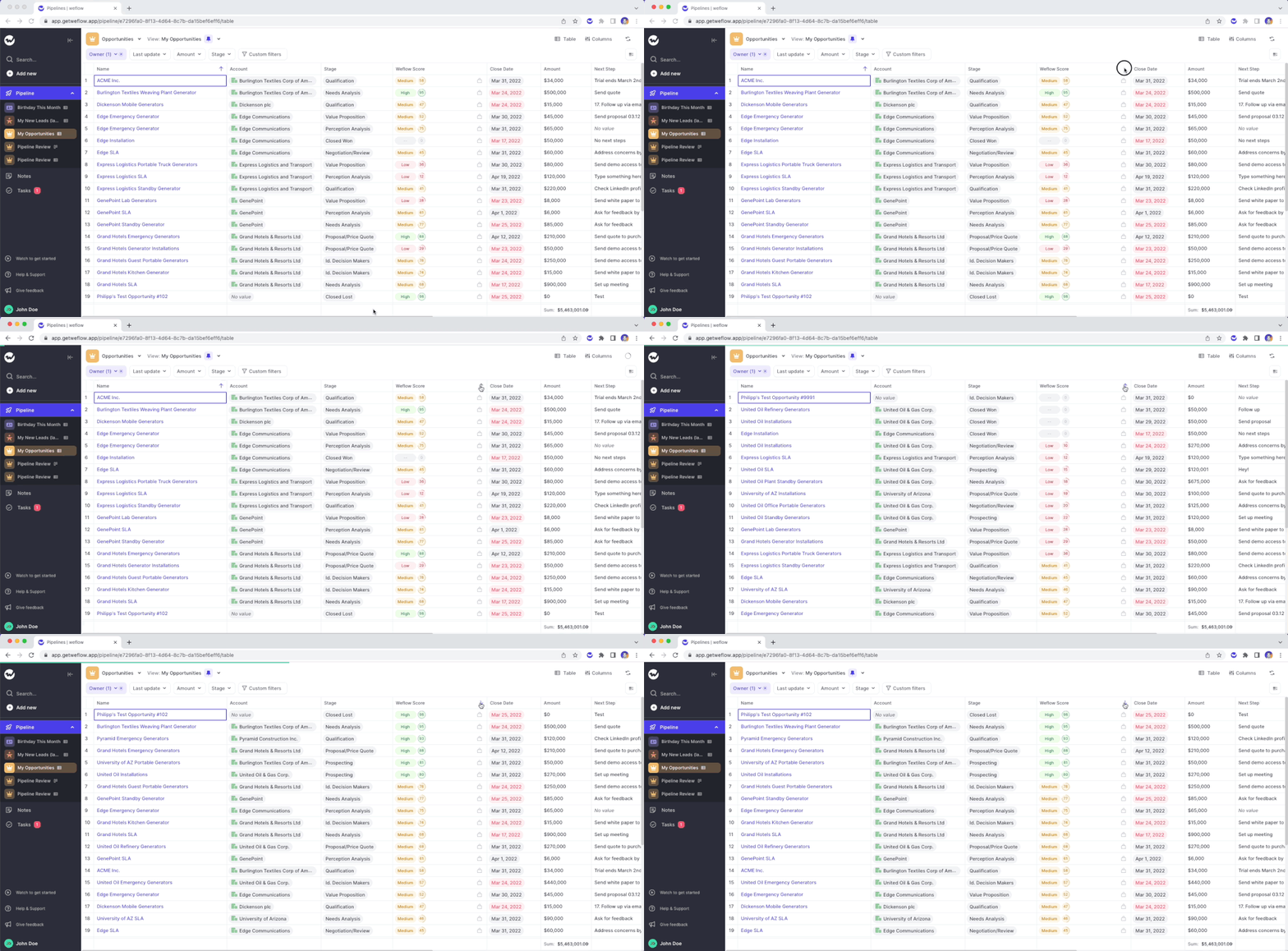
Depending on your Salesforce settings, sometimes you can have customs fields which are generally accessible but not visible. This can cause issues in our interface. Hence, Weflow now regularly checks which fields and objects a user has access to and what kind of access (i.e. read or write access).
This is a backend change, and you will unlikely notice any differences while using Weflow. However, it is a major improvement to ensure a 100% stable user experience.
Sales is an endurance sport combined with the strategic gameplay of a football match. Sometimes you get lucky. But most deals take a lot of prospecting, negotiation, alignment and most of all: time.
On average, you need eight activities (like an email, call or meeting) until a prospect says yes or no 80% of sales are made on the fifth to 12th contact
With everything else you got going on in life and work, it's easy to lose oversight of what's been happening.
That is why we are proud to introduce the new Weflow Activity Timeline.
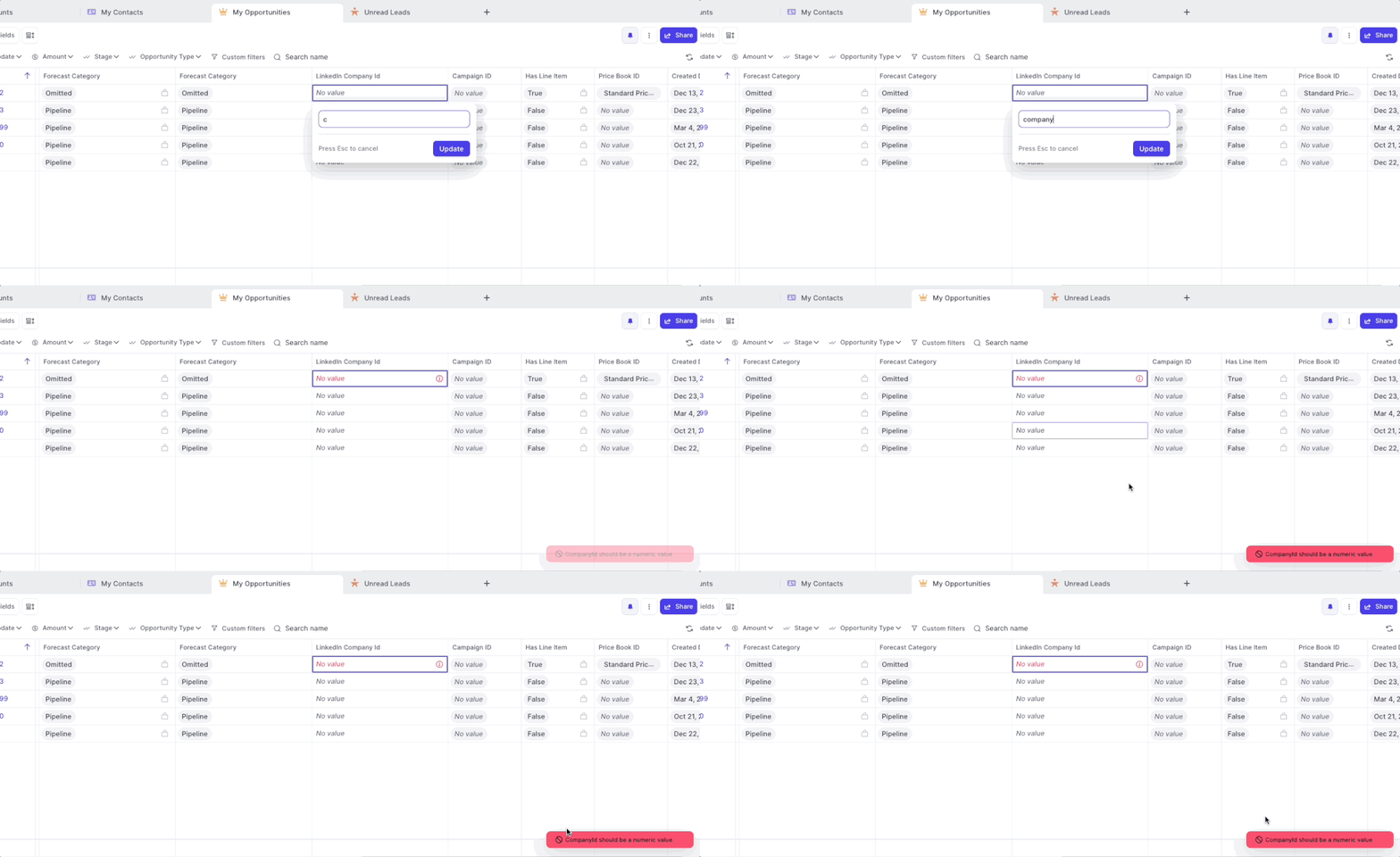
If you set up validation rules including error messages, Weflow now displays all error messages as defined in Salesforce.
If you set up validation rules without setting an explicit error message, Weflow will still ensure that no incorrect values can bet synced to Salesforce however, will display only a generic error message.
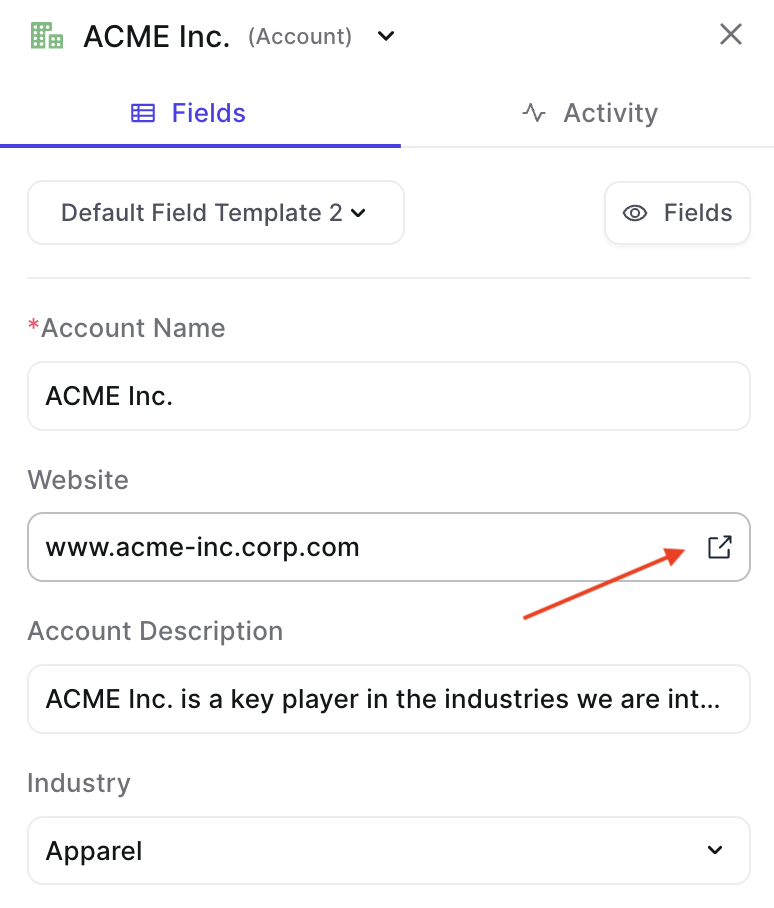
Don't you hate that random clicking around when trying to close a menu or window you don't want in your view anymore?
We definitely try to avoid this whenever possible. So here is another update where we made improvements to ensuring you can close whatever you want as quickly as possible with no unnecessary clicks.
Previously, when logging an activity like a call or a meeting via a formatted note i.e. using bold or italic text, then we also copied the HTML code for the formatting into Salesforce.
The comment field of an activity could then look like this: <p>Meeting Notes</p>**Discuss pricing & rollout
This has been fixed now. So your activities are all fully readable by humans as well as machines 🤖
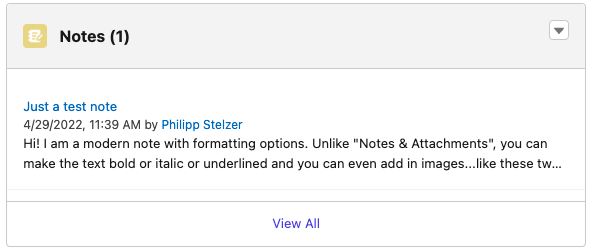
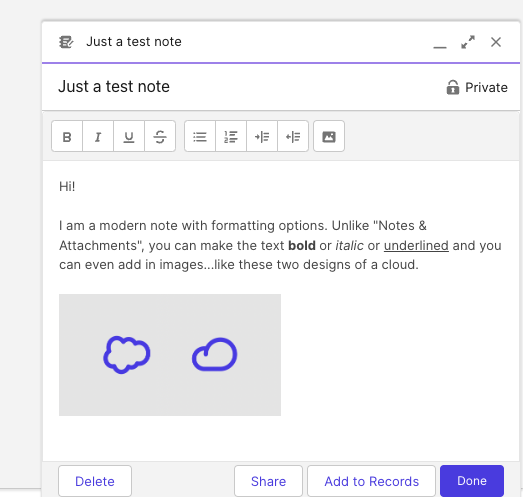
Did you know that there are different note types within Salesforce?
1) Notes & Attachments
2) Notes
As you can see here, the newer note type features formatting options:
In Weflow, you can now choose how you want your notes to be snyced to Salesforce. Either into the "Notes & Attachment" or into "Notes" i.e. Content Notes. Of course, notes from Weflow will also appear as formatted notes if you choose the newer "Notes" type.
If you have questions about this option, please contact us at hello@getweflow.com. We are happy to assist you in setting you up for success.
This is the "old" way to sync your notes with Salesforce
Here, you have no formatting options within Salesforce
This new option was introduced back in 2018
These notes are also called "Content Notes" or contentNotes
They offer rich formatting options including the possibility to add in images
That is why we re-worked the Weflow task manager from scratch. Previously, it was not always clear how to add a new task and there was no way to edit an existing task.
With the new flow, we now built a re-usable component that will find its way also into the upcoming "Activity Timeline" as well as our already existing Chrome Extension.
Check out this short video to walk you through the new design:
Now with lazy loading to ensure fast loading times even if you have thousands of tasks in your list
The Weflow Kanban board is a favorite among our customers to run effective weekly sales meetings. Now, Weflow automatically highlights card which have been inactive for more than 30 days.
Use Case:
➡️ No need to use the "Last update" filter (though you of course still can)
➡️ Get a quick overview of which records need attention
➡️ Combine it with the Weflow score for more actionable insights
The inactive state will appear if a record has not been modified or updated for more than 30 days
Adding an activity or updating a field resets the inactive status for 30 days or until another update is added
Two weeks ago, we released our algorithm which rates your Opportunity pipeline based on the likelihood to win a deal. Now, you can filter and sort the score.
Please note: The Weflow score is currently in private beta. If you are interested in using the score, please send an email to hello@getweflow.com and we will get back to you.
Simply look add the "Weflow Score" to your pipeline view
At Weflow, the thing we dislike the most is a bad user experience. Which is why we do regular in-depth testing and dedicate a good amount of effort on improving the existing features in our web app or Chrome Extension. Below is a list of the most recent fixes and improvements:
If you ever encounter an issue, absolutely let us know. We deeply care about the quality of our product.
Unlinked notes are no longer shown as part of the "Private" filter in the note list
Sometimes deleting a note in Weflow did not remove it from Salesforce; this is now working correct in 100% of all cases
Changing the date of an overdue task did not remove the task from the overdue filter
Setting a filter based on the amount field led to an error if only a max or only a min amount was entered
In some cases, it was possible to still edit a deleted note
When loading a pipeline view the table layout sometimes caused flickering
Changing a linked object (i.e. lookup relationship fields) blocked using the panel unless page was reloaded
When creating a new record, the context menu for the record type selection was partially hidden
When opening the notes list from the Chrome Extension, some users saw a blank page instead of the note list
Based on your feedback, we made several changes to how changes to your pipeline views are either auto-saved or require a manual saving confirmation:
The following actions are auto-saved and overwrite the current view settings:
All these actions are commonplace and are expected to be persisted. On the contrary the actions blow are taking the currently loaded data and re-define them i.e. by using filters or switching from a Kanban to a Table view.
These actions are not auto-saved and require a manual confirmation by the user via the “Save” button:
 weflow