Weflow changelog

67 updates shipped in 2026339 all time

Showing November 2021 and earlier · Back to latest

November 2021

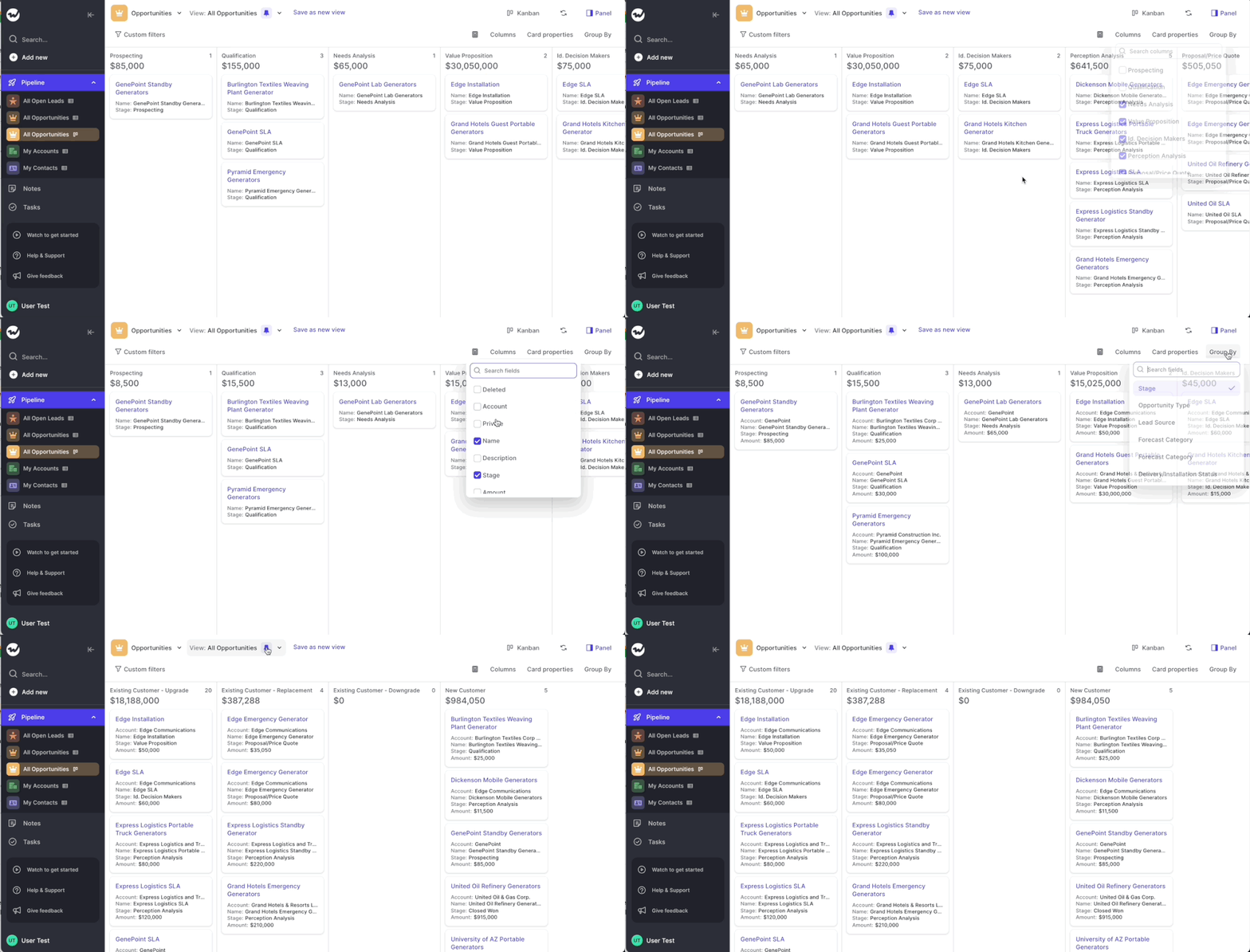
Kanban view

Ever wished for a super smart Kanban view of your Salesforce pipeline? Well, here it is.

Today, we are releasing our Kanban view to Weflow users. Any view can be turned into a Kanban view. Here are some things you can do:

As with all view, you can decide to pin and save the Kanban view so that it is quickly accessible at all times.

Go give it a try today.

  • Add card properties (up to 8 per card)
  • Hide and/or add columns
  • Change the grouping i.e. by stage, industry, lead source… you name it
  • Adjust the calculation of the column (by amount or by a custom field you'd prefer using)
Kanban view

October 2021

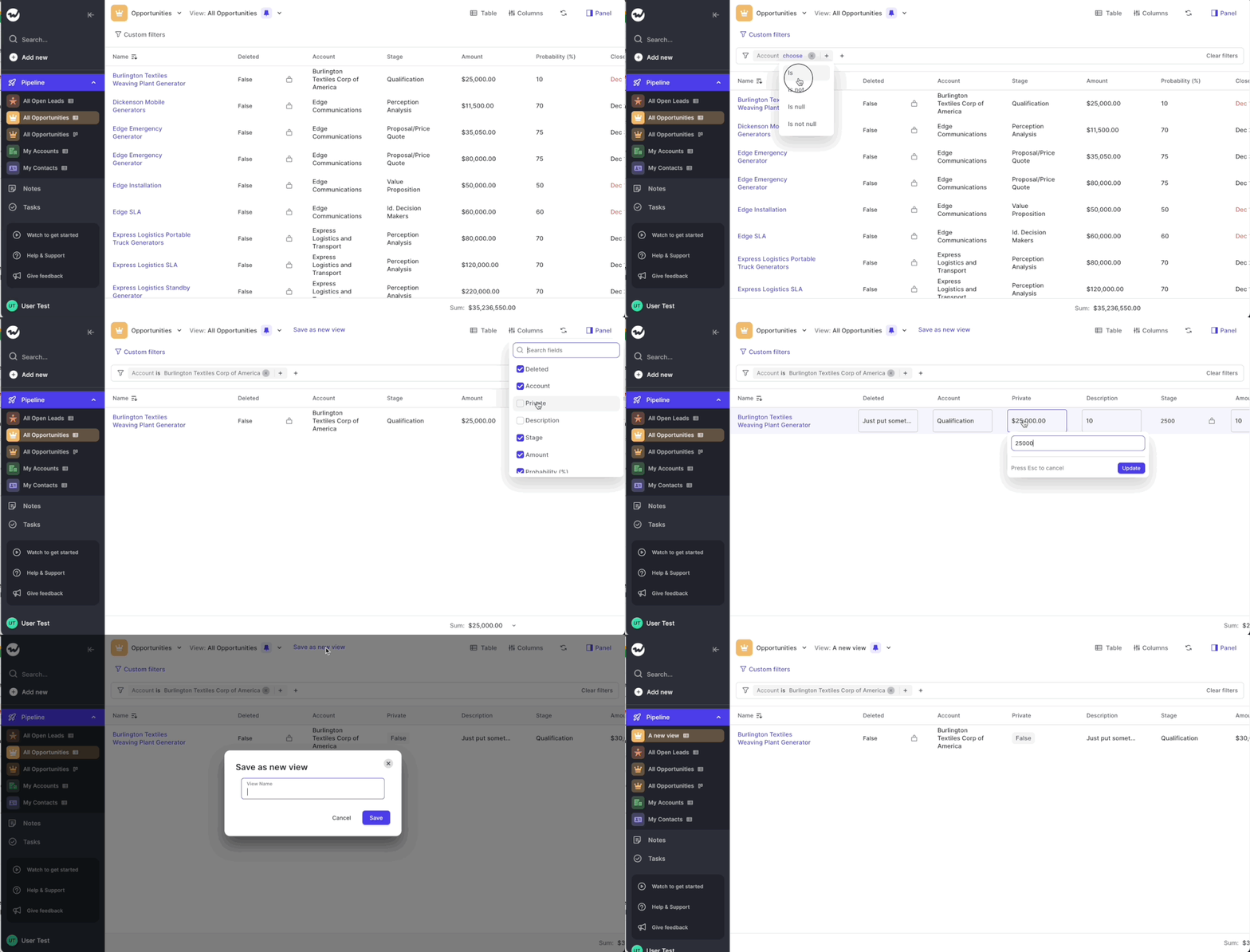
Your pipeline in a table

Quickly pull your pipeline into Weflow as a powerful, flexible table view.

With this table you can:

  • Add and/or hide columns like "Amount" or "Next Steps"
  • Make updates with in-line editing in seconds
  • Use custom filters to search for specific records
  • Drag and move columns around, resize the width of columns
  • Save your table view and pin it for quick access at any time
Your pipeline in a table

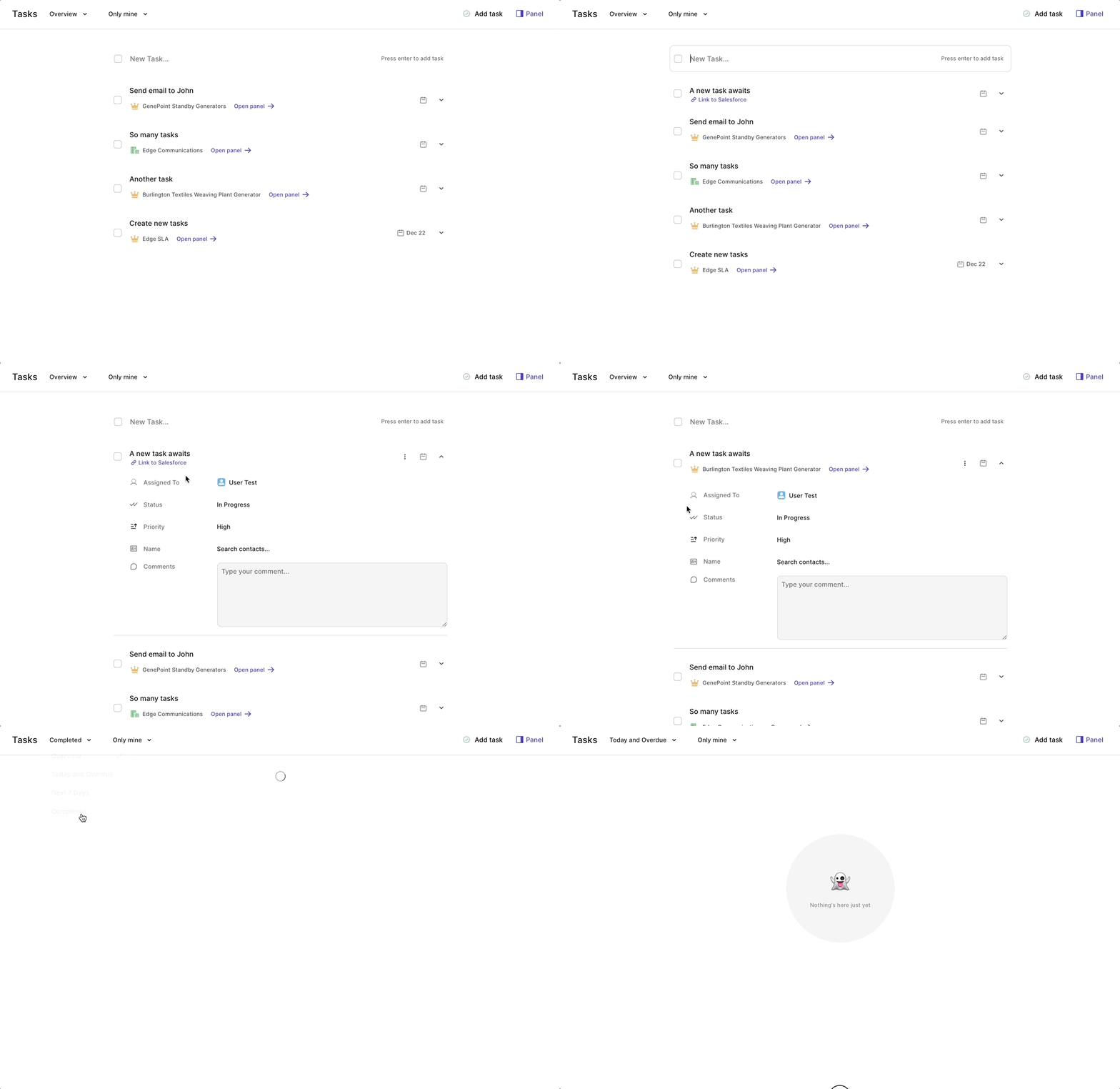
Tasks

Create, edit, assign and complete tasks - all in sync with your Salesforce account.

Weflow's new task manager is powerful enough to solve all your task management needs, yet simple enough to keep it structured and easy to use.

Tasks

Notepad

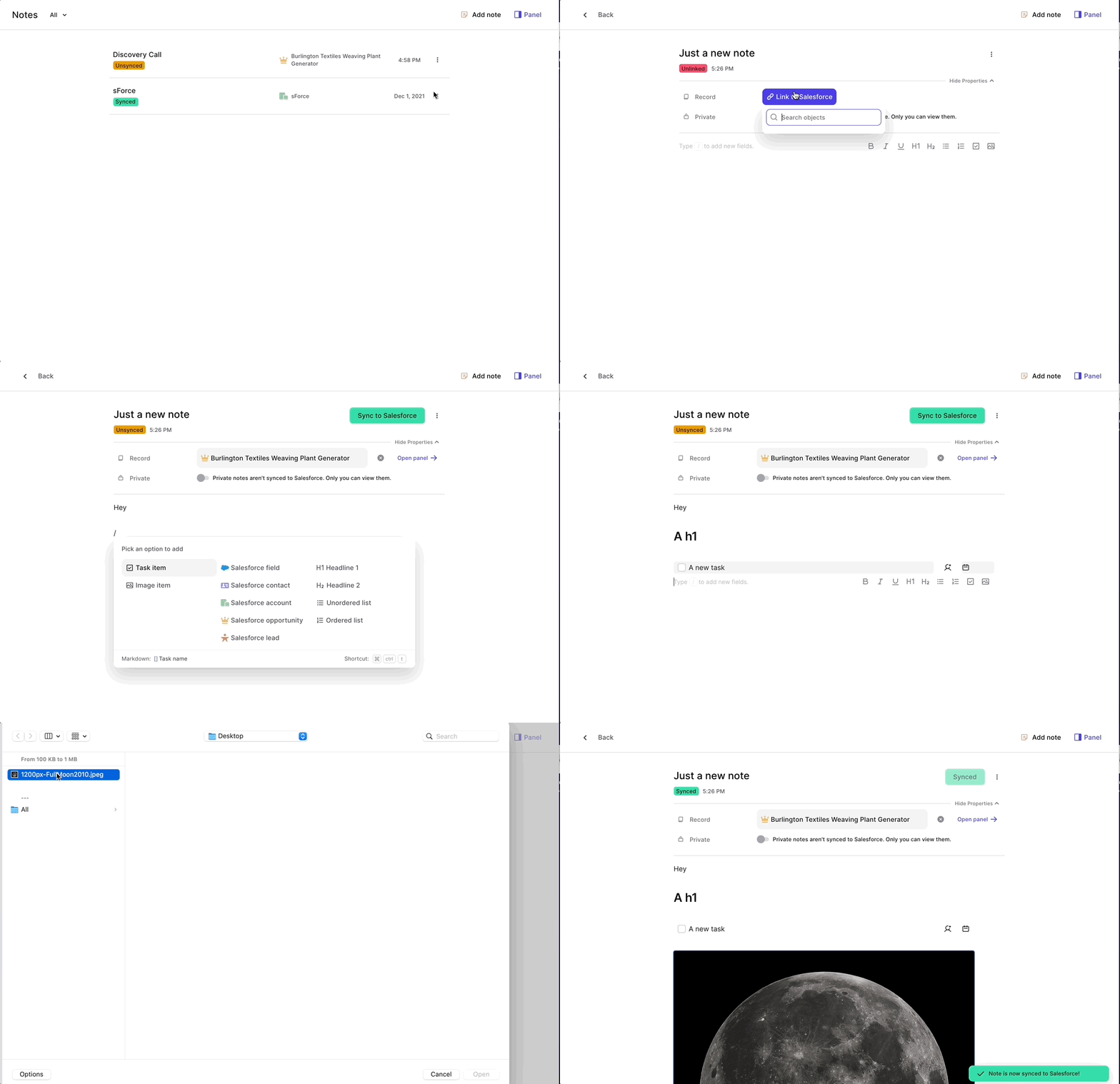
Create notes, link them to Salesforce records and sync them with just one click.

Gone are the days, where your notes get lost in the data limbo. Use Weflow's original notepad to create your custom notes. With powerful features such as:

You can link notes to any Salesforce record into your account. The note will only be synced to Salesforce if you decide so. You can also make notes "Private" or simply keep them "Unsynced". Either way, they will always be accessible via Weflow.

  • Free formatting controls (bold, italic, underlined, h1, h2)
  • Create tasks from your notes and assign them to others
  • Add images
Notepad
You reached the beginning. Thanks for scrolling all the way back.