Weflow changelog

67 updates shipped in 2026339 all time

Showing January 2022 and earlier · Back to latest

January 2022

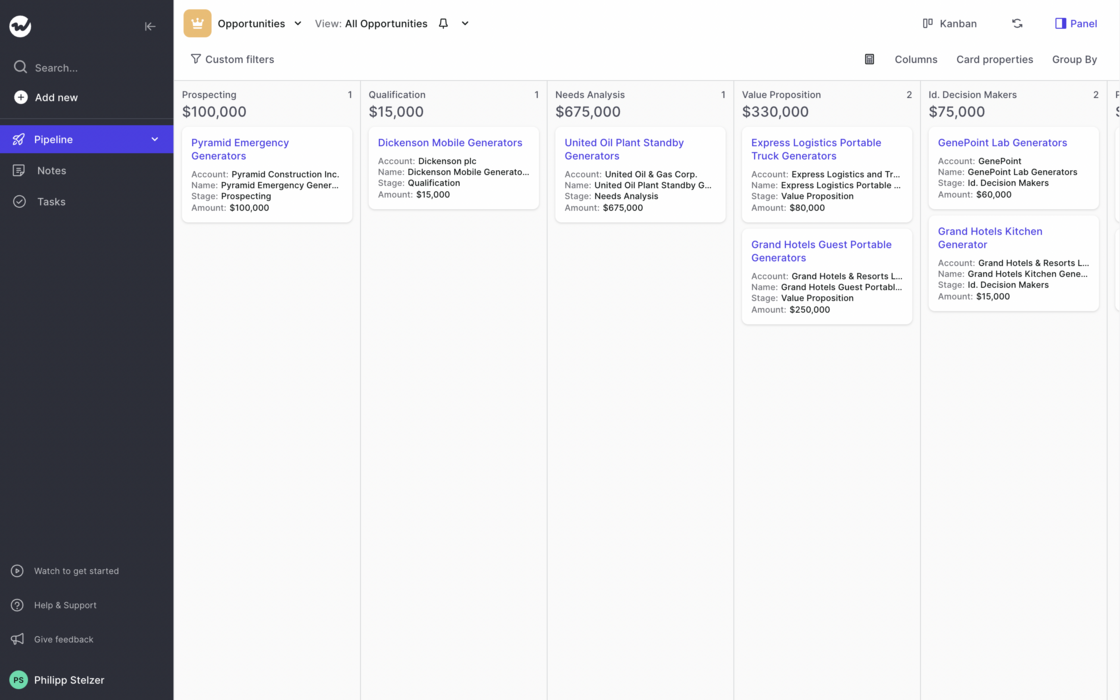
Comfortable and Compact mode

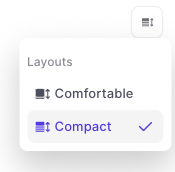
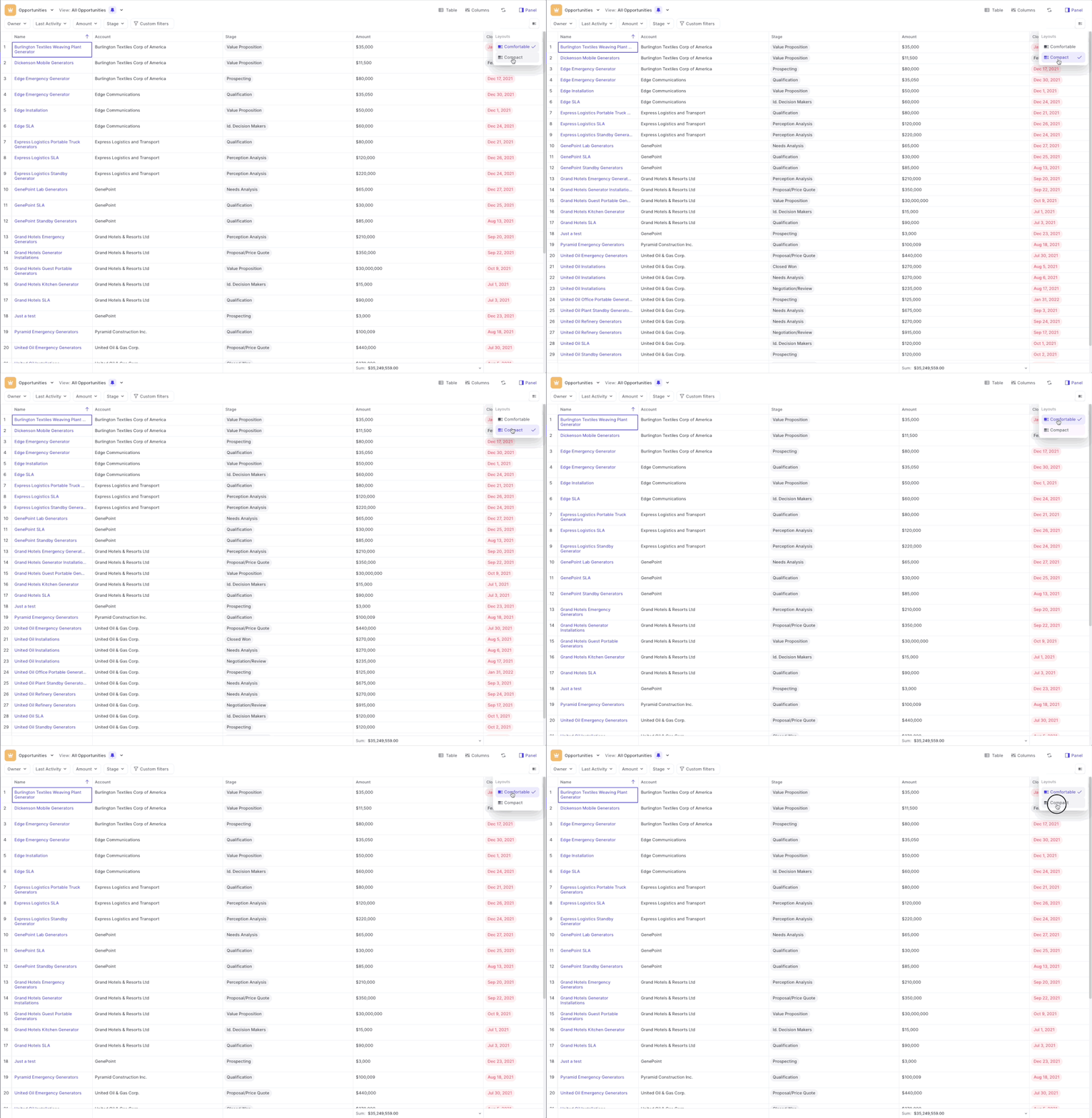
Switch quickly between a comfortable or more compact cell height in the table pipeline view.

  • Hit the button in the top right corner, to increase the height of the cells.
  • Per standard, all tables are loaded in the compact mode
Comfortable and Compact modeComfortable and Compact mode

Navigate the pipeline with arrow keys

If you find any additional aspects of Weflow, you'd like to control with the keyboard then let us know.

  • Click on any field to immediately pop out the input options
  • Use the arrow keys to navigate up, down, left or right
  • Hit enter, to open an input field
  • Hit ESC to close an input field without saving your changes

The table pipeline re-imagined

After releasing the first initial version of our table pipeline, we ran hundreds of tests with customers and first-time users. Based on their feedback, we now re-imaged how the table pipeline should look like.

With the initial designs, we tried breaking away from dull-looking spreadsheets which can easily overwhelm you and are sometimes hard to comprehend and navigate. However, we quickly realized that there are also many benefits that come naturally with the classic "spreadsheet look".

Take a look yourself:

Like it? Don't like it? Let us know at hello@getweflow.com 💌

Drag & drop columns to re-order quickly

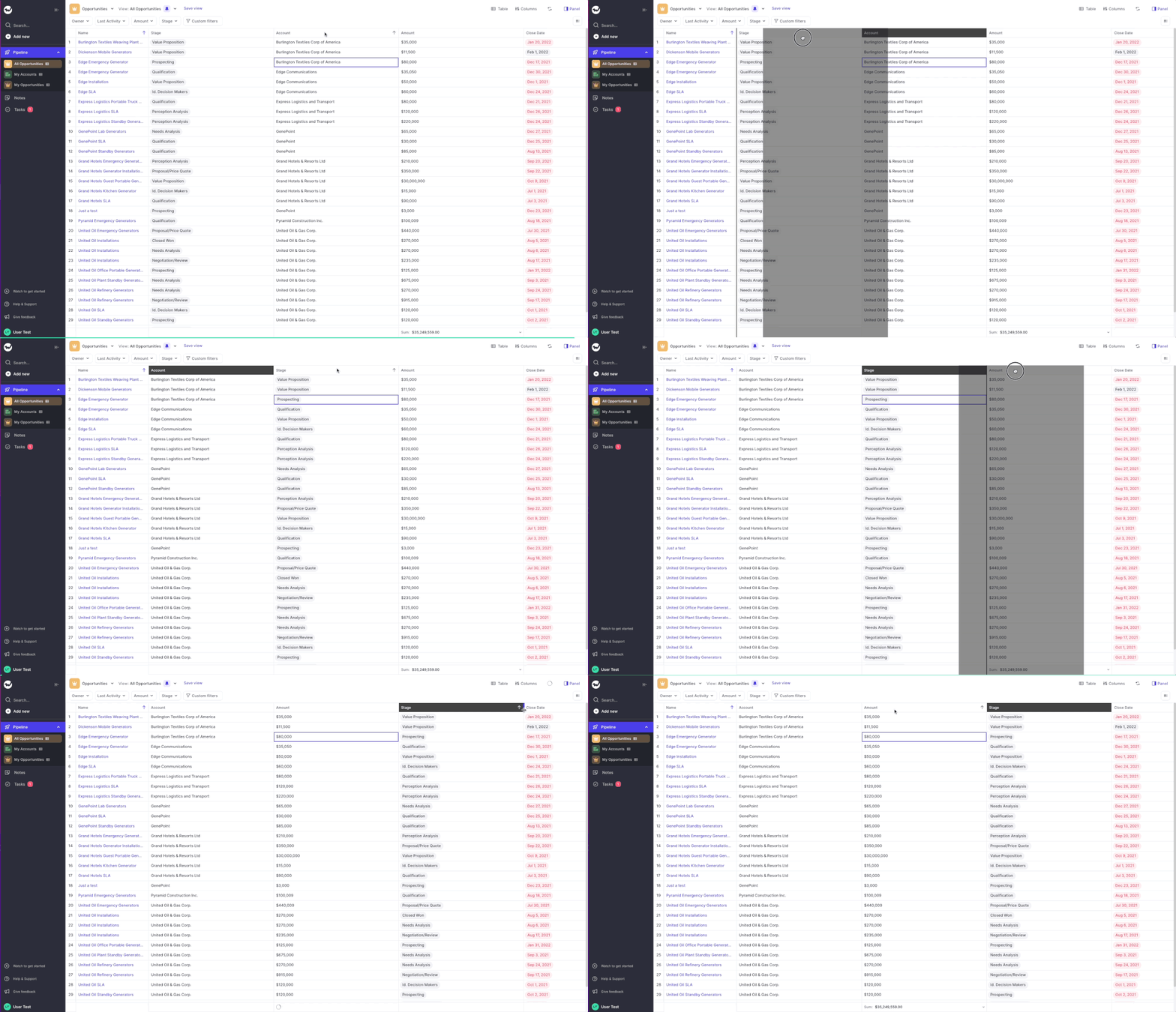
Drag columns wherever you want to change the sorting.

It's the fastest and easiest way, to adjust the look and sorting of your pipeline when in the table view.

Drag & drop columns to re-order quickly

Field Templates in the Panel

Create your own templates or share them with others on the same account

  • With field templates you can create custom field sets that fit your specific needs
  • You can also choose to share your templates with other users who are on the same account
  • When you share a template, only you can edit it
  • However, you can always duplicate a shared template and make it your own

Quick filters for Kanban and Table pipeline

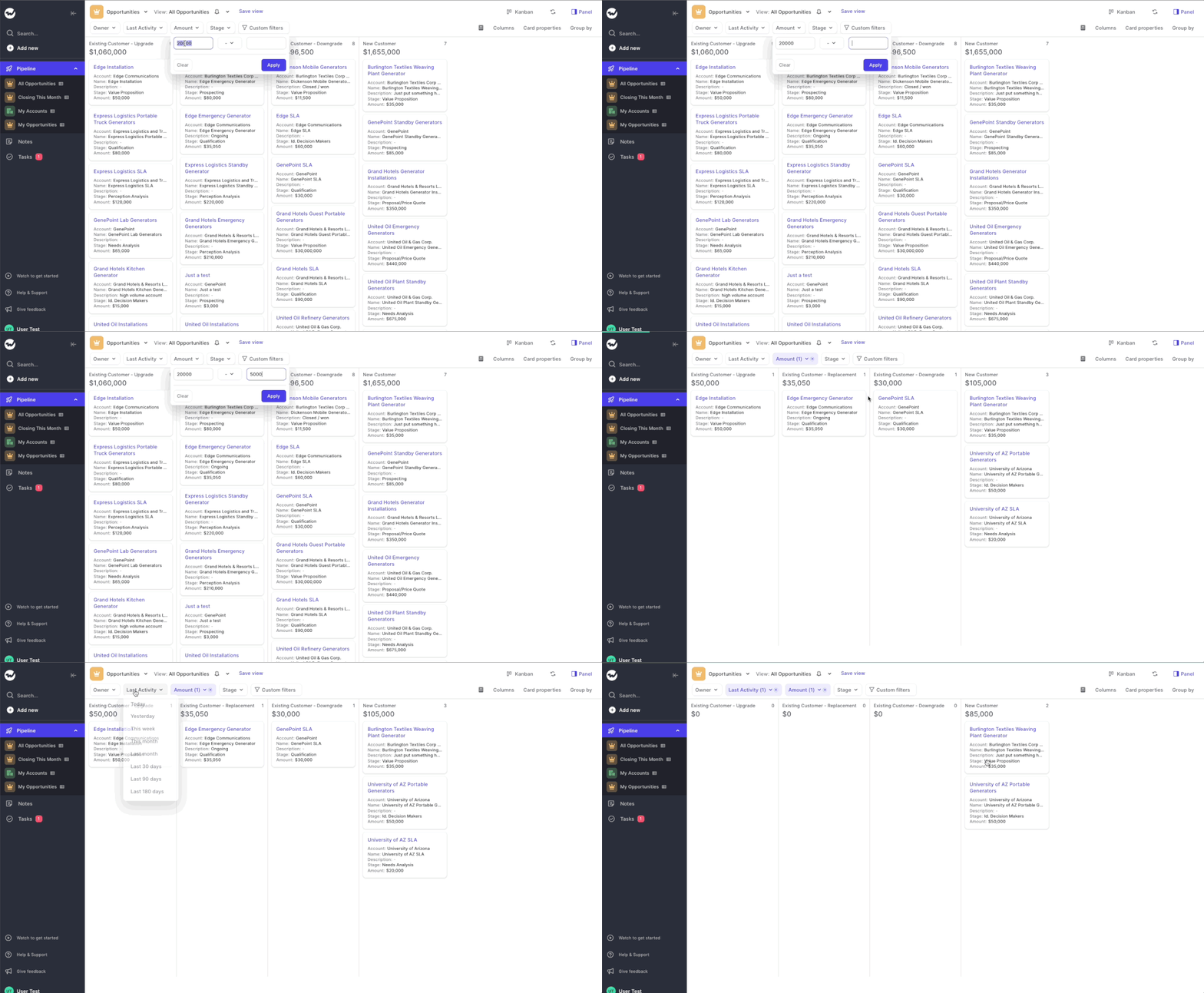
Quick filters allow you to narrow down your pipeline with just a few simple clicks.

Got more ideas for useful quick filters? Let us know.

  • We spoke to hundreds of Account Executives to understand which filters they need the most
  • Based on their insights, we added different filters for Opportunities, Leads, Contacts and Accounts
  • With one simple click, you can filter for Owners, Amount, Last Activity, Status or Stage
Quick filters for Kanban and Table pipeline

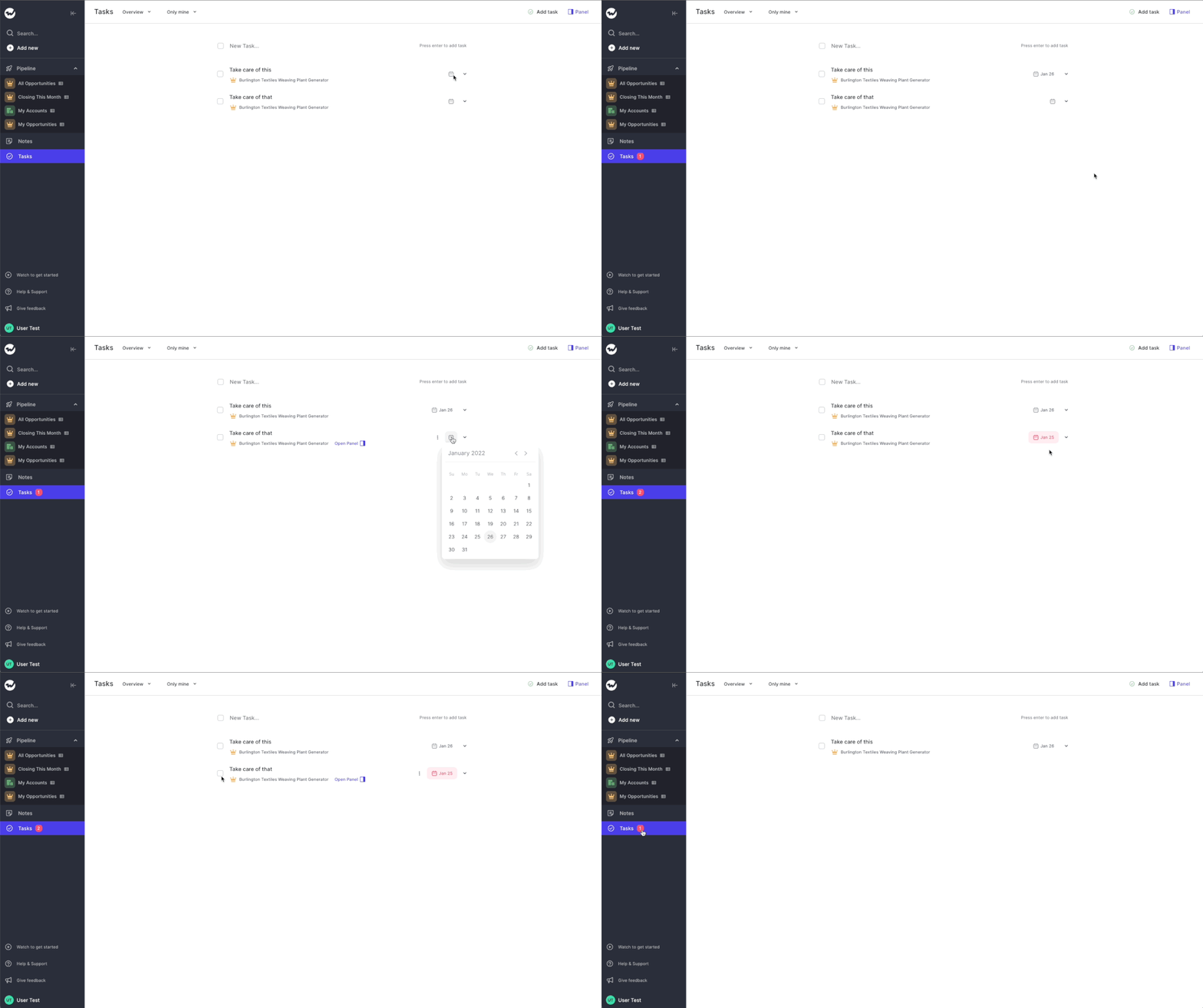
Overdue tasks badge in side navigation

Ever wish you'd see today's and overdue tasks more easily? Yeah, we hear you!

That is why you can now find a notification badge next to the task button in the side navigation.

Whenever there is one or multiple tasks overdue (including tasks that are due today), you will see a notification badge with a number count.

Overdue tasks badge in side navigation

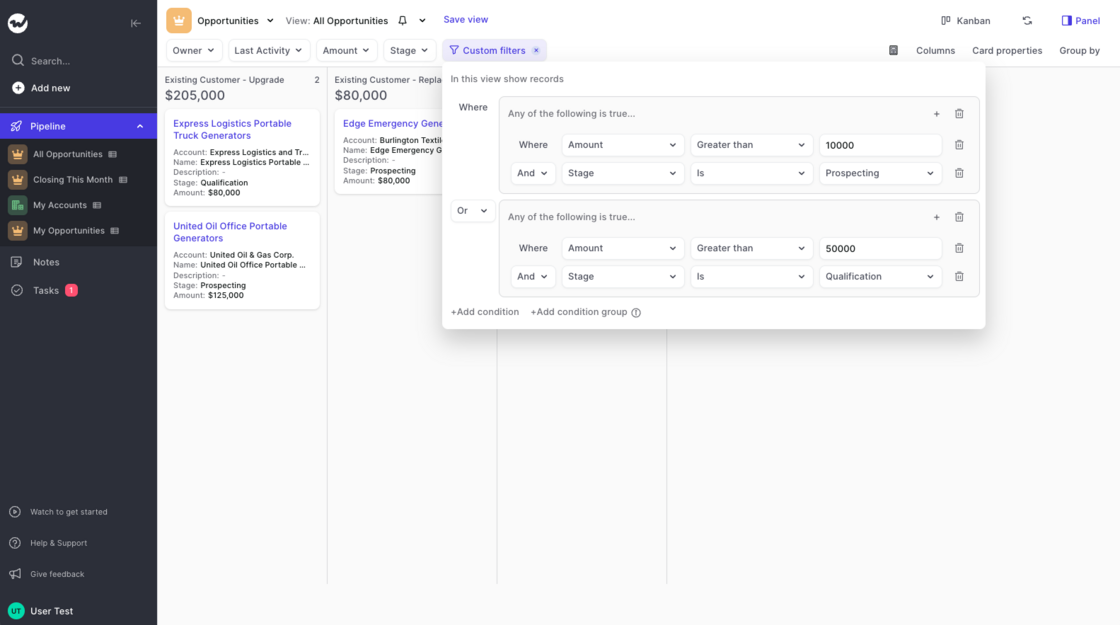
Custom filters

Use single conditions or group conditions to perform highly accurate searches

  • Combine single conditions or condition groups with all the filters your Salesforce setup allows for
  • Choose between AND and OR operators to make granular searches across your entire database of records
  • You can use custom filters either in the Kanban or the Table pipeline
  • More information can be found in this short support article
Custom filters

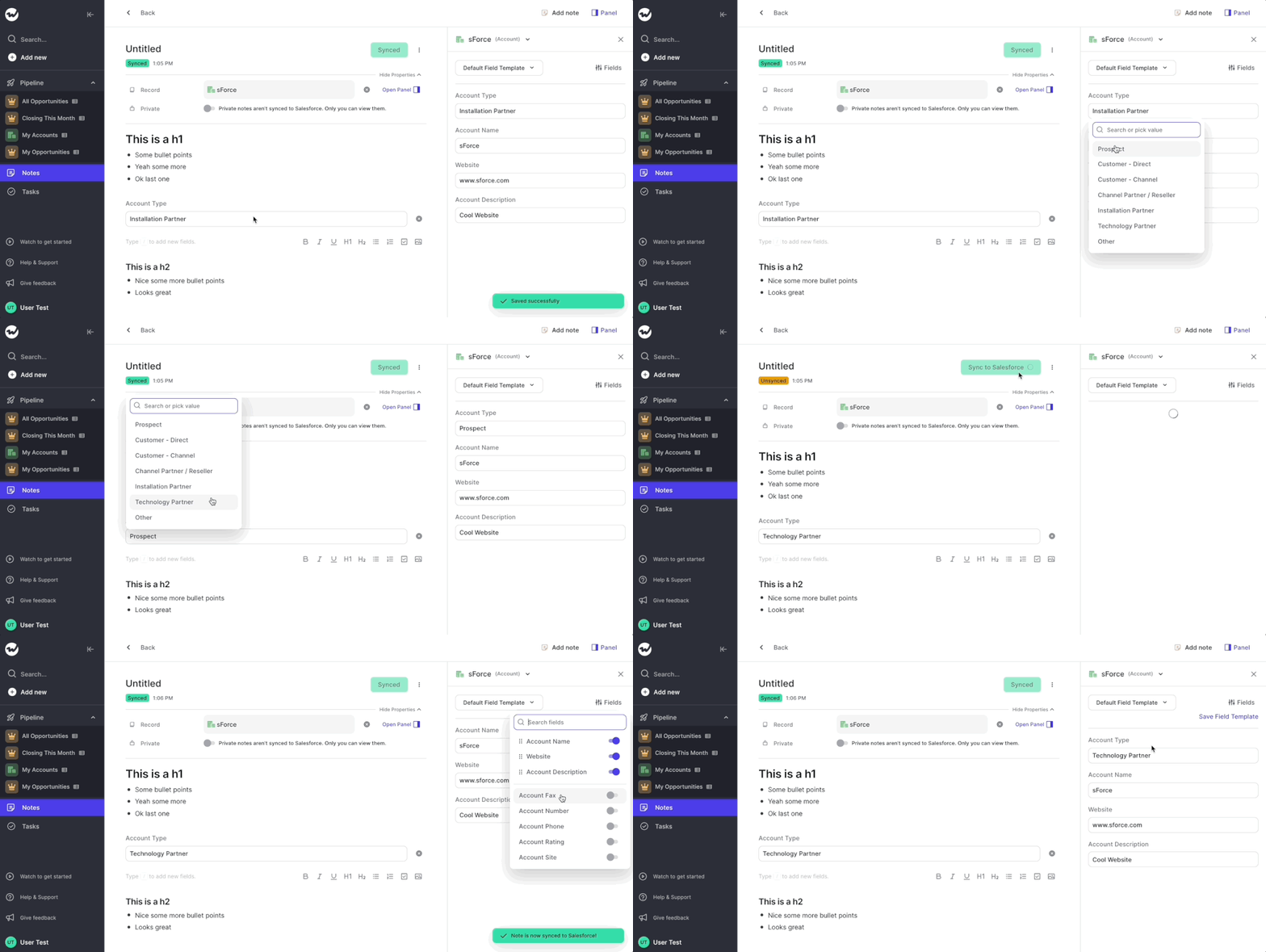
Panel updates and pipeline in sync

Changes to fields are now instantly shown in the panel and vice versa

Please note: Updates to Salesforce fields in notes are only synced if you manually hit the "Sync to Salesforce" button at the top of the note

  • A small but impactful improvement to reduce confusion when making fast updates to the pipeline via the panel or vice versa
  • Whenever you make a change to a field in the panel it will be instantly updated in the pipeline or a Salesforce field in your notes
  • The same is true if you make a change in the pipeline i.e. it will be shown immediately in the panel
Panel updates and pipeline in sync

Fixes to Kanban view and note creation

With out latest release, we fixed a series of issues:

1) Kanban view sometimes not loading

2) When creating a new note, sometimes there were some artifacts

  • Depending on your field settings, sometimes the Kanban view was not loadig correctly
  • This has now been fixed
  • For those interested, the issue was that some fields we tried to retrieve from Salesforce per default were not existing for certain record types
  • When you created a new note while in an already existing note, you would carry over some of the elements into the new note
  • This issue has now been fixed and shall never been seen again 🧐

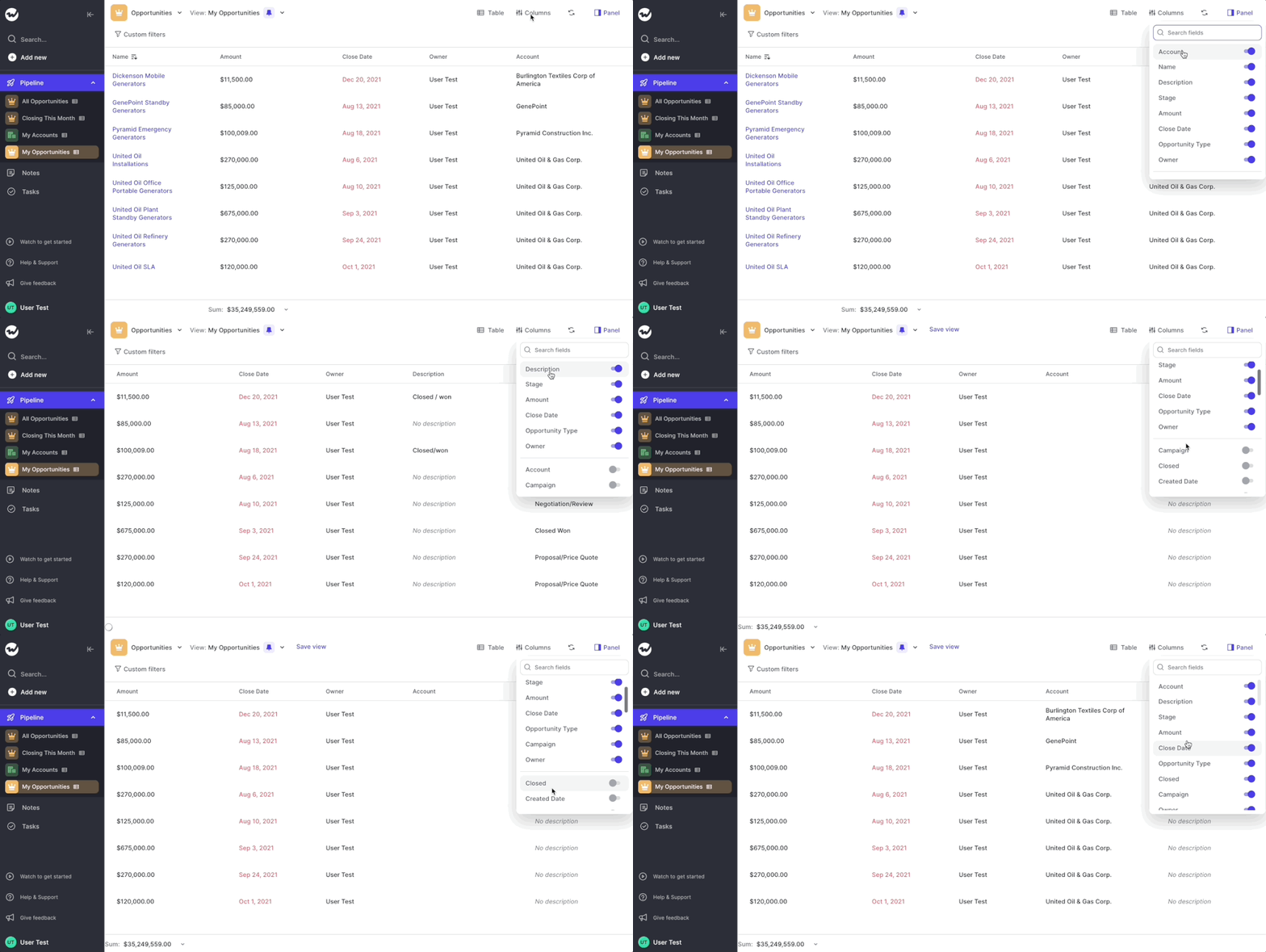
Show active / inactive fields

You can now see the active fields at the top when adding columns or card properties to the pipeline views

  • Previously, you had to search for fields no matter if active or not
  • That was confusing and added extra effort to a workflow that should be easy and fast
  • Hence, we are now sorting all fields alphabetically AND show active fields at the top (always)
  • You can use this new menu for Field Sets in the Panel as well as the Table and Kanban view of the pipeline as seen in this short gif
Show active / inactive fields

Help & support section re-design

The help and support section at the bottom left of the sidebar navigation has been re-designed. It's a small tweak including a reduced font size and a transparent background so that it embeds more nicely into the overall app styling.

Help & support section re-design

Default field set templates for the panel

Field sets feature more fields now per default in the panel.

The following fields have been added to the default fields in the panel:

Opportunities: Last Activity

Contacts: Account

Accounts: Industry, Revenue, Employees, Last Activity

If you have any feedback on the default templates, let us know.

Display all properties on Kanban cards

There was a small issue, where some properties (mainly True/False statements) were not displayed properly on Kanban cards.

✅ This issue has now been resolved. Thank you for your reports and support.

December 2021

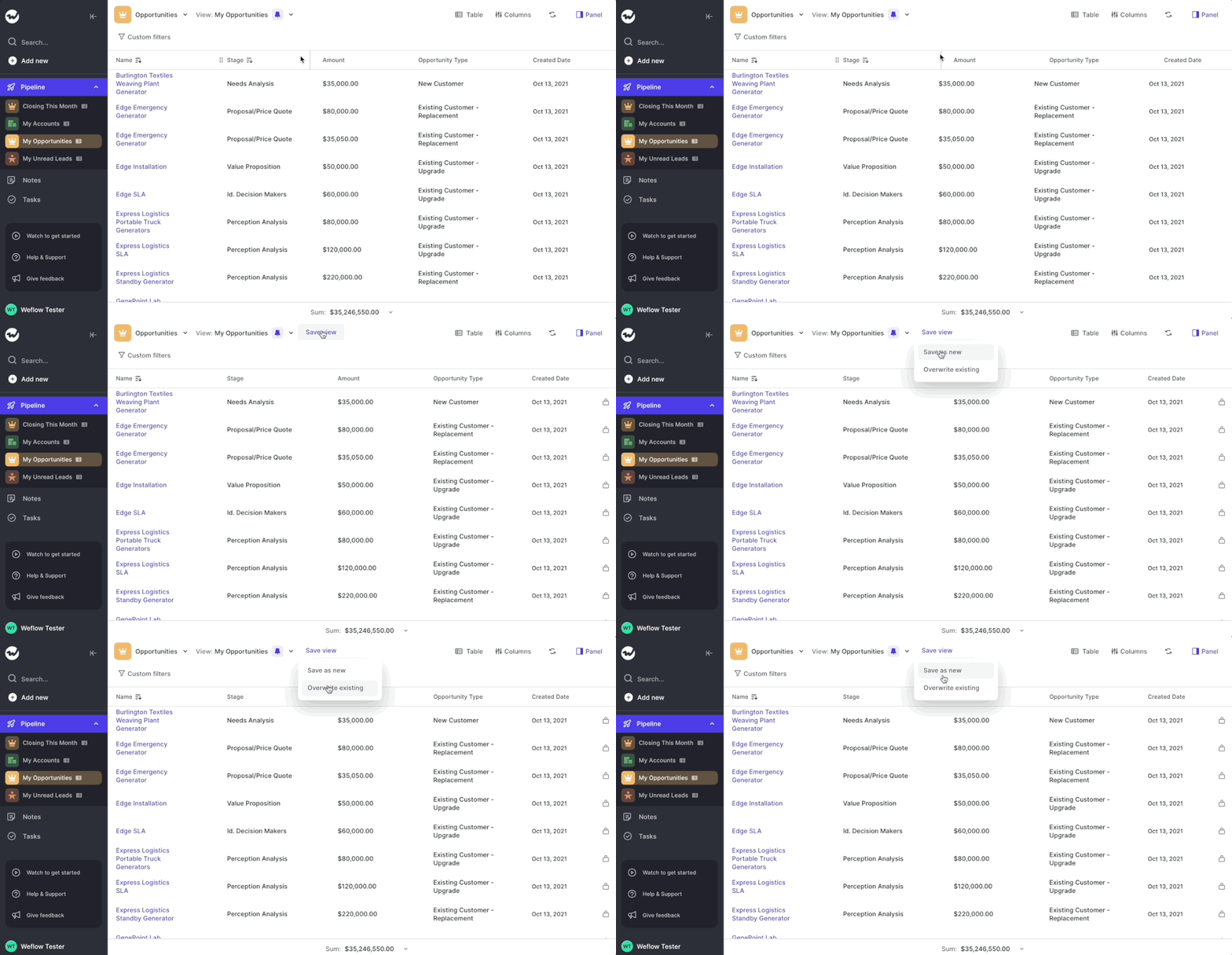
Overwrite saved views

We admit it…saving views was not super intuitive in the past. This update makes saving new views or overwriting existing ones much easier.

Now, everytime you make a change to one of the following aspects of the pipeline, you can choose to overwrite the saved view or save it as a new view:

We hope this is transparent and simple for you. If not, let us know.

  • Table columns (fields)
  • Column width
  • Sorting
  • Position
  • Card properties
  • Calculation
  • Kanban columns
  • Group by
Overwrite saved views

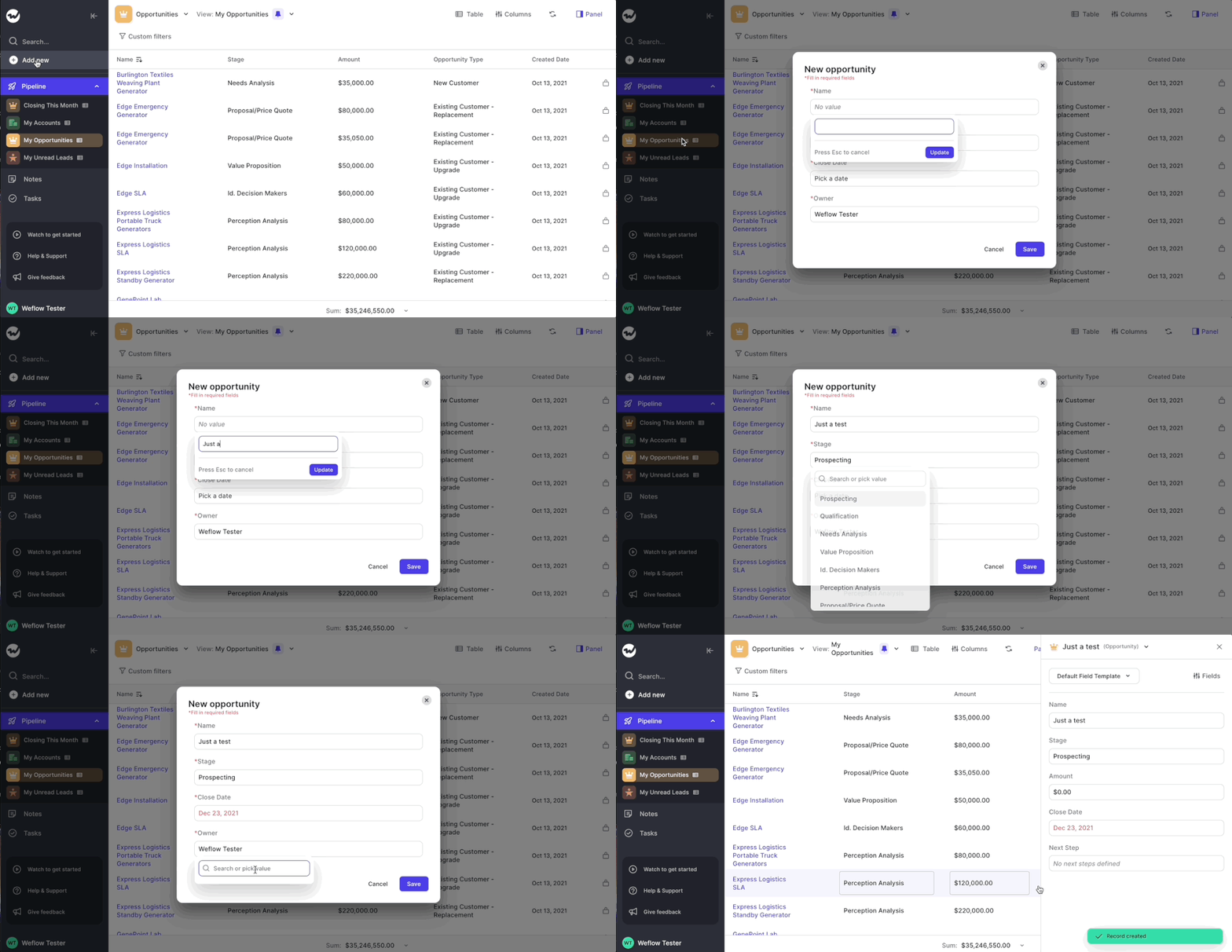
Create SFDC records even faster

Weflow now auto-selects the first input field when creating a new record and automatically jumps to the next line once you hit enter.

Create SFDC records even faster

Up to 8 properties on Kanban cards

You can now add up to 8 properties on Kanban cards.

This was commonly asked for by you, our beloved customers. We listened, we fully agreed, we built, we shipped 🚀 Thank you for your feedback 👍

Send feedback + quick access to help articles

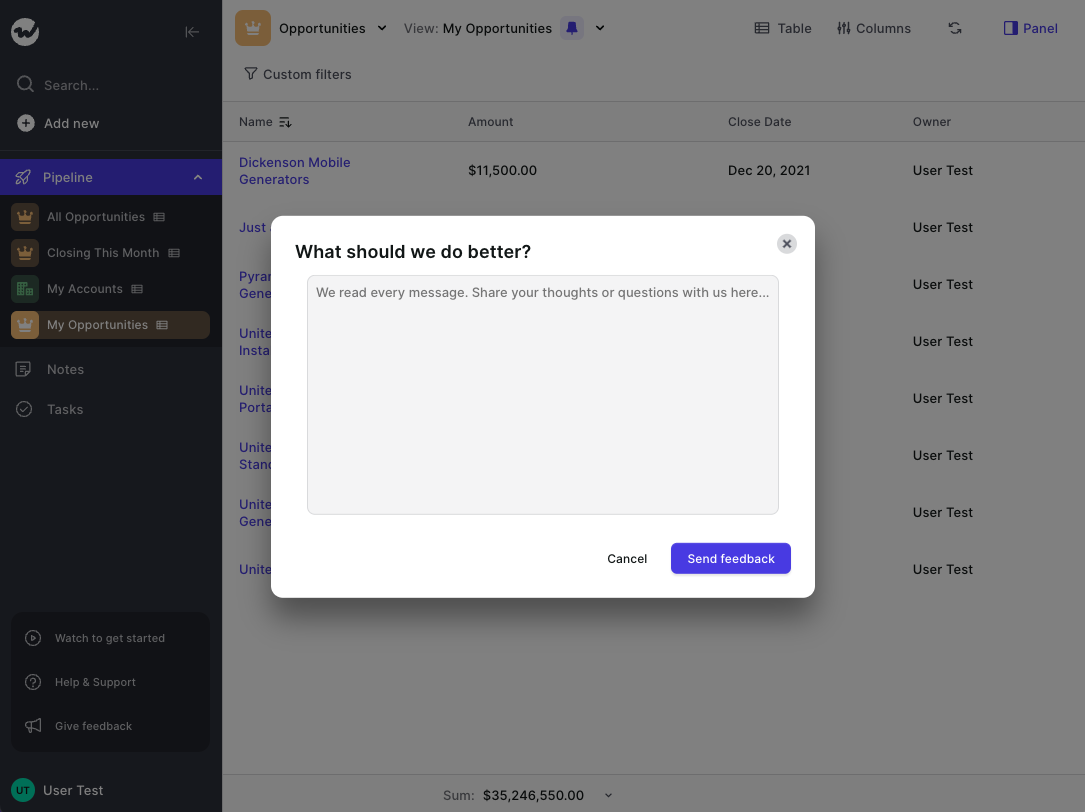
Send your feedback directly from the Weflow app.

You can now send your feedback, questions or ideas directly from the Weflow app. Simply hit the "Give feedback" button on the left side in the menu.

In addition, we now surface fast access to our help & support articles as well as a short 4-minute video to help you get started:

  • Help & support articles
  • Get started in less than 5 minutes video
Send feedback + quick access to help articles

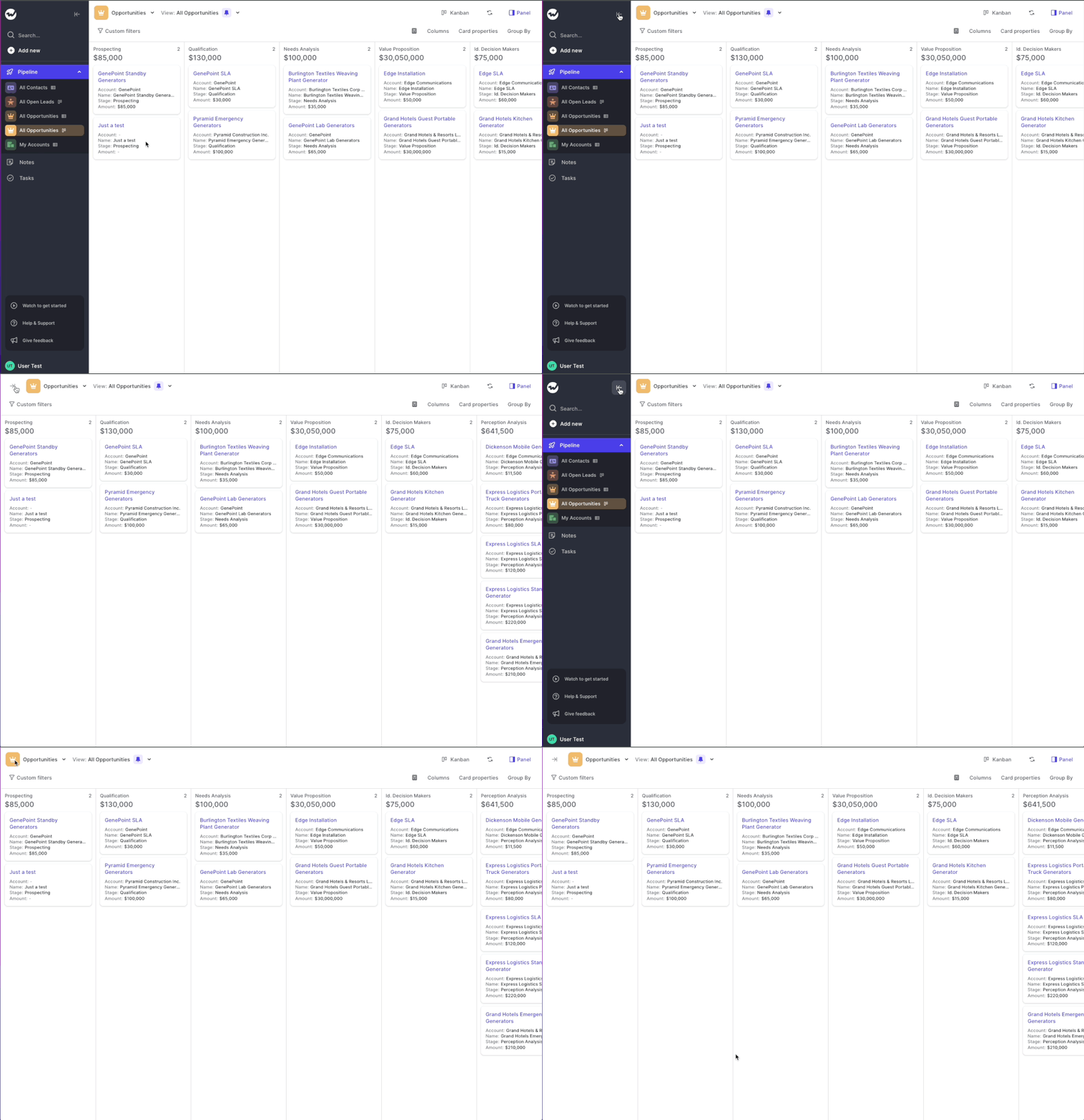
Full screen mode

Toggle the menu to use Weflow's full screen mode.

Need a full-focus mode for your weekly sales review meeting? We got you covered. Enable the full screen mode by toggling the menu via the arrow button at the top. It's quick and simple. Just as we like it.

Full screen mode

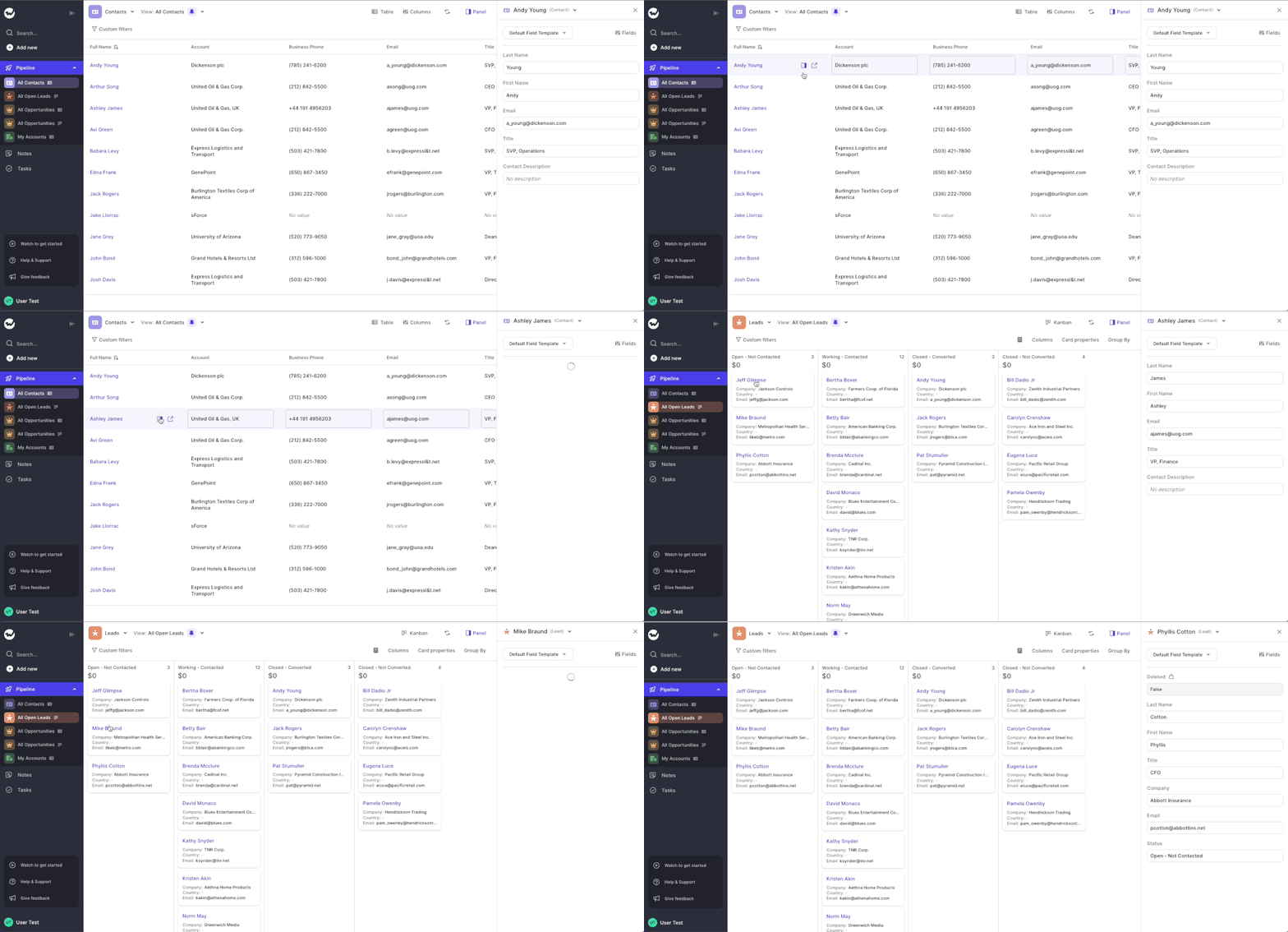
Panel for Leads and Contacts from Pipeline

We fixed an issue where there was no "Panel" button available for Contacts or Leads in the Pipeline Table view.

You can now open the Panel for all record types from anywhere in Weflow.

Panel for Leads and Contacts from Pipeline