 weflow
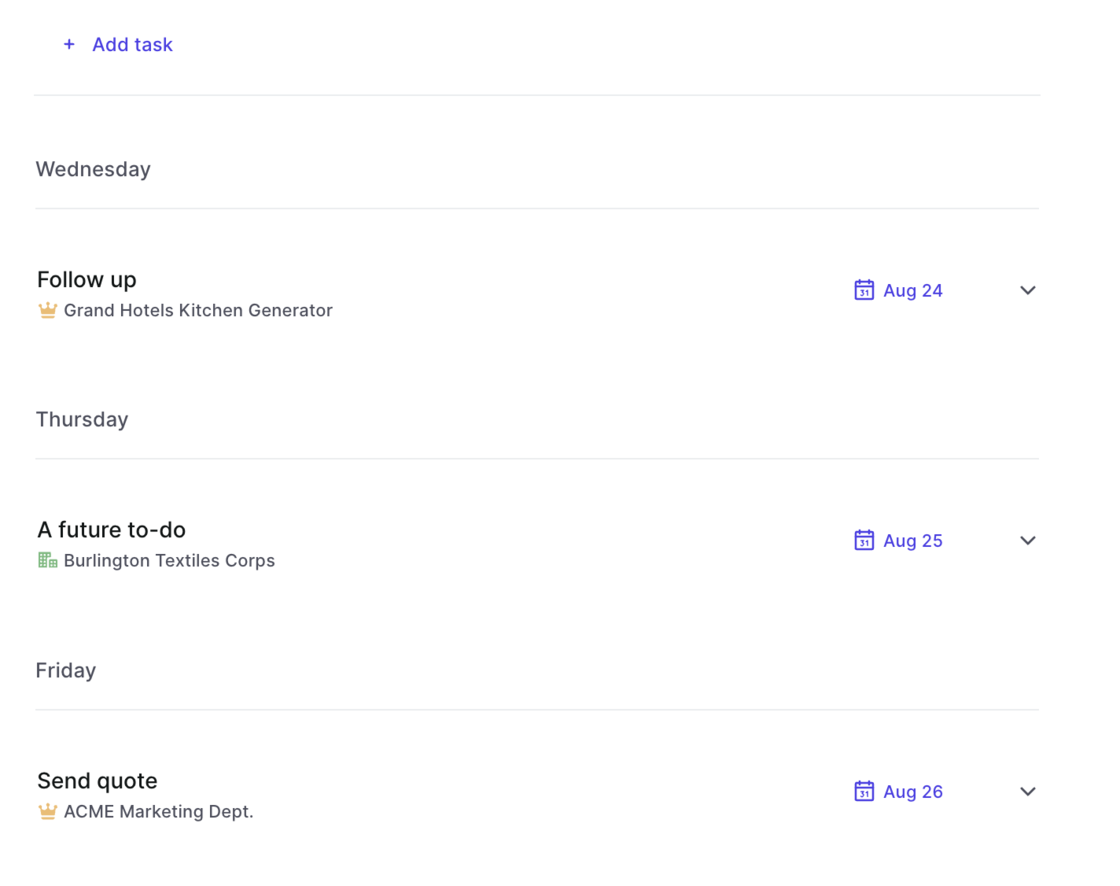
Tasks sorting updated
- When selecting the "Next 7 days" filter in the task list, the tasks are now sorted with the earliest date at the top
- Previously tasks were listed based on creation date
67 updates shipped in 2026339 all time
Showing September 2022 and earlier · Back to latest
We know from many conversations with our customers, that the panel is a great way to access and update information quickly. However, space was always a bit too limited and switching between different panel templates never felt intuitive enough. Here is what we changed:
The Kanban board received a UX update:
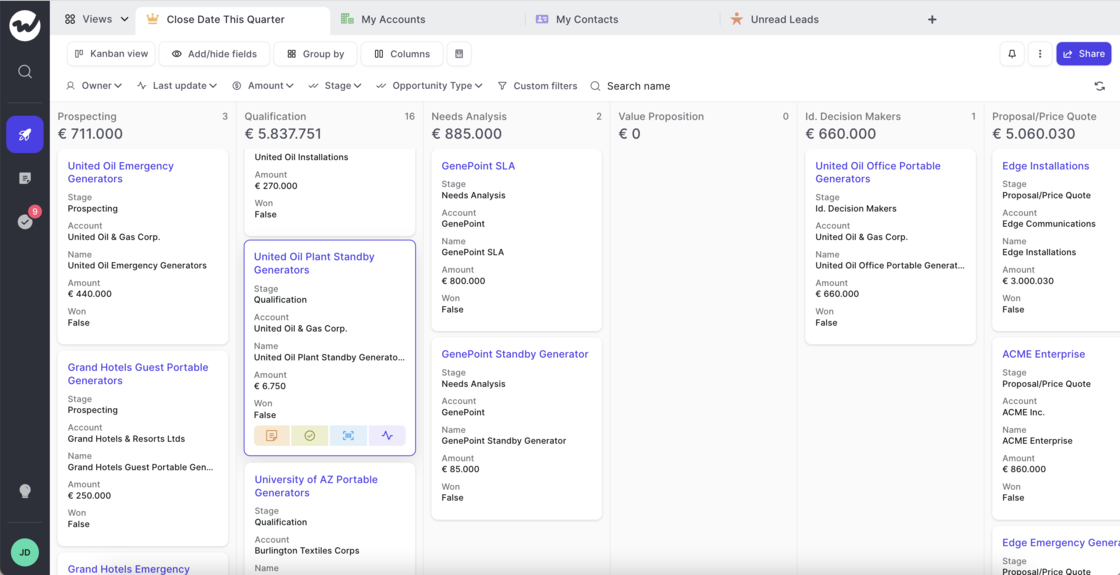
Quick actions can now be used in the panel, kanban and table view.
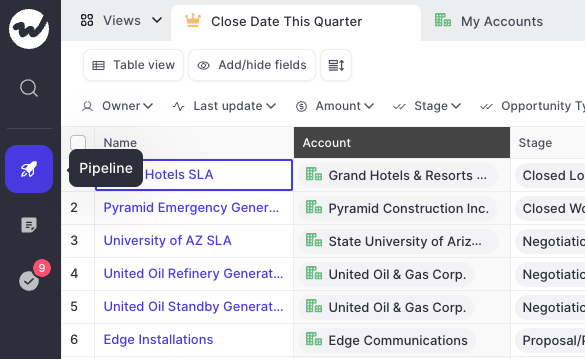
A fresh & clean sidebar, to let you focus on what matters:
We improved the readability of the note pad editor by making the following changes:
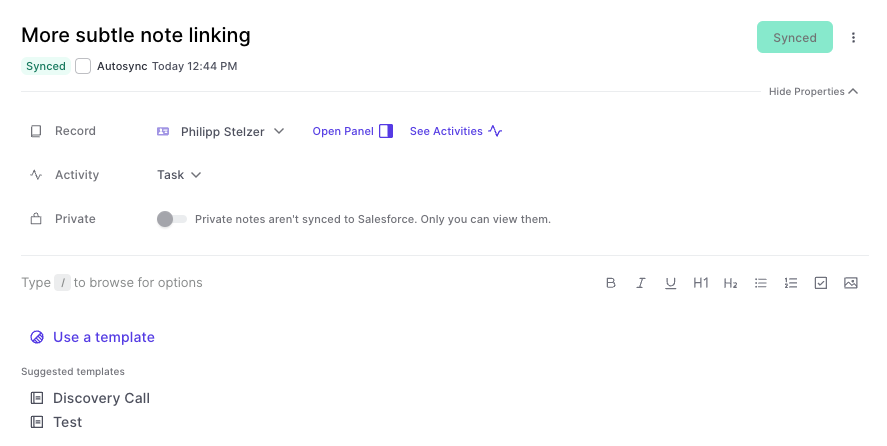
This improvement was made possible by a suggestion from one of our great customers. If you find issues like this, always let us know.
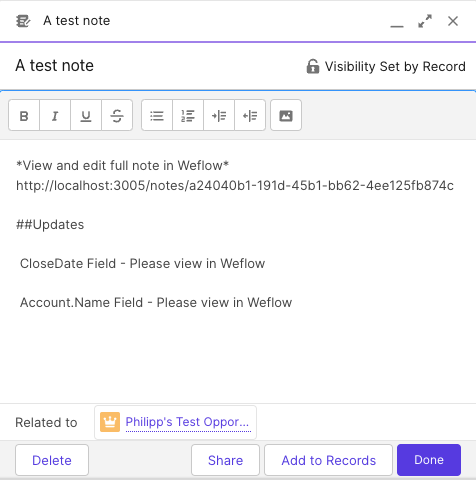
Before:
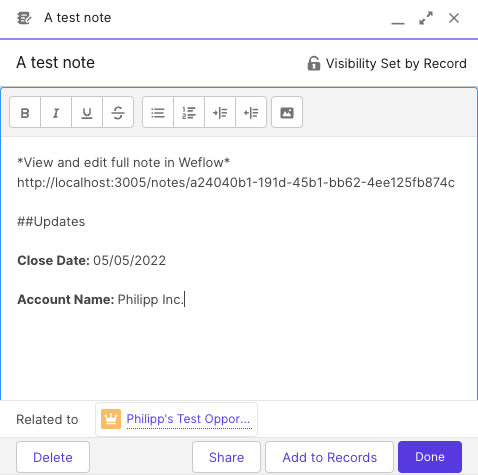
This format was not that readable. In fact, we used the API name of a field and not the customer-facing field label, which users are more accustomed to. This has been changed now to look like this:
Please note, that field values in notes are always only a snapshot since the last sync. Even if you have auto-sync activated, the auto-sync will only come into play if you made a pro-active change to that note.
Depending on your Salesforce settings, sometimes you can have customs fields which are generally accessible but not visible. This can cause issues in our interface. Hence, Weflow now regularly checks which fields and objects a user has access to and what kind of access (i.e. read or write access).
This is a backend change, and you will unlikely notice any differences while using Weflow. However, it is a major improvement to ensure a 100% stable user experience.
Don't you hate that random clicking around when trying to close a menu or window you don't want in your view anymore?
We definitely try to avoid this whenever possible. So here is another update where we made improvements to ensuring you can close whatever you want as quickly as possible with no unnecessary clicks.
Now, Weflow sets a due date when logging an activity via the note pad.

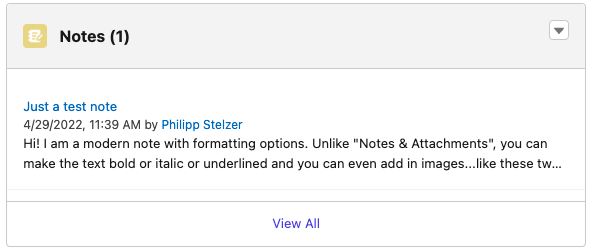
Did you know that there are different note types within Salesforce?
1) Notes & Attachments
2) Notes
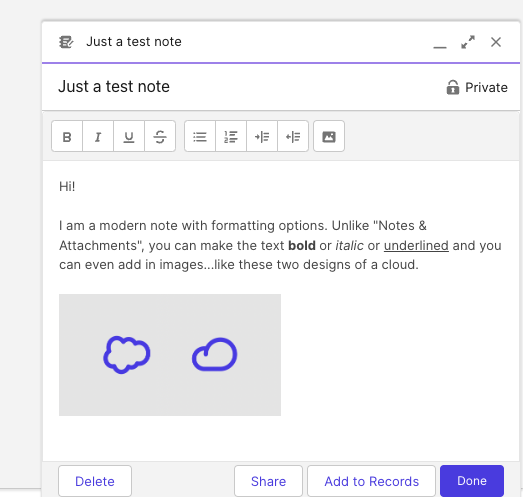
As you can see here, the newer note type features formatting options:
In Weflow, you can now choose how you want your notes to be snyced to Salesforce. Either into the "Notes & Attachment" or into "Notes" i.e. Content Notes. Of course, notes from Weflow will also appear as formatted notes if you choose the newer "Notes" type.
If you have questions about this option, please contact us at hello@getweflow.com. We are happy to assist you in setting you up for success.

We love listening to your feedback ❤️
That is why we re-worked the Weflow task manager from scratch. Previously, it was not always clear how to add a new task and there was no way to edit an existing task.
With the new flow, we now built a re-usable component that will find its way also into the upcoming "Activity Timeline" as well as our already existing Chrome Extension.
Check out this short video to walk you through the new design:
Often, the small details are what make a difference. This small update improves the usability of our app by improving these two things:
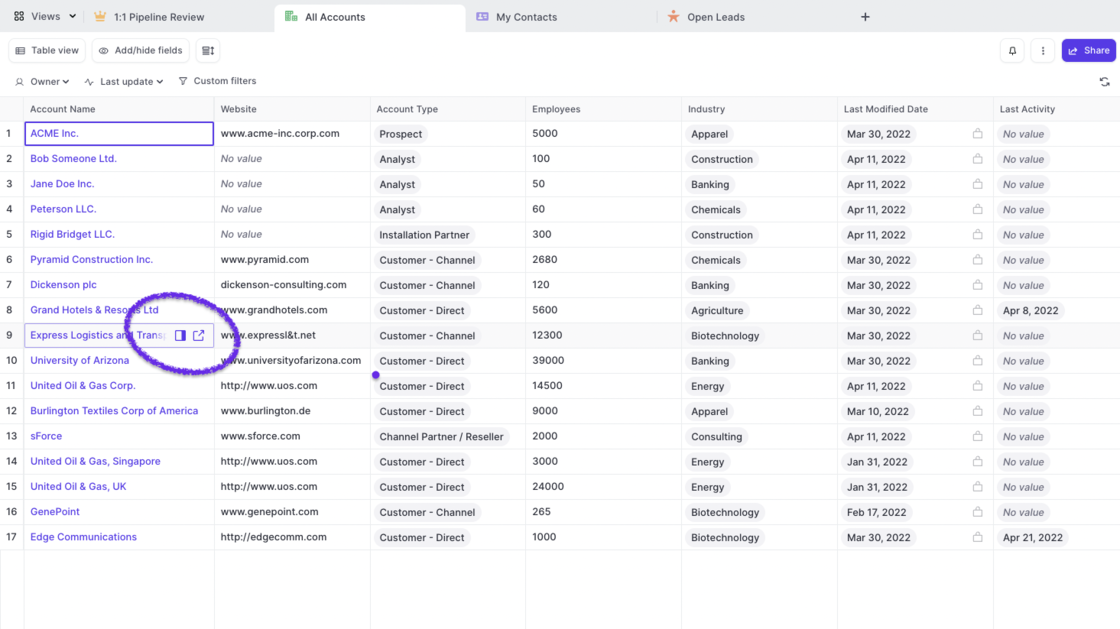
Based on your feedback, we made several changes to how changes to your pipeline views are either auto-saved or require a manual saving confirmation:
The following actions are auto-saved and overwrite the current view settings:
All these actions are commonplace and are expected to be persisted. On the contrary the actions blow are taking the currently loaded data and re-define them i.e. by using filters or switching from a Kanban to a Table view.
These actions are not auto-saved and require a manual confirmation by the user via the “Save” button:
Use CMD+J on macOS or ALT+J on Windows to launch the Weflow Search
The Weflow search is more than just a simple search. Here are all the things you can do with it:
Weflow search in itself is nothing new. However, now you can launch it more easily by hitting the CMD+J or ALT+J shortcut from anywhere in the Weflow web app.
If you have our Chrome Extension installed, you can use the shortcut ANYWHERE on the web to get quick access to your Salesforce records.
From today on, you can enjoy a more intuitive and generally easier to navigate note list design. What does that mean?
Got feedback on the new design? Let us know!
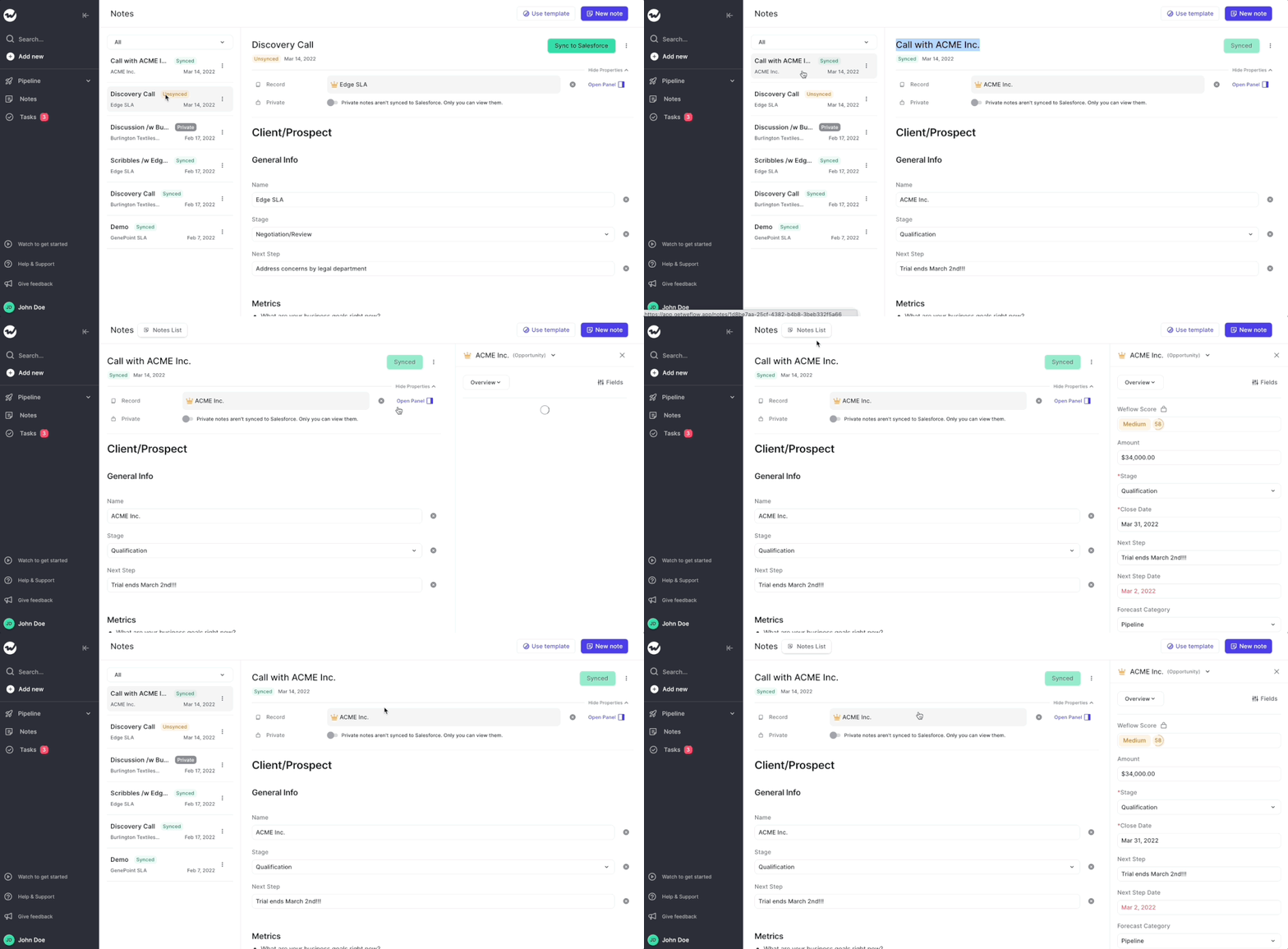
We hate unnecessary clicks. They cost only seconds, but they add up quickly.
From today, when creating a new note, we auto-select the title so you can quickly give your note a name. Once you hit Enter, we automatically save that title and move the cursor down into the body section of the note. No mouse clicks needed anymore.
Should you ever feel like Weflow forces you to make unnecessary clicks, do let us know. We'd love to clean that up for you.
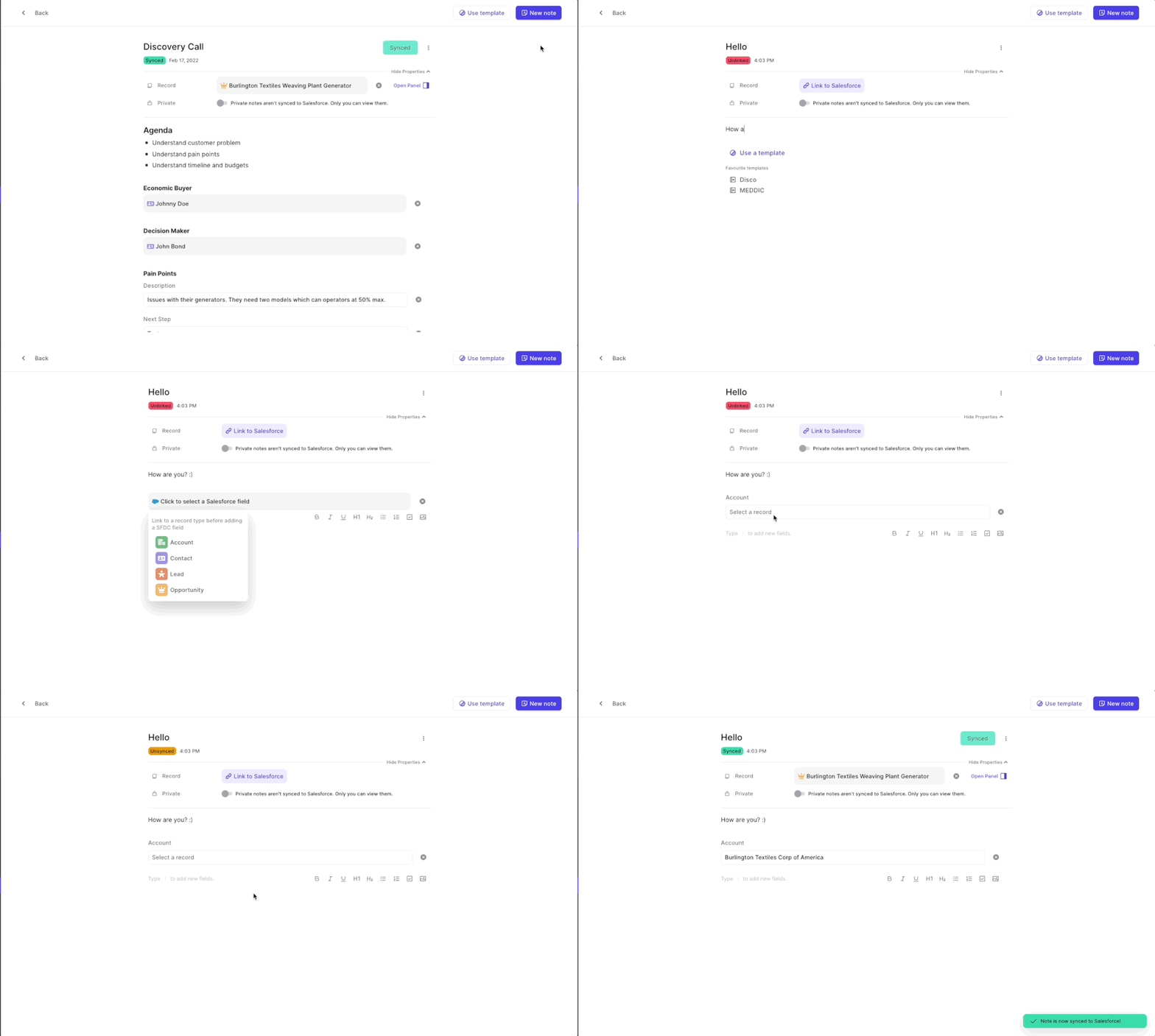
Views are a powerful way to segment your data and work with 100% focus on your most important opportunities, accounts, contacts, leads…you name it!
Previously:
Now:
Bonus: We create 8 special views that will make it easy for you to navigate Weflow. Feel free to adjust them to your needs. Of course, we will continue to import your old Salesforce views as well. But we encourage you to create new ones if possible.
Got some time? Here is a 4 minute deep dive into using custom views in Weflow: