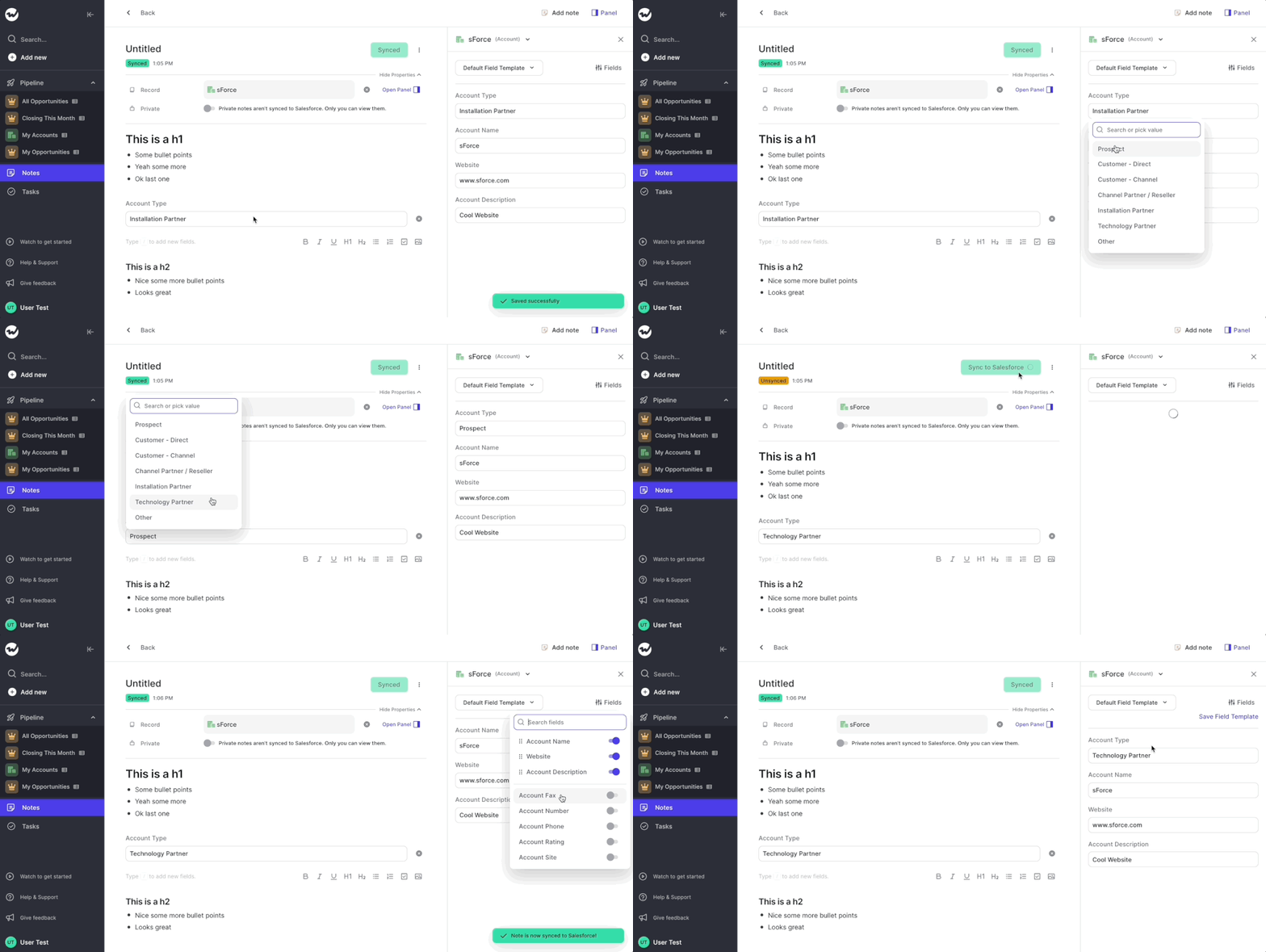
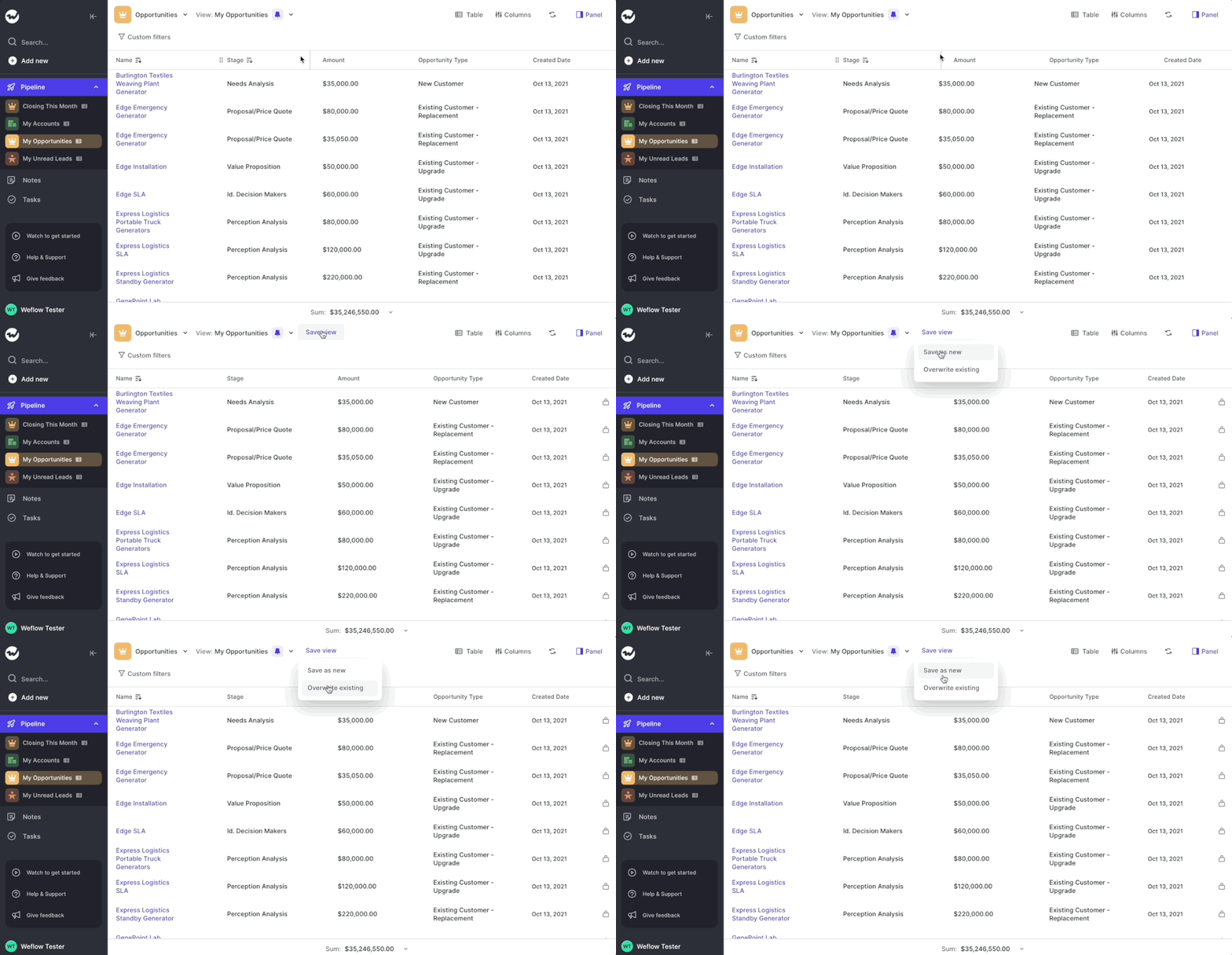
Based on your feedback, we made several changes to how changes to your pipeline views are either auto-saved or require a manual saving confirmation:
The following actions are auto-saved and overwrite the current view settings:
All these actions are commonplace and are expected to be persisted. On the contrary the actions blow are taking the currently loaded data and re-define them i.e. by using filters or switching from a Kanban to a Table view.
These actions are not auto-saved and require a manual confirmation by the user via the “Save” button:
Use CMD+J on macOS or ALT+J on Windows to launch the Weflow Search
The Weflow search is more than just a simple search. Here are all the things you can do with it:
Weflow search in itself is nothing new. However, now you can launch it more easily by hitting the CMD+J or ALT+J shortcut from anywhere in the Weflow web app.
If you have our Chrome Extension installed, you can use the shortcut ANYWHERE on the web to get quick access to your Salesforce records.
Search for notes, tasks, or records
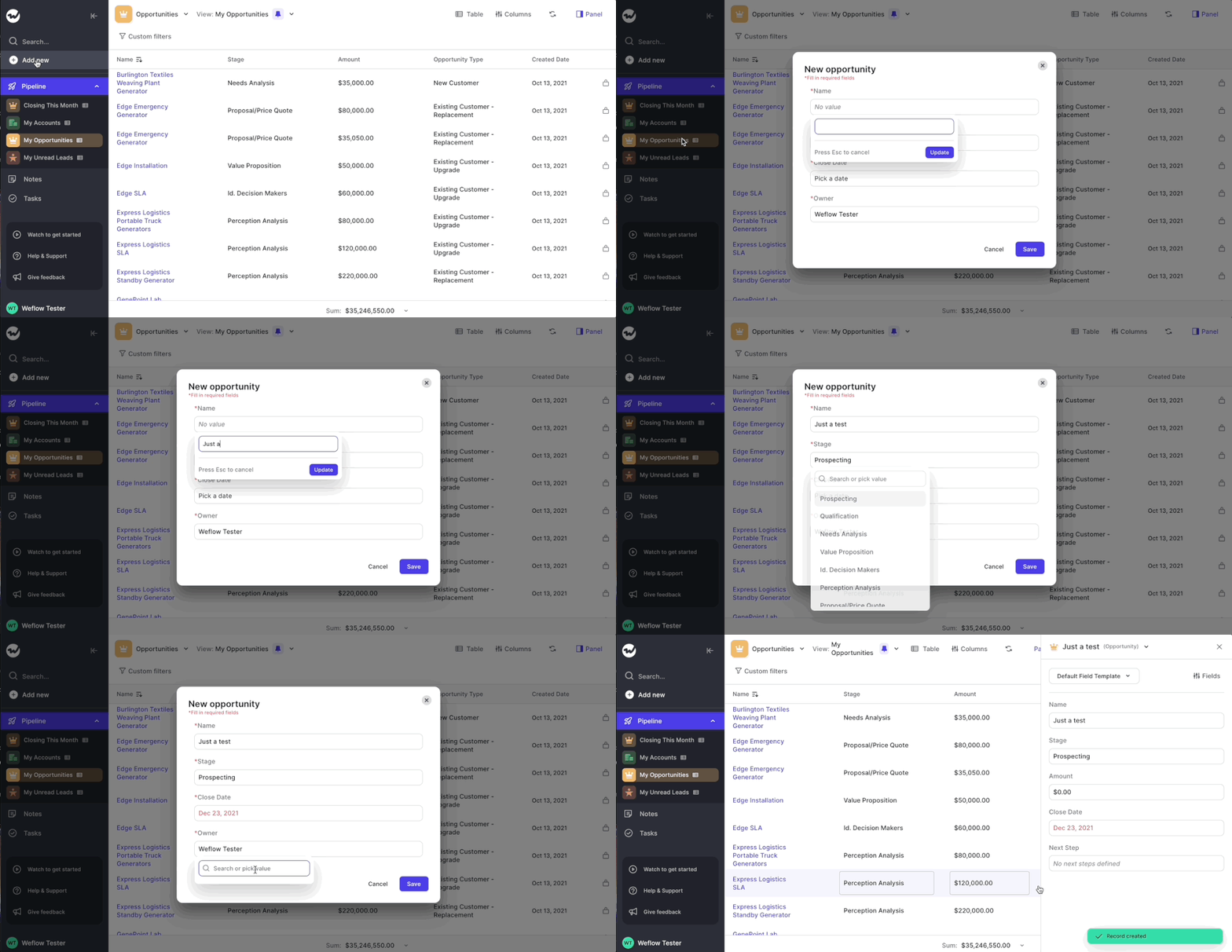
Create new notes, tasks or records
Find related records i.e. a contact or lead who is linked to an opportunity or account
We hate unnecessary clicks. They cost only seconds, but they add up quickly.
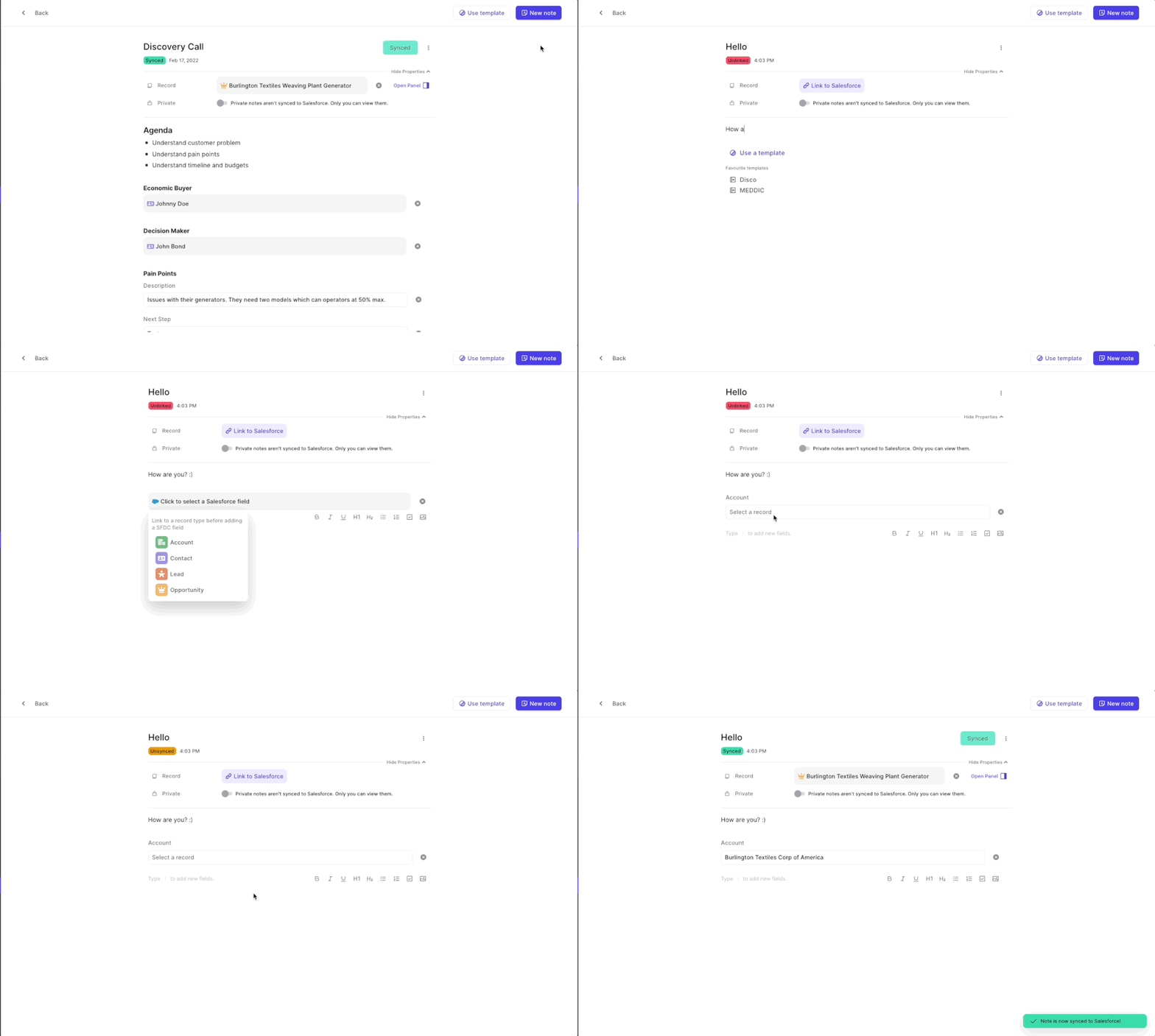
From today, when creating a new note, we auto-select the title so you can quickly give your note a name. Once you hit Enter, we automatically save that title and move the cursor down into the body section of the note. No mouse clicks needed anymore.
Should you ever feel like Weflow forces you to make unnecessary clicks, do let us know. We'd love to clean that up for you.
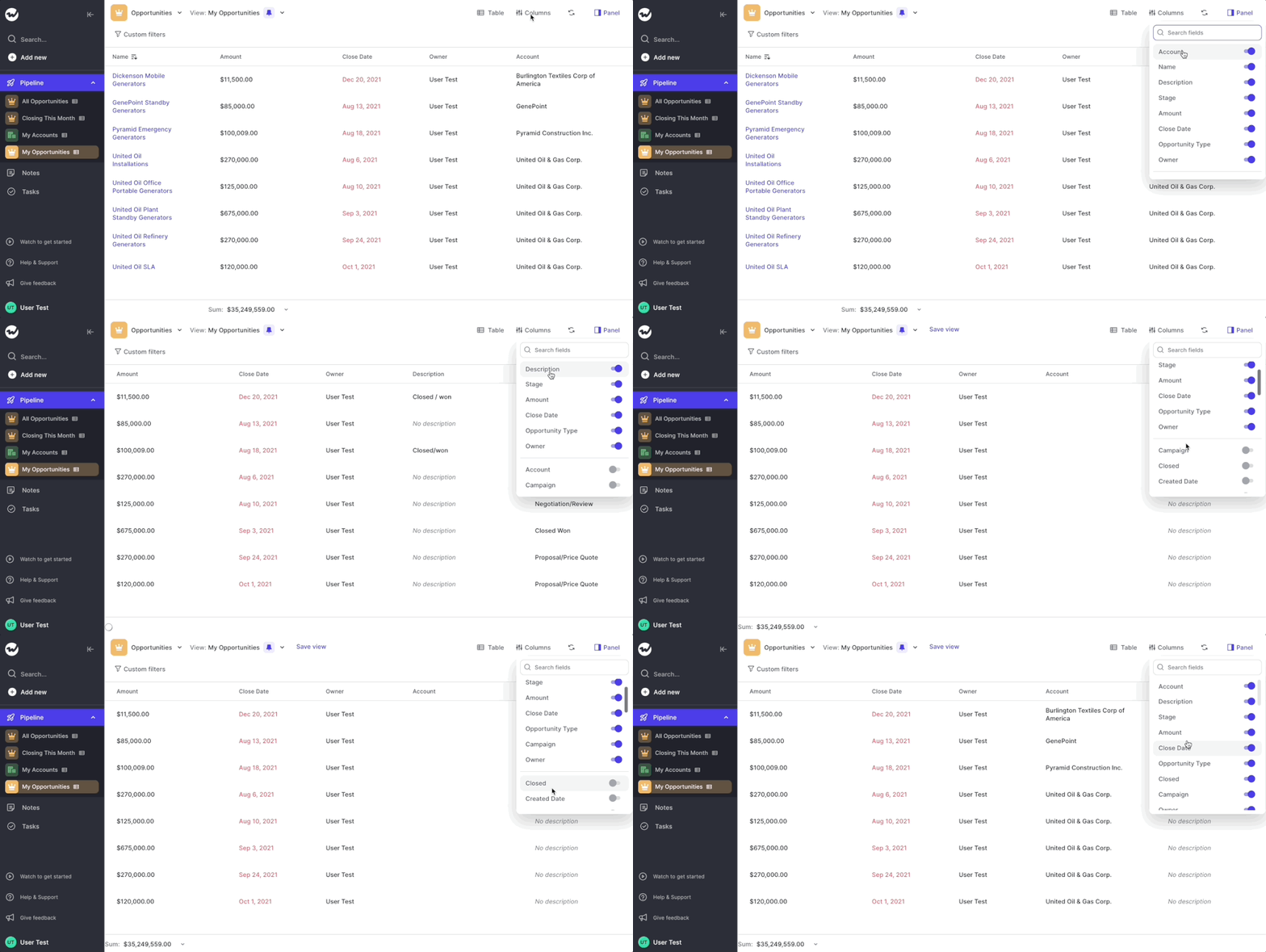
Views are a powerful way to segment your data and work with 100% focus on your most important opportunities, accounts, contacts, leads…you name it!
Previously:
Now:
Bonus: We create 8 special views that will make it easy for you to navigate Weflow. Feel free to adjust them to your needs. Of course, we will continue to import your old Salesforce views as well. But we encourage you to create new ones if possible.
Got some time? Here is a 4 minute deep dive into using custom views in Weflow:
When creating a new view, we based that new view on existing views that were imported from Salesforce
This could cause issues, in case there were hidden filters the user could not change and adjust themselves
All new views are built from scratch taking all record data for an opportunity type into account
That means for you: Full flexibility on all fronts and pure freedom when creating your own new views
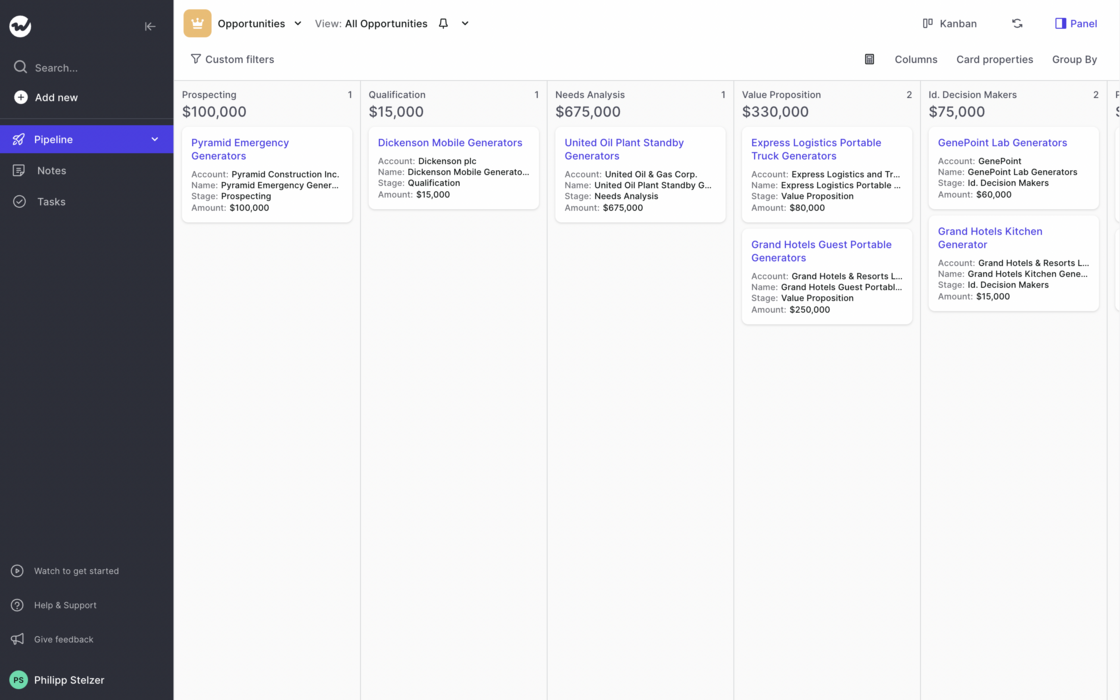
After releasing the first initial version of our table pipeline, we ran hundreds of tests with customers and first-time users. Based on their feedback, we now re-imaged how the table pipeline should look like.
With the initial designs, we tried breaking away from dull-looking spreadsheets which can easily overwhelm you and are sometimes hard to comprehend and navigate. However, we quickly realized that there are also many benefits that come naturally with the classic "spreadsheet look".
Take a look yourself:
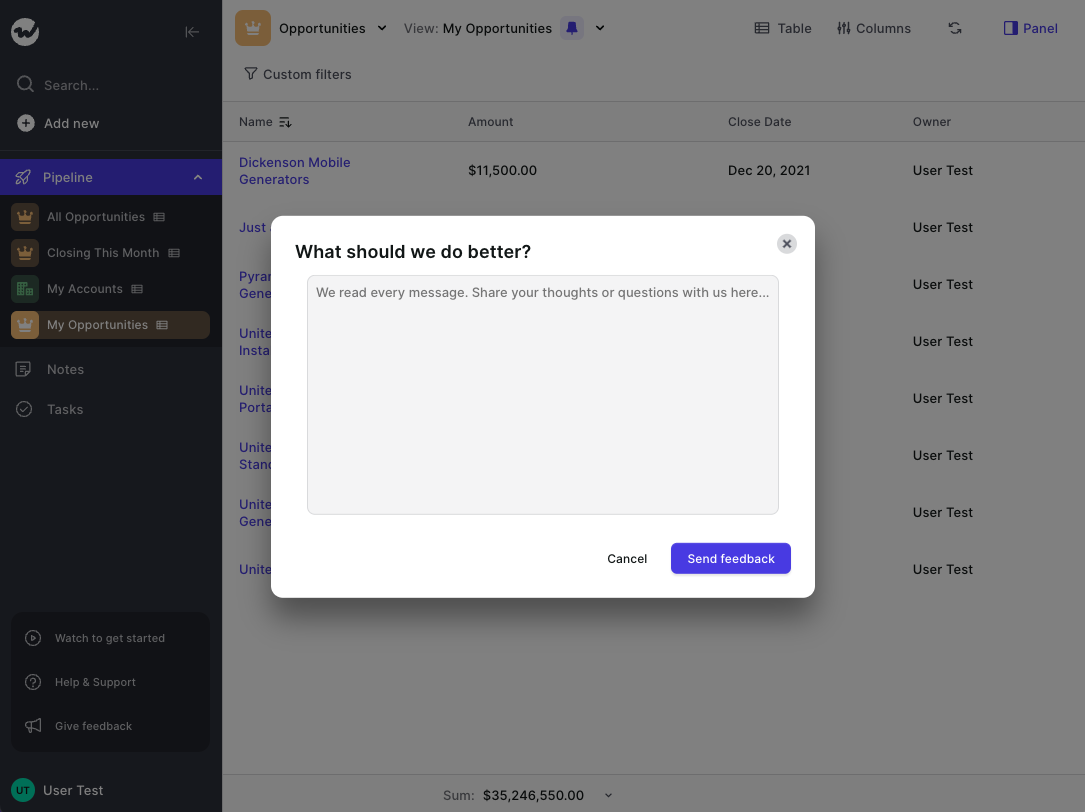
Like it? Don't like it? Let us know at hello@getweflow.com 💌
The help and support section at the bottom left of the sidebar navigation has been re-designed. It's a small tweak including a reduced font size and a transparent background so that it embeds more nicely into the overall app styling.
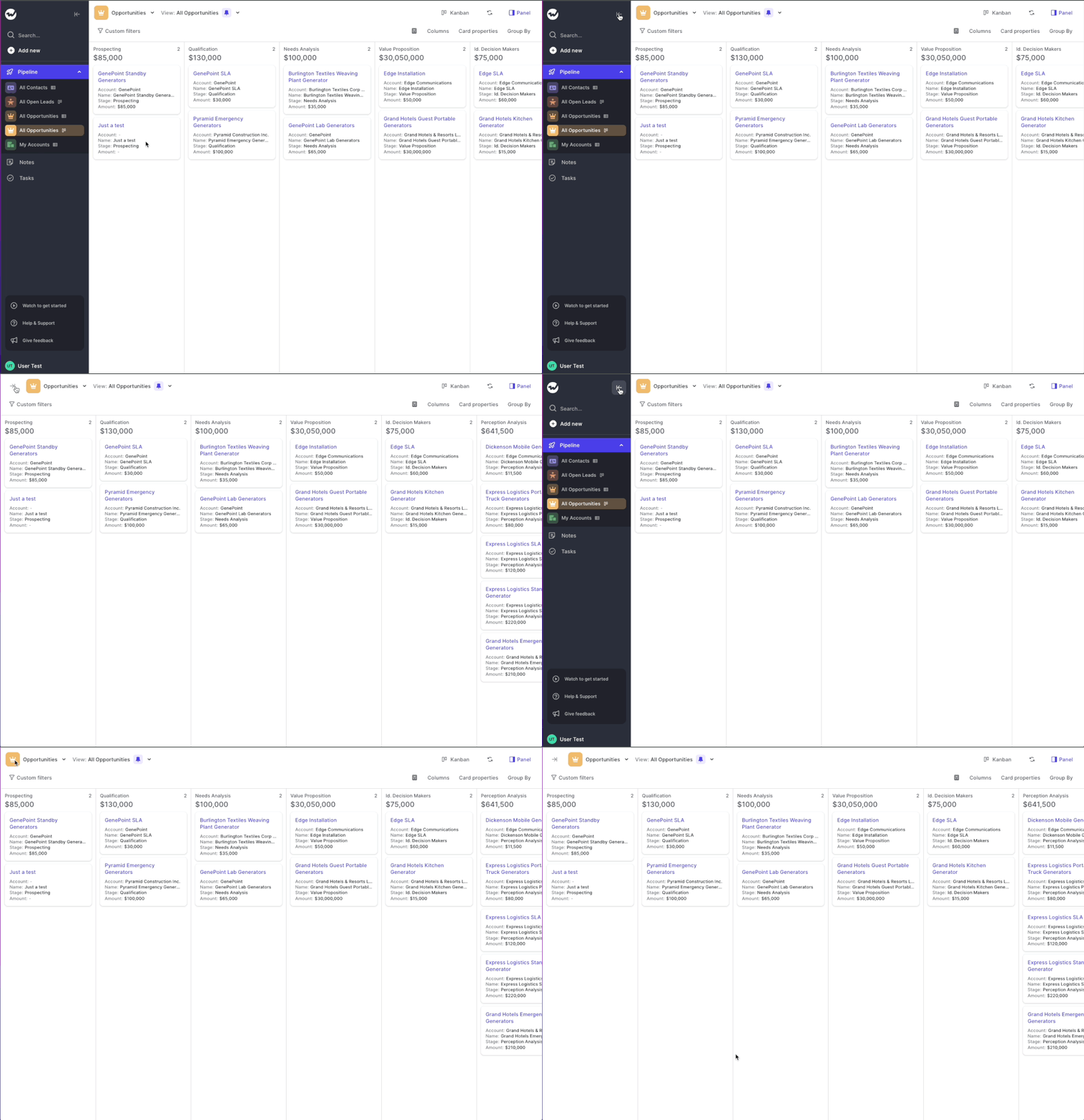
Need a full-focus mode for your weekly sales review meeting? We got you covered. Enable the full screen mode by toggling the menu via the arrow button at the top. It's quick and simple. Just as we like it.
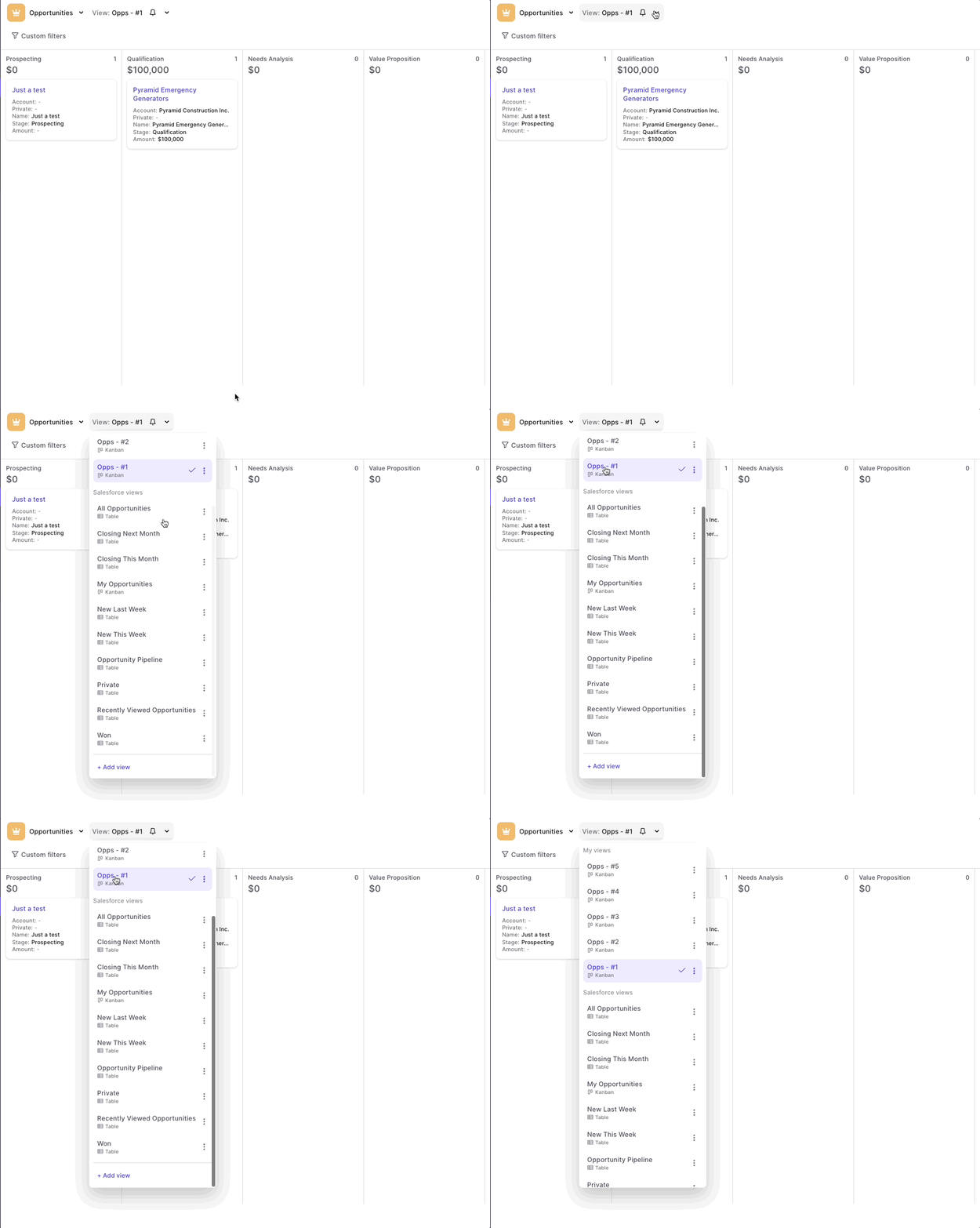
We had a few situations where if a user had an extensive list of saved views, then the menu to select them would not be able to contain all of them anymore.
Hence, we made your "My views" list scrollable. No matter how many views you have, Weflow has got you covered.
You reached the beginning. Thanks for scrolling all the way back.
 weflow