 weflow
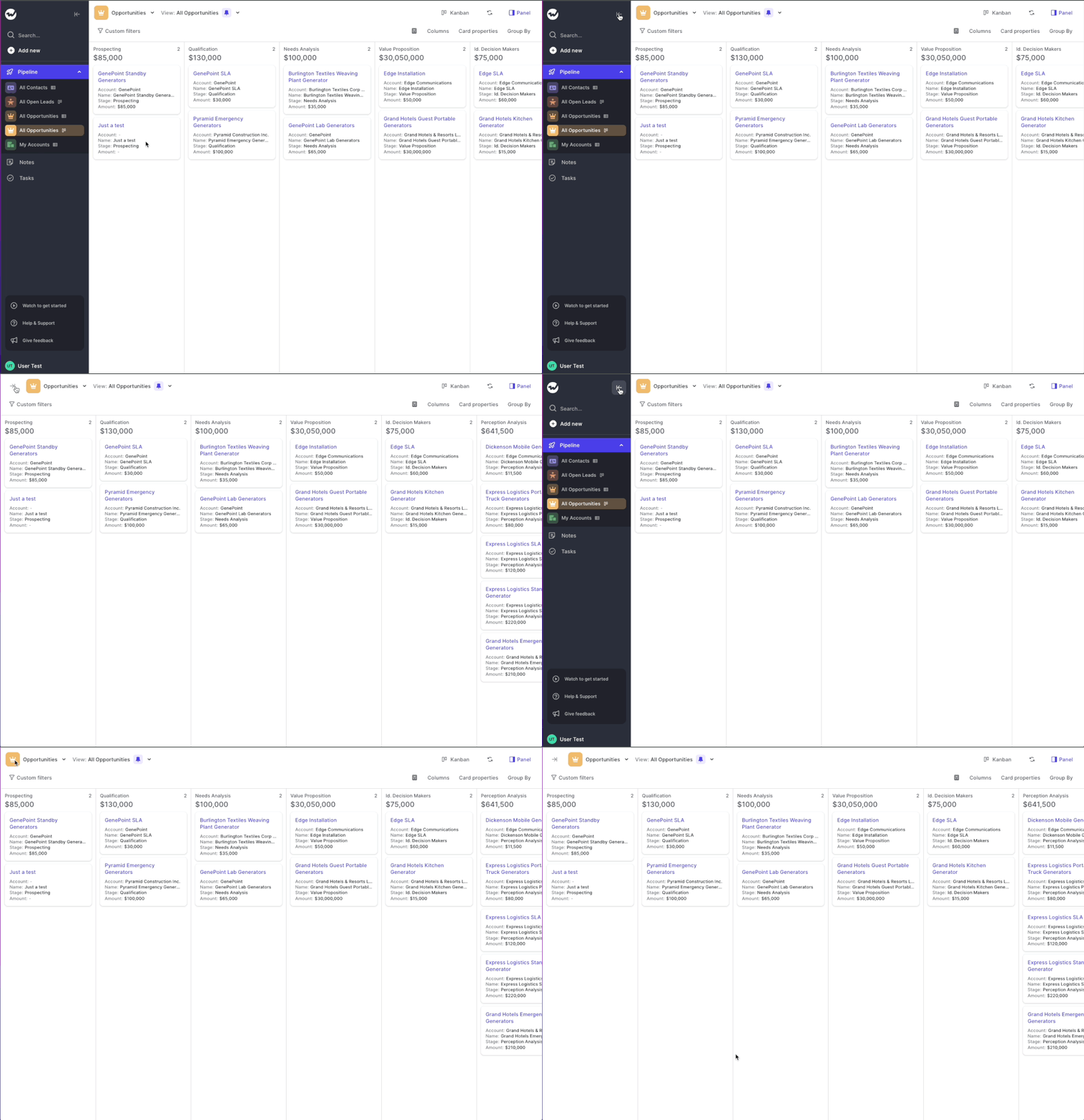
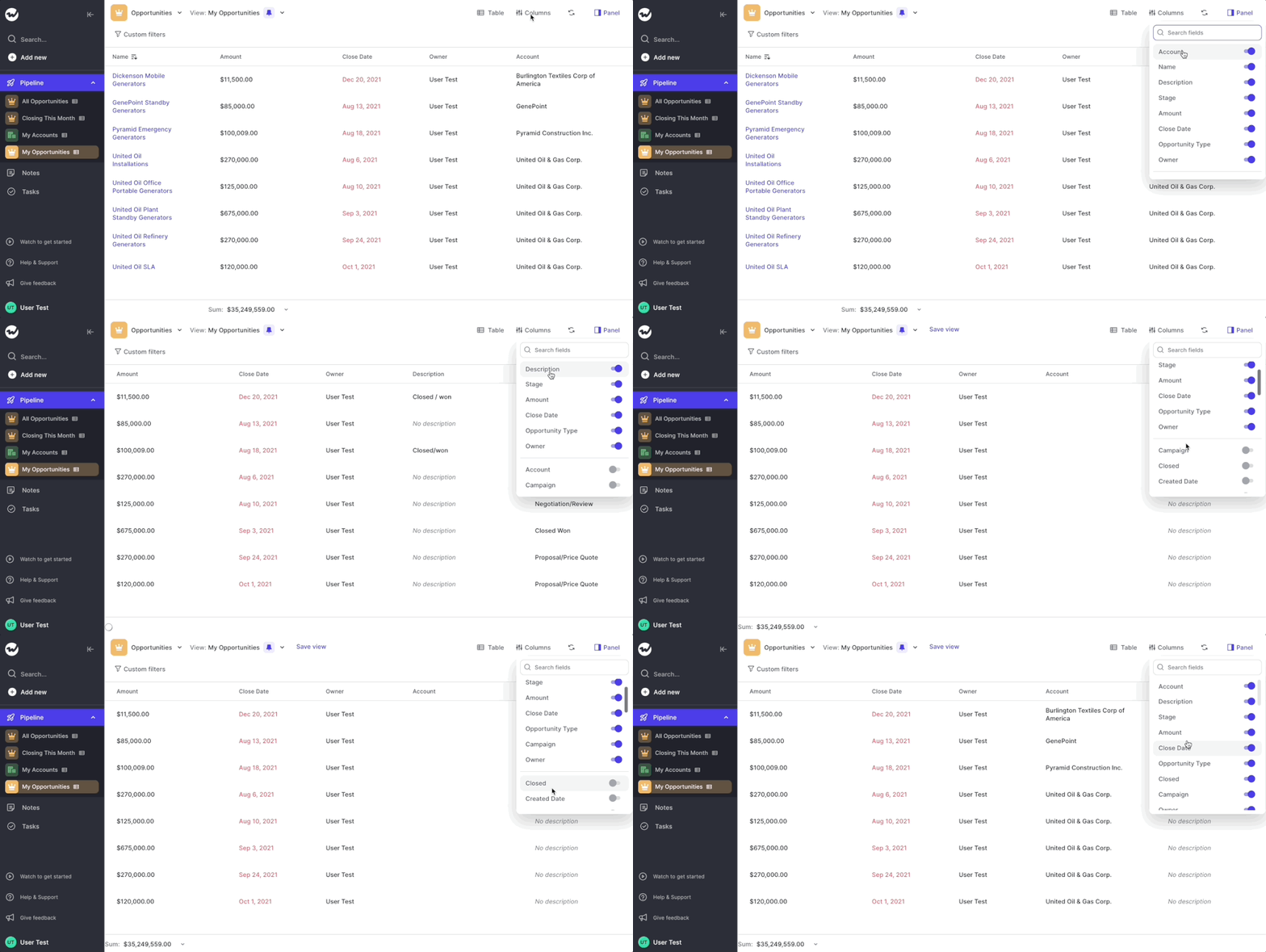
Smaller Sidebar = More Space
- As you can see, with version v1.15 we made the sidebar a bit smaller
- The goal of this resizing is to give you more space to navigate your pipeline

67 updates shipped in 2026339 all time
Showing April 2022 and earlier · Back to latest
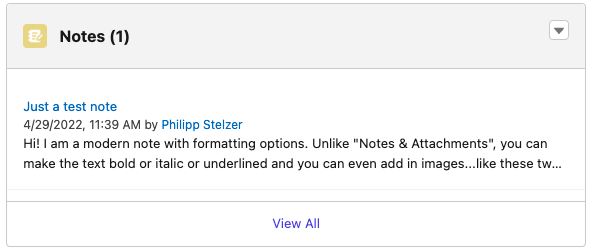
Did you know that there are different note types within Salesforce?
1) Notes & Attachments
2) Notes
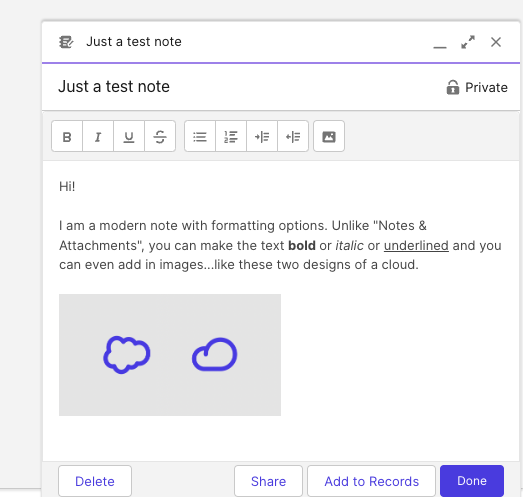
As you can see here, the newer note type features formatting options:
In Weflow, you can now choose how you want your notes to be snyced to Salesforce. Either into the "Notes & Attachment" or into "Notes" i.e. Content Notes. Of course, notes from Weflow will also appear as formatted notes if you choose the newer "Notes" type.
If you have questions about this option, please contact us at hello@getweflow.com. We are happy to assist you in setting you up for success.

We love listening to your feedback ❤️
That is why we re-worked the Weflow task manager from scratch. Previously, it was not always clear how to add a new task and there was no way to edit an existing task.
With the new flow, we now built a re-usable component that will find its way also into the upcoming "Activity Timeline" as well as our already existing Chrome Extension.
Check out this short video to walk you through the new design:
Often, the small details are what make a difference. This small update improves the usability of our app by improving these two things:
Based on your feedback, we made several changes to how changes to your pipeline views are either auto-saved or require a manual saving confirmation:
The following actions are auto-saved and overwrite the current view settings:
All these actions are commonplace and are expected to be persisted. On the contrary the actions blow are taking the currently loaded data and re-define them i.e. by using filters or switching from a Kanban to a Table view.
These actions are not auto-saved and require a manual confirmation by the user via the “Save” button:
Use CMD+J on macOS or ALT+J on Windows to launch the Weflow Search
The Weflow search is more than just a simple search. Here are all the things you can do with it:
Weflow search in itself is nothing new. However, now you can launch it more easily by hitting the CMD+J or ALT+J shortcut from anywhere in the Weflow web app.
If you have our Chrome Extension installed, you can use the shortcut ANYWHERE on the web to get quick access to your Salesforce records.
From today on, you can enjoy a more intuitive and generally easier to navigate note list design. What does that mean?
Got feedback on the new design? Let us know!
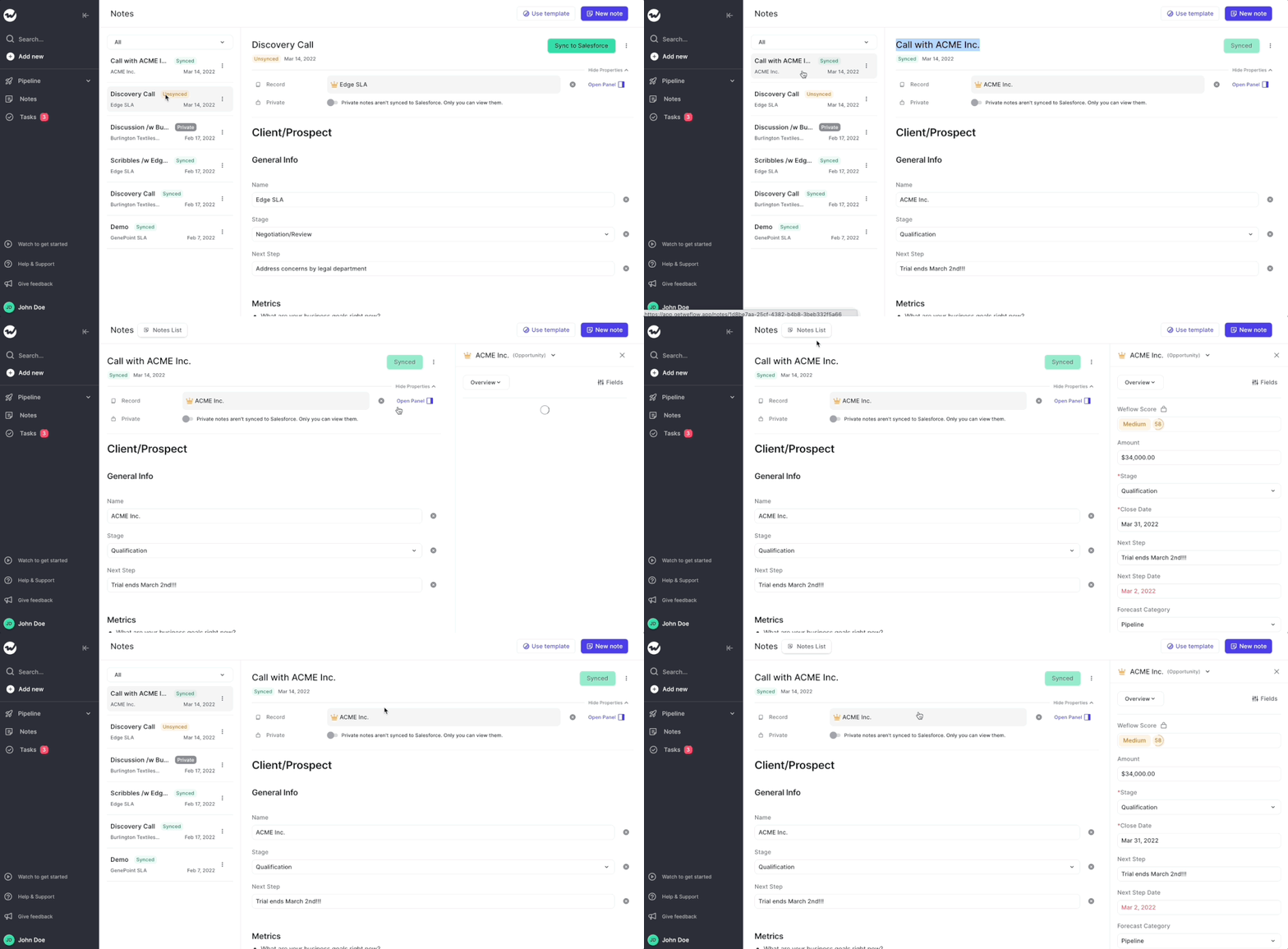
We hate unnecessary clicks. They cost only seconds, but they add up quickly.
From today, when creating a new note, we auto-select the title so you can quickly give your note a name. Once you hit Enter, we automatically save that title and move the cursor down into the body section of the note. No mouse clicks needed anymore.
Should you ever feel like Weflow forces you to make unnecessary clicks, do let us know. We'd love to clean that up for you.
Views are a powerful way to segment your data and work with 100% focus on your most important opportunities, accounts, contacts, leads…you name it!
Previously:
Now:
Bonus: We create 8 special views that will make it easy for you to navigate Weflow. Feel free to adjust them to your needs. Of course, we will continue to import your old Salesforce views as well. But we encourage you to create new ones if possible.
Got some time? Here is a 4 minute deep dive into using custom views in Weflow:
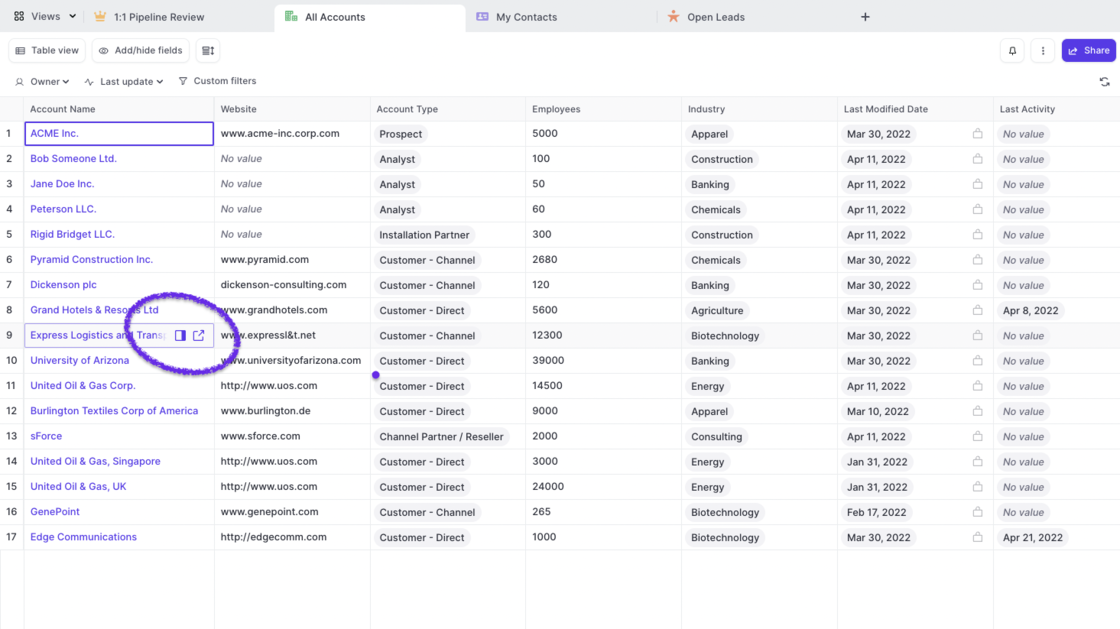
After releasing the first initial version of our table pipeline, we ran hundreds of tests with customers and first-time users. Based on their feedback, we now re-imaged how the table pipeline should look like.
With the initial designs, we tried breaking away from dull-looking spreadsheets which can easily overwhelm you and are sometimes hard to comprehend and navigate. However, we quickly realized that there are also many benefits that come naturally with the classic "spreadsheet look".
Take a look yourself:
Like it? Don't like it? Let us know at hello@getweflow.com 💌
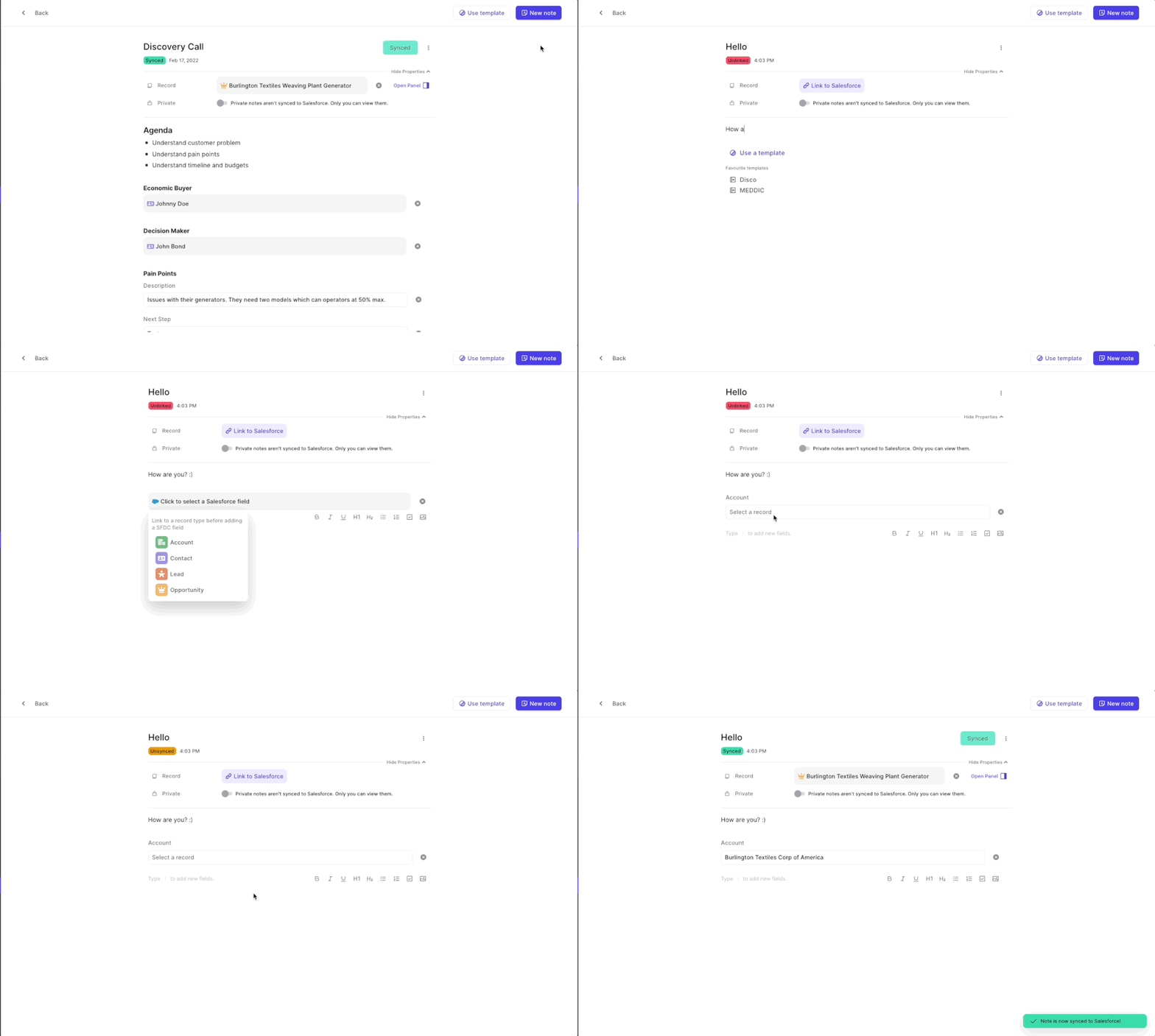
Changes to fields are now instantly shown in the panel and vice versa
Please note: Updates to Salesforce fields in notes are only synced if you manually hit the "Sync to Salesforce" button at the top of the note
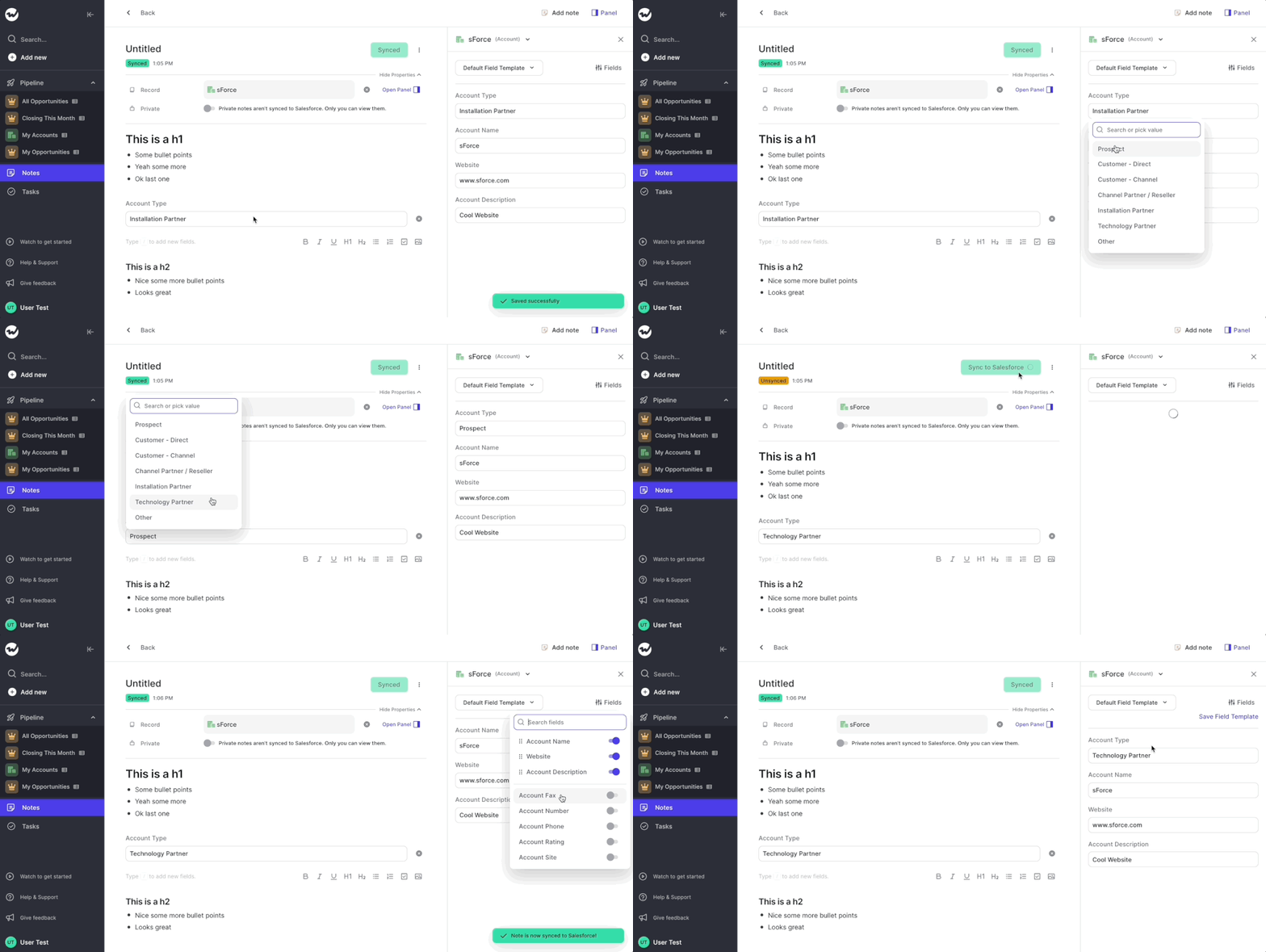
You can now see the active fields at the top when adding columns or card properties to the pipeline views
The help and support section at the bottom left of the sidebar navigation has been re-designed. It's a small tweak including a reduced font size and a transparent background so that it embeds more nicely into the overall app styling.
Field sets feature more fields now per default in the panel.
The following fields have been added to the default fields in the panel:
Opportunities: Last Activity
Contacts: Account
Accounts: Industry, Revenue, Employees, Last Activity
If you have any feedback on the default templates, let us know.
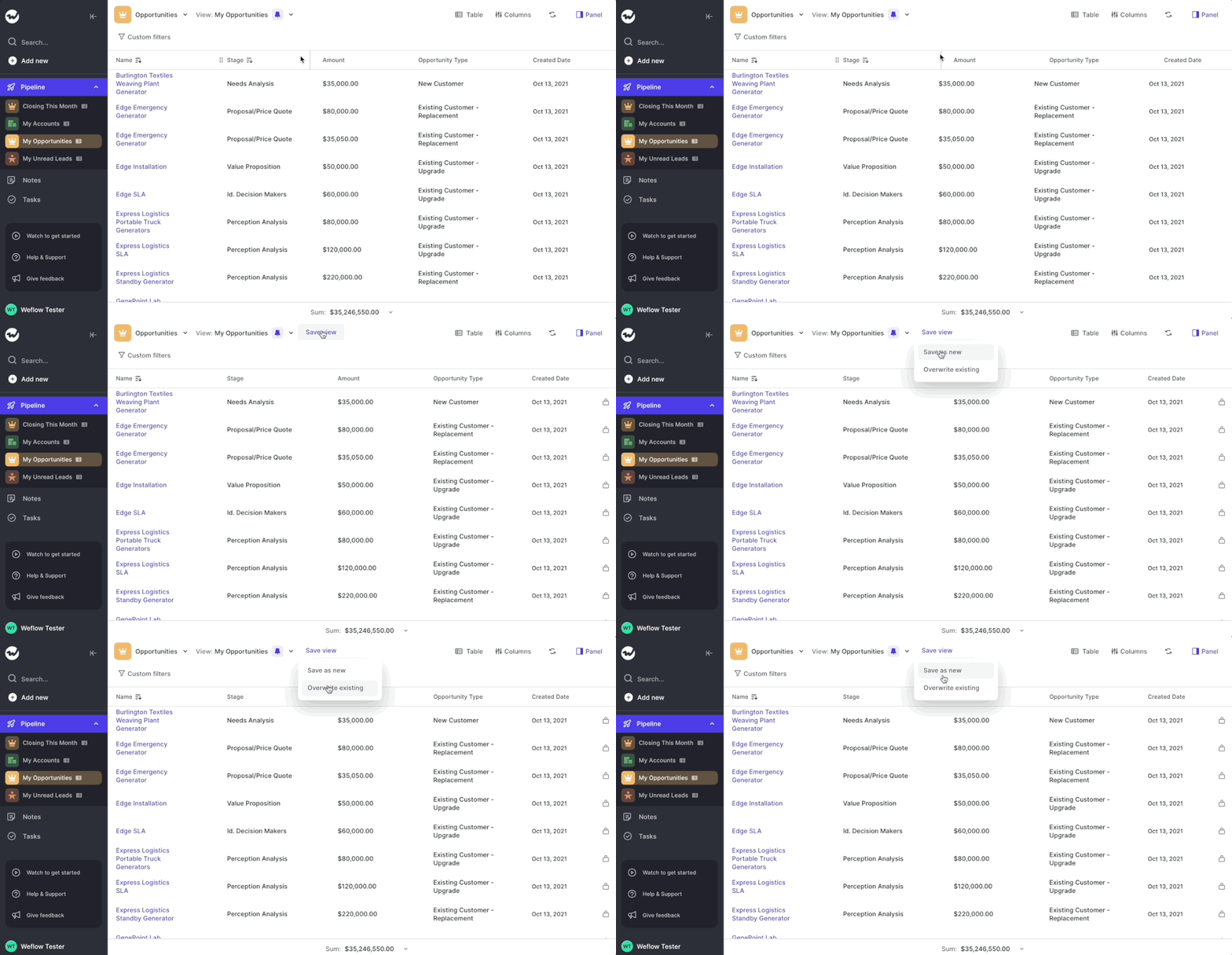
We admit it…saving views was not super intuitive in the past. This update makes saving new views or overwriting existing ones much easier.
Now, everytime you make a change to one of the following aspects of the pipeline, you can choose to overwrite the saved view or save it as a new view:
We hope this is transparent and simple for you. If not, let us know.
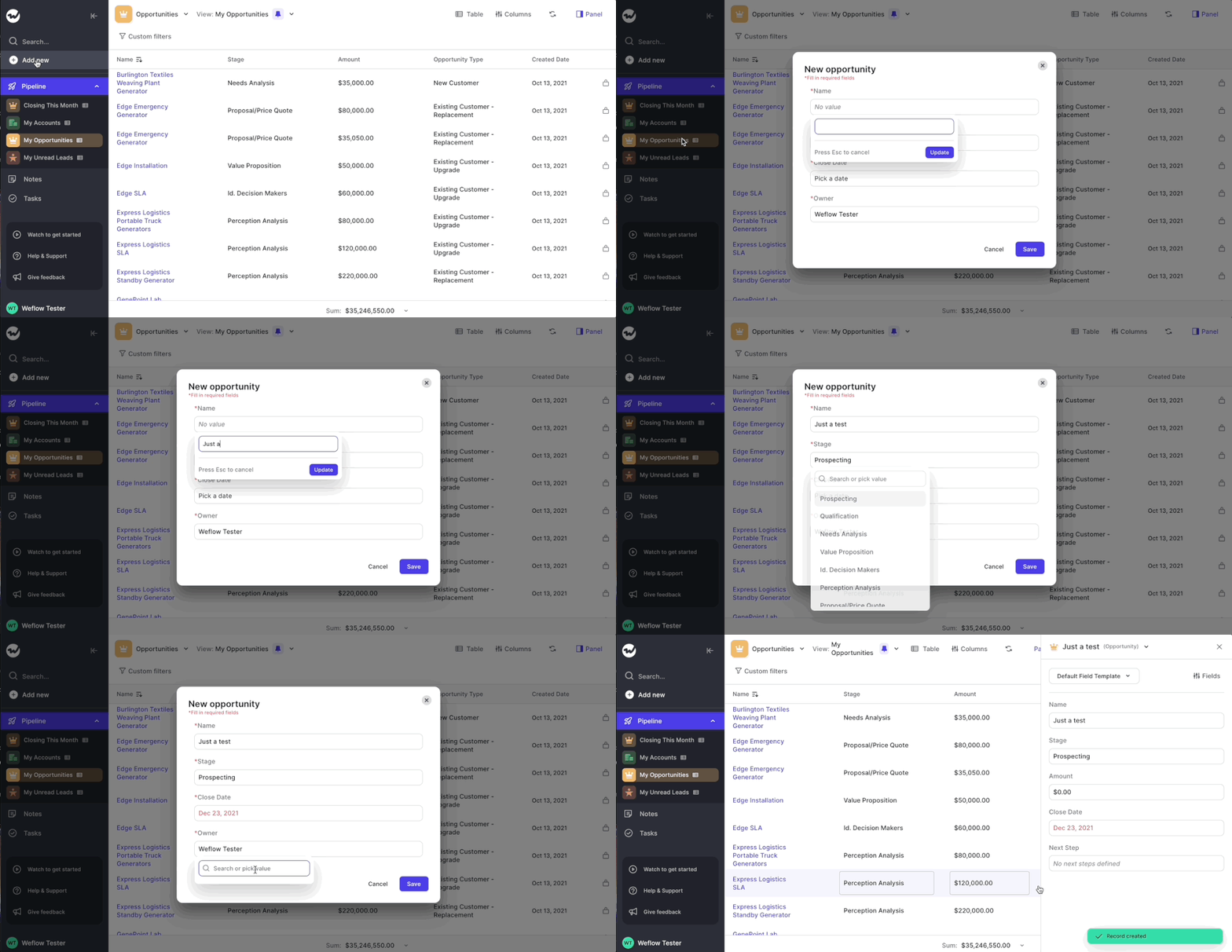
Weflow now auto-selects the first input field when creating a new record and automatically jumps to the next line once you hit enter.
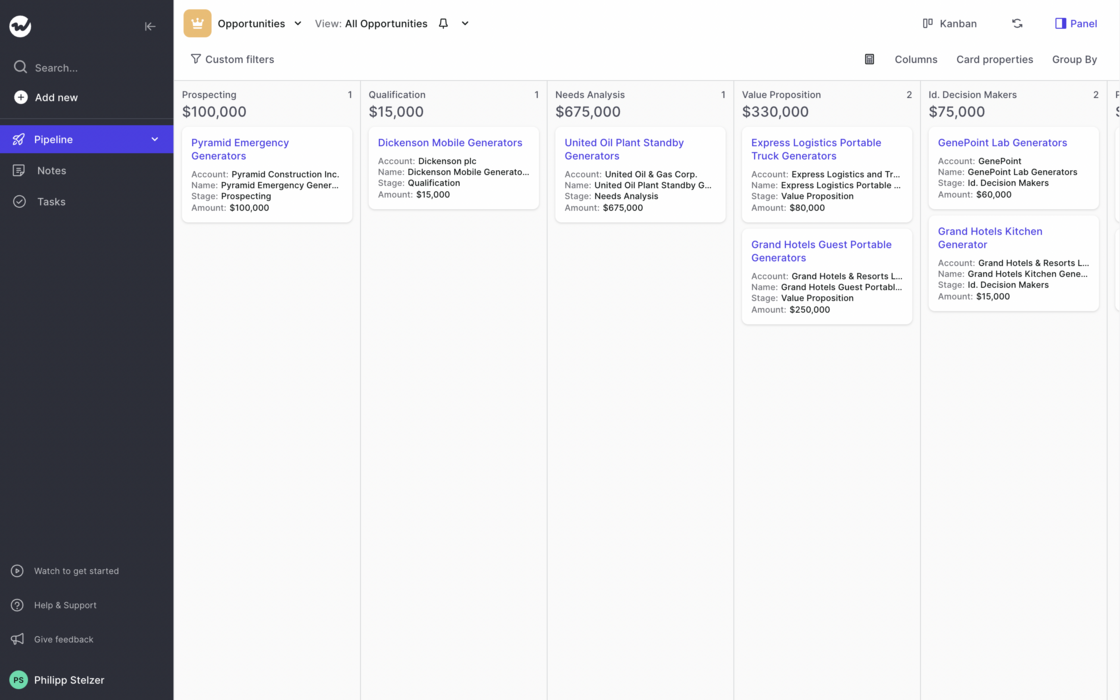
You can now add up to 8 properties on Kanban cards.
This was commonly asked for by you, our beloved customers. We listened, we fully agreed, we built, we shipped 🚀 Thank you for your feedback 👍
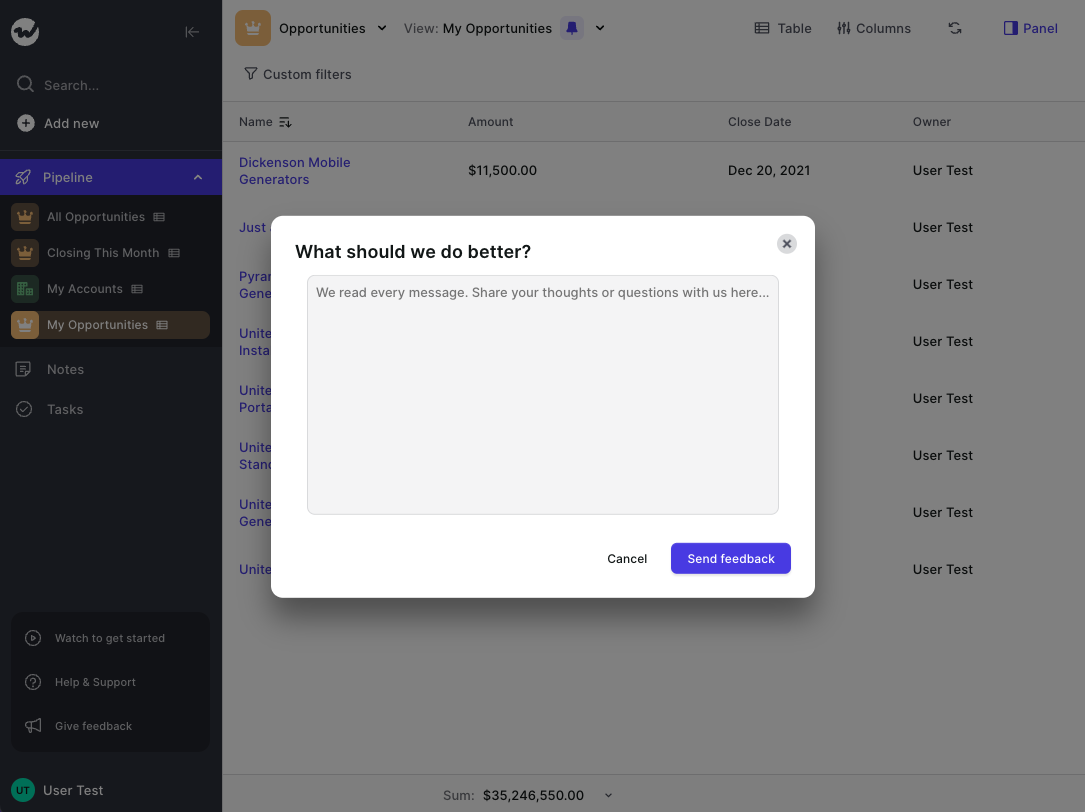
Send your feedback directly from the Weflow app.
You can now send your feedback, questions or ideas directly from the Weflow app. Simply hit the "Give feedback" button on the left side in the menu.
In addition, we now surface fast access to our help & support articles as well as a short 4-minute video to help you get started:
Toggle the menu to use Weflow's full screen mode.
Need a full-focus mode for your weekly sales review meeting? We got you covered. Enable the full screen mode by toggling the menu via the arrow button at the top. It's quick and simple. Just as we like it.